Product
This feature enables the creation of a coupon that is directly linked to a specific product. When the coupon is scanned or applied during a sale, the associated item is automatically added to the transaction at no cost. This feature is commonly used for free item promotions tied to coupons.
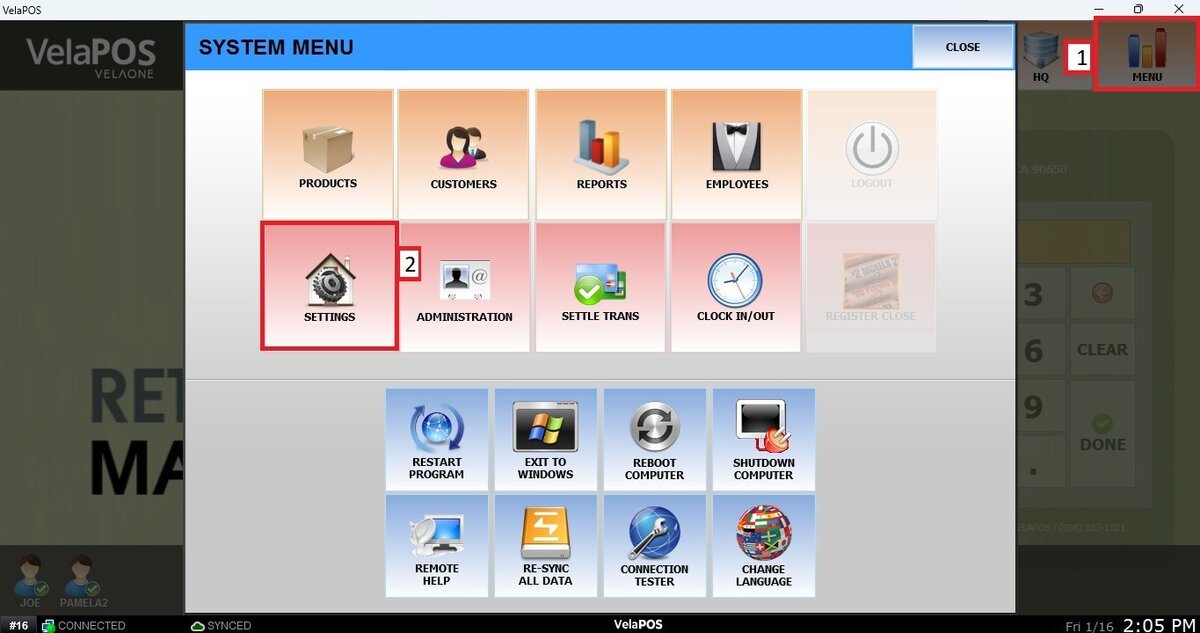
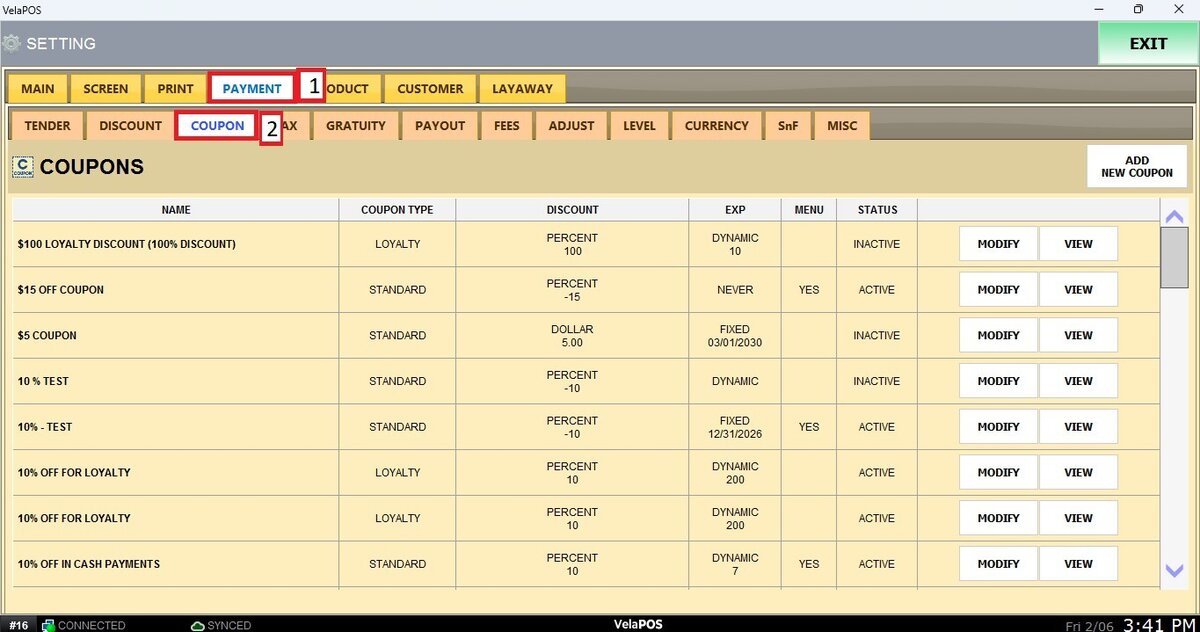
Main Screen>MENU>SETTINGS>PAYMENT>COUPON
Go to MENU and press SETTINGS.
Go to the PAYMENT tab, click on COUPON.
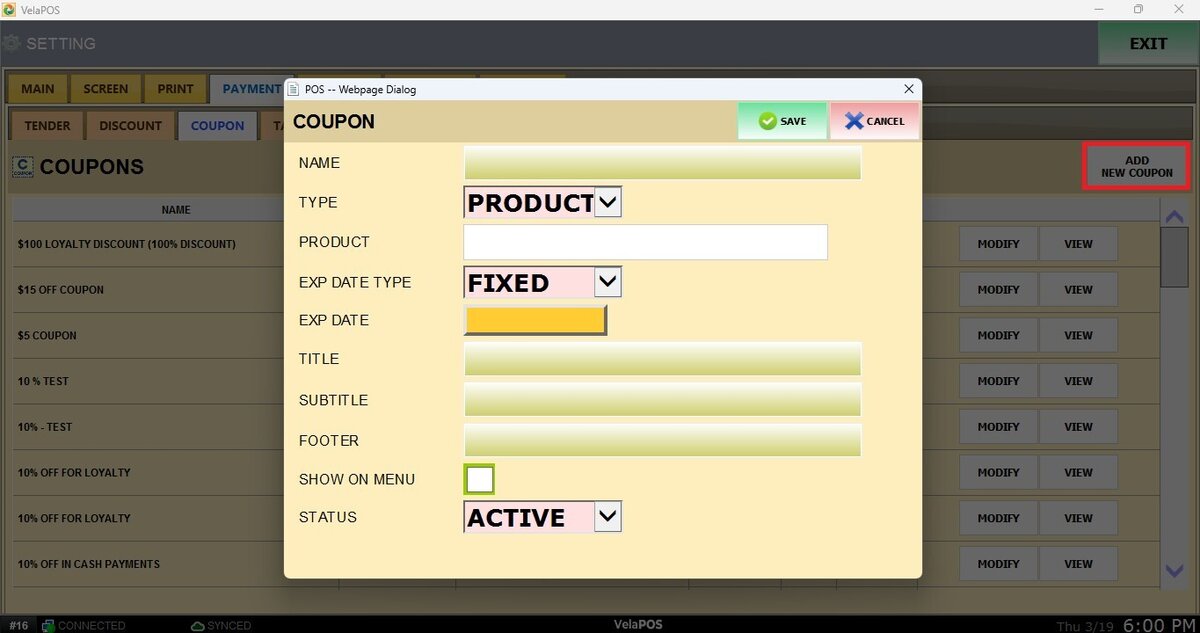
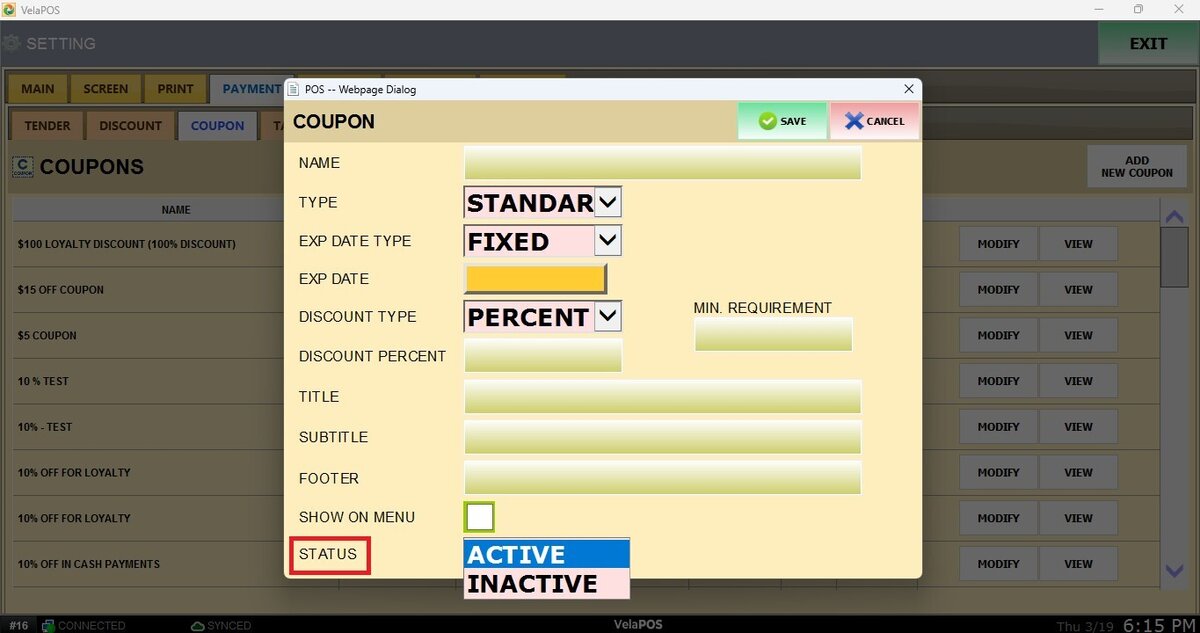
Click ADD NEW COUPON. A configuration window will open to enter the coupon details.
NAME: Enter the name of the coupon.
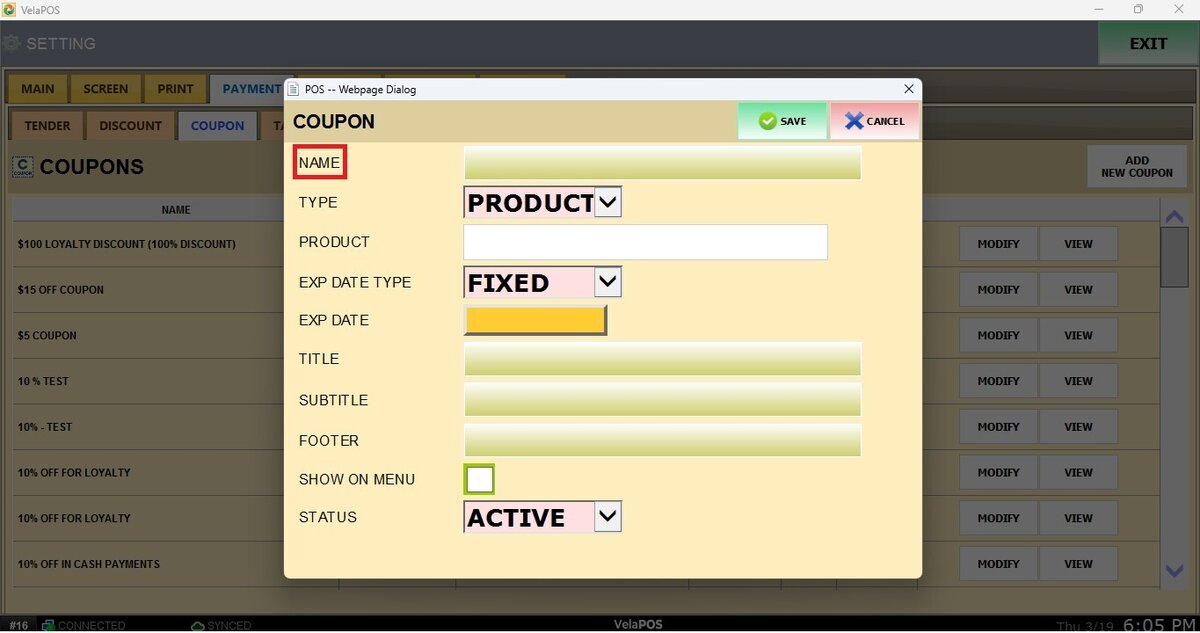
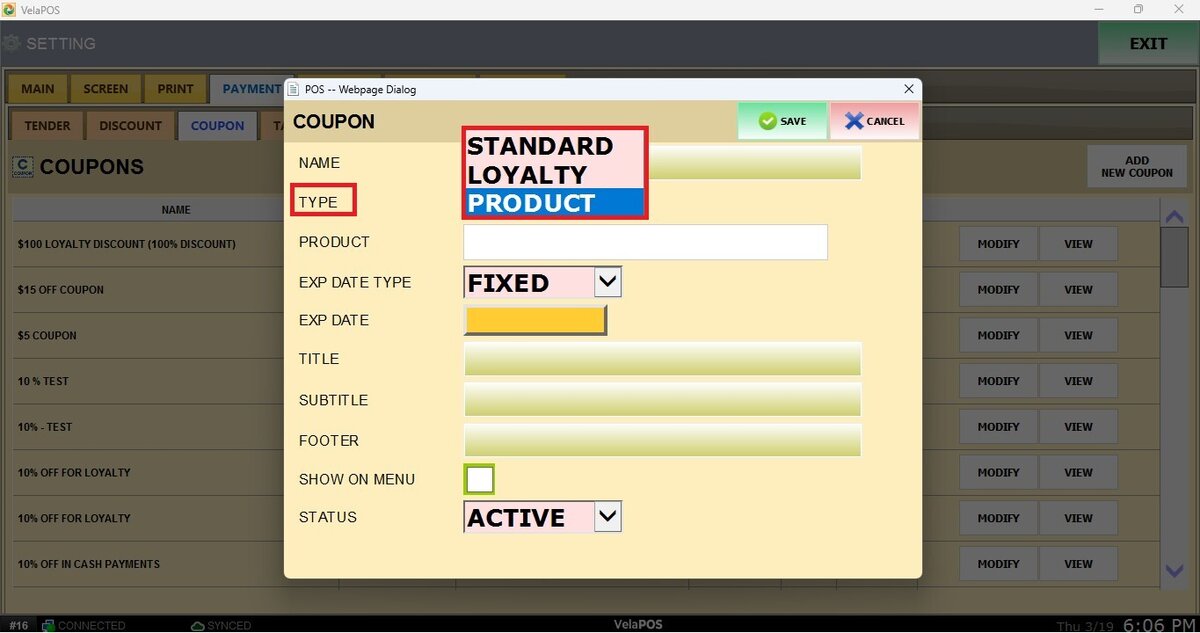
TYPE: From the dropdown menu, select PRODUCT. (For other types, see Standard Coupon and Loyalty Coupon).
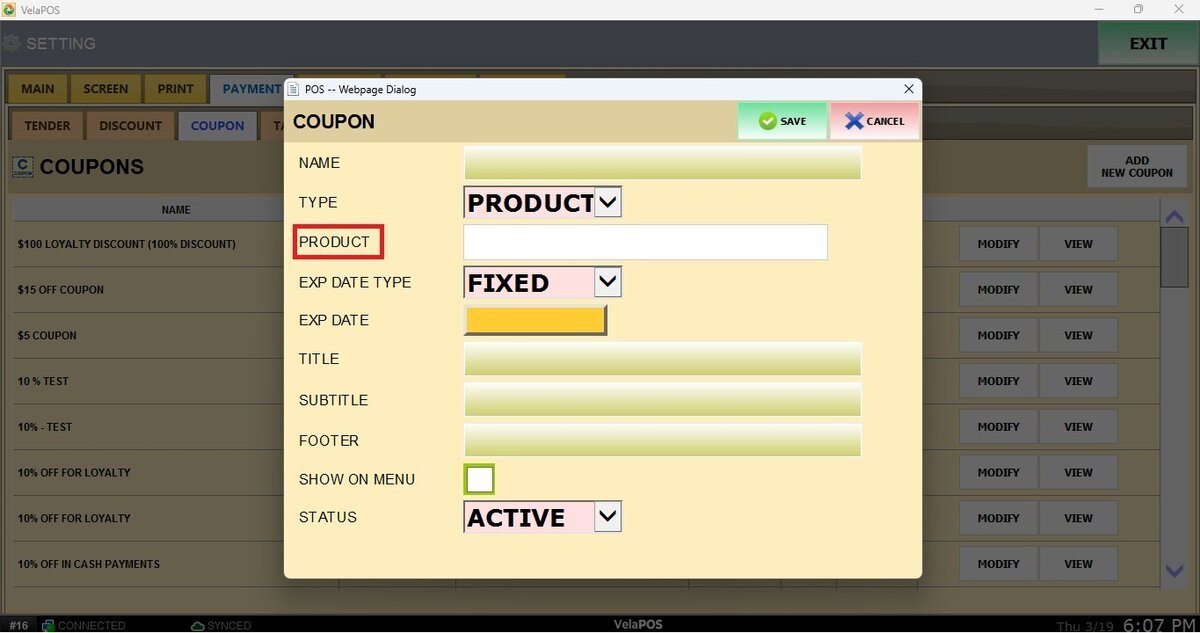
PRODUCT: Select the product you want to be linked to the coupon.
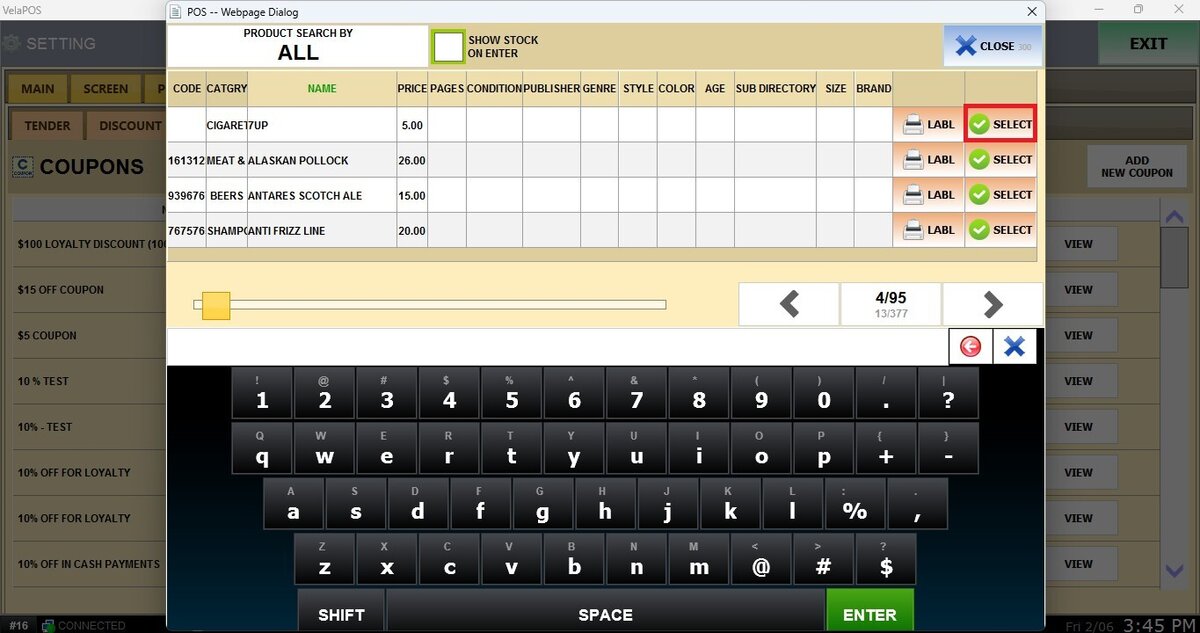
Click the blank space to search the Product.
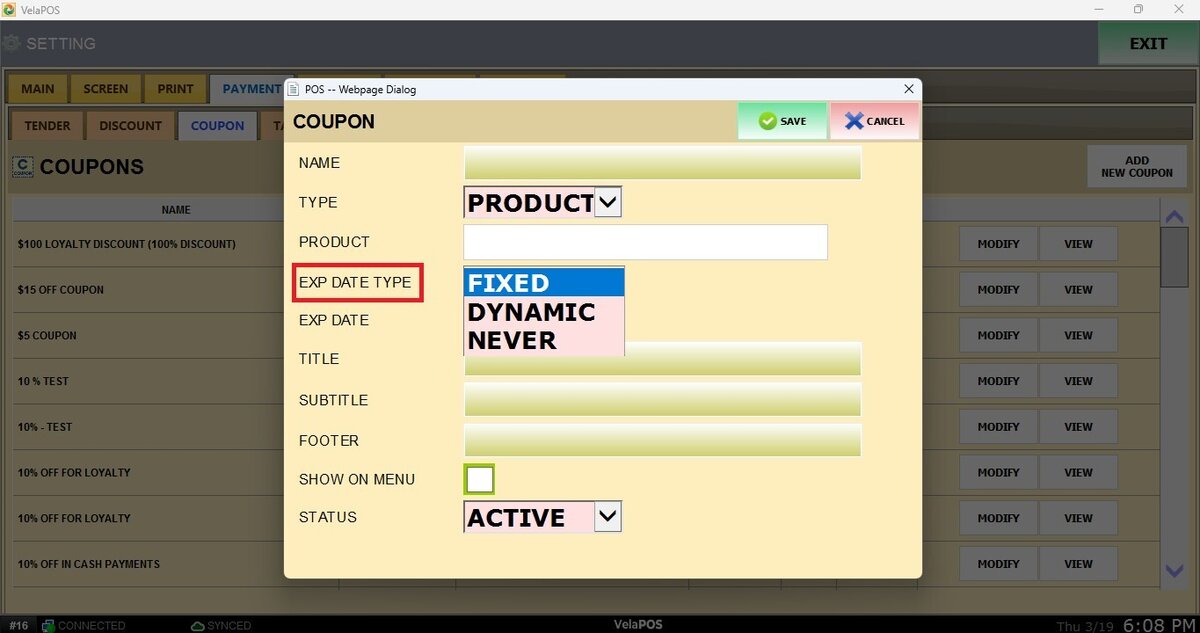
EXP DATE TYPE: In the dropdown menu, select how the coupon expiration will be handled:
1. Fixed: Select a specific expiration date.
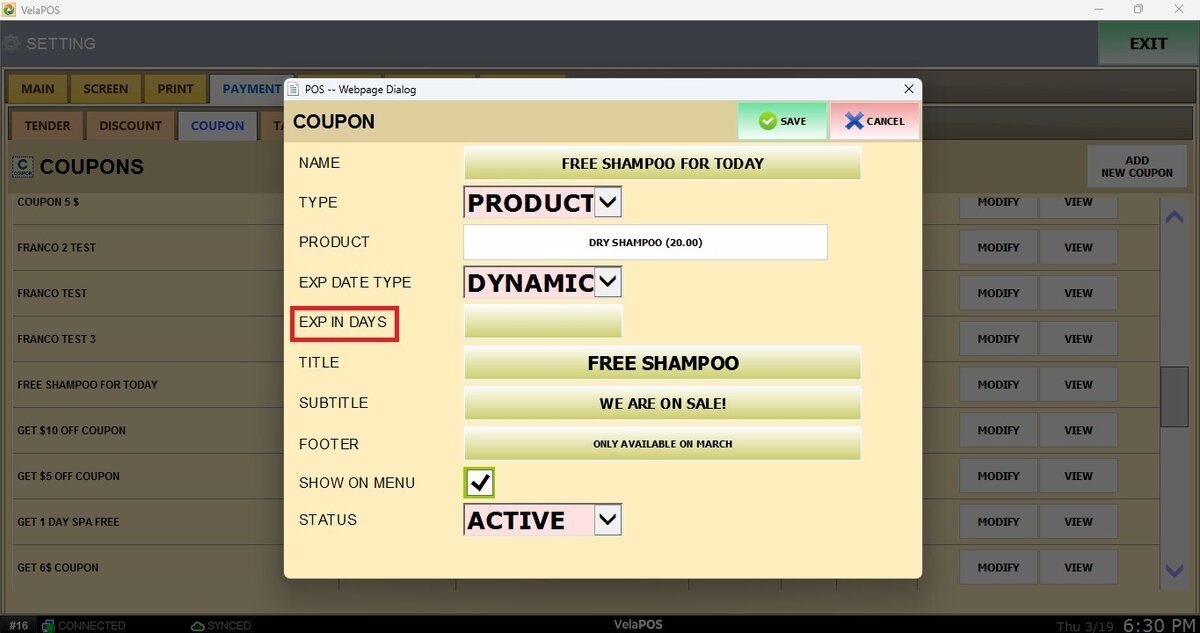
2. Dynamic: Define the number of days before the coupon expires from the setup date.
3. Never: The coupon will not expire.
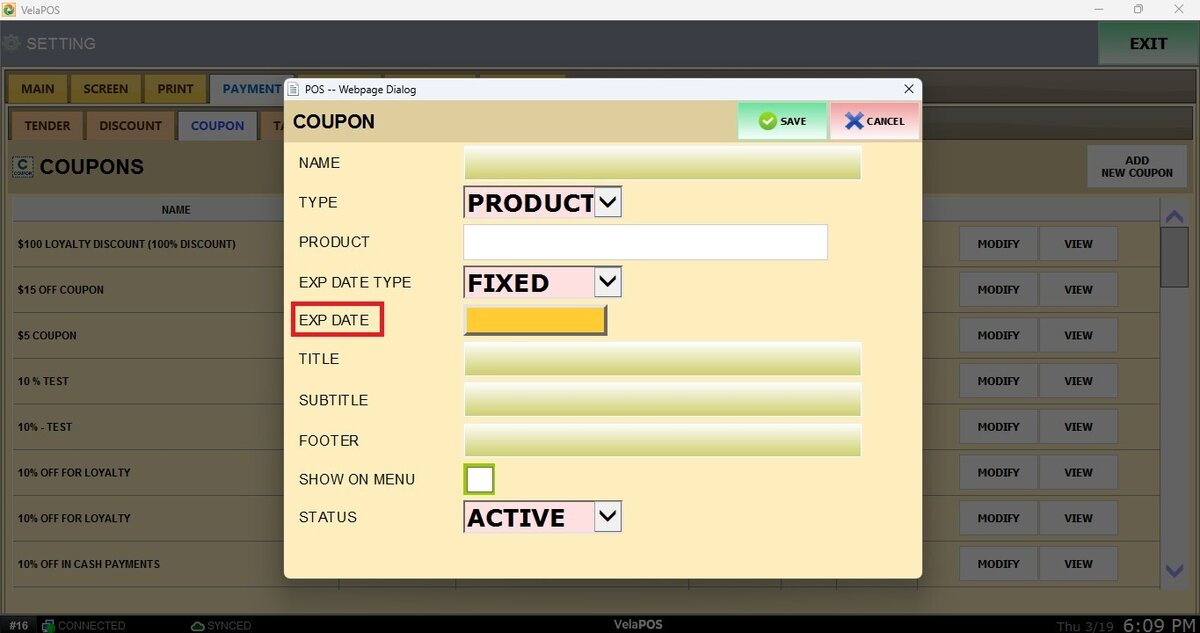
EXP DATE:
1.Fixed: Opens a calendar to select the expiration date.
2. Dynamic: Enter the number of days the coupon will remain valid.
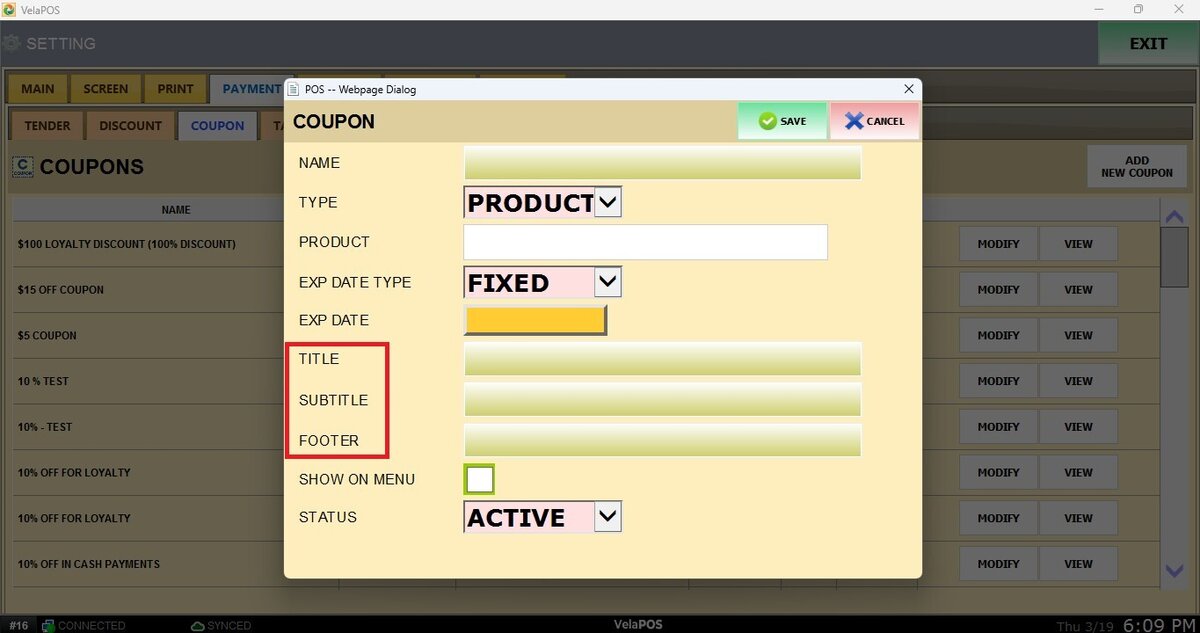
This sections cover the text that will appear on the coupon
TITLE: Enter the main title displayed on the coupon.
SUBTITLE: Enter the subtitle displayed below the title.
FOOTER: Enter the footer text displayed in a smaller font size.
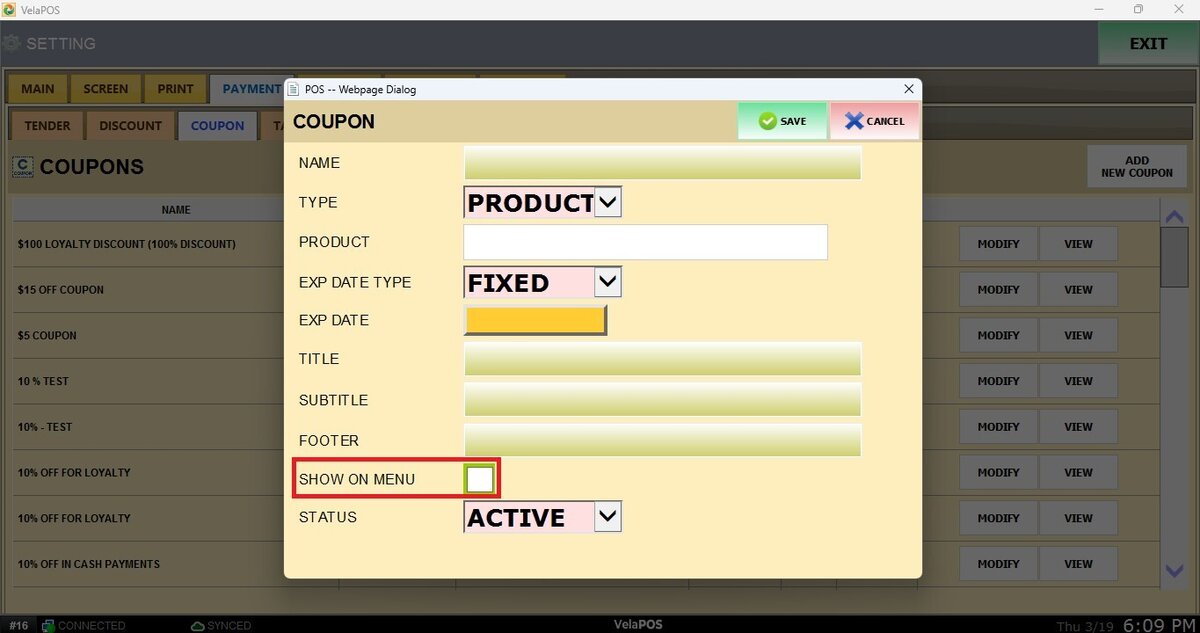
SHOW ON MENU: Check on the bow to enable this option to display the coupon in the discount window on the sales screen.
STATUS: Select whether the coupon is active or inactive.
After configuring the coupon, click SAVE and then RESTART THE PROGRAM to ensure the changes are applied correctly.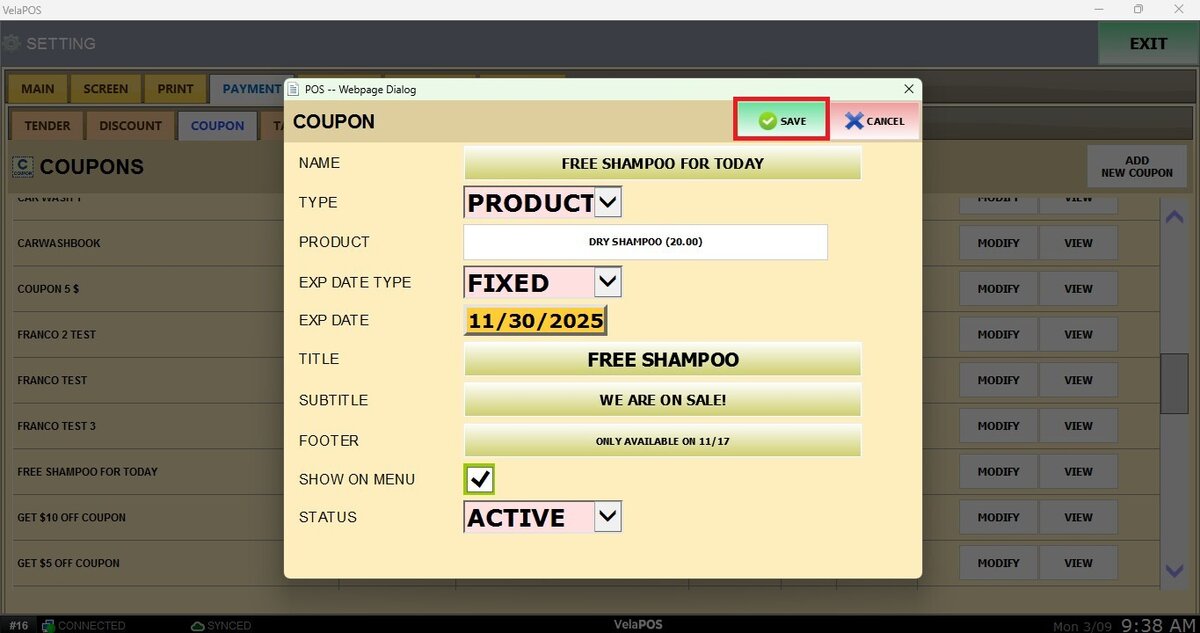
To learn how to use this coupon, please refer to Product Coupon