Setup Loyalty System
This article explains how to configure and enable the Loyalty Program from the system settings, including point rules, rewards, and customer notifications.
Main Screen> MENU> SETTINGS> CUSTOMER> LOYALTY
On the Main Screen, go to MENU and press SETTINGS.

Go to CUSTOMER and press on LOYALTY.
Check the box USE LOYALTY PROGRAM and choose POS as the loyalty system provider.

Point Based
In this section, point-earning rules, applicable restrictions, and available coupons can be configured. It also allows defining coupon redemption requirements, coupon receipt printing behavior, and how points interact with discounted items when used as rewards or as a payment method.

1. REWARD FOR: Select how customers earn rewards, either for PURCHASE or VISIT.
2. 1 POINT FOR: Define how many points are awarded per dollar spent. For example, entering 1 awards 1 point for every $1 spent, while entering 5 awards 5 points for every $1 spent.
3. RESTRICTION: Sets the minimum amount spent needed in the purchase or the minimum hours needed in between purchases for the customer to start receiving points.
4. COUPON: Select which loyalty coupon will be rewarded to the customer automatically once they reach a customizable amount of points. To learn more about loyalty coupons, refer to Create a Loyalty Coupon. Selecting the Store Specific box applies the coupon configuration solely to the configured store.
5. POINT REQUIERED FOR COUPON: Set the minimum number of points required for a customer to gain a loyalty coupon.
6. PRINT POINT: Choose how loyalty points will be displayed and printed on the customer receipt. Select the preferred print size. If NONE is selected, points are not going to be displayed on the receipt. If an option with $VALUE is selected, the receipt will show the customer how much money they have earned in points.

7. REWARD ON DISCOUNTED ITEM: Enable or disable whether items that have a discount applied are eligible to earn loyalty points.
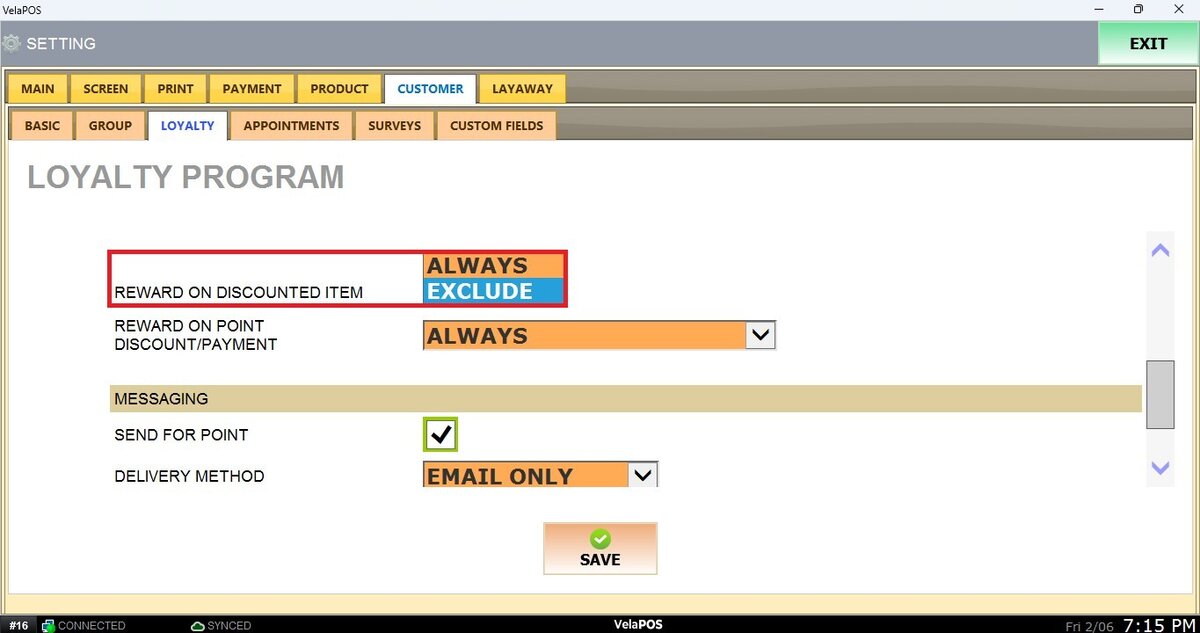
ALWAYS: If this option is selected, items with discounts applied will still be taken into account towards the final points gained count.
EXCLUDE: If this option is selected, items that have a discount applied will not be considered at the final points count.
8. REWARD ON POINT DISCOUNT / PAYMENT: Allows for determining whether customers gain or not points for transactions processed with the loyalty points tender.
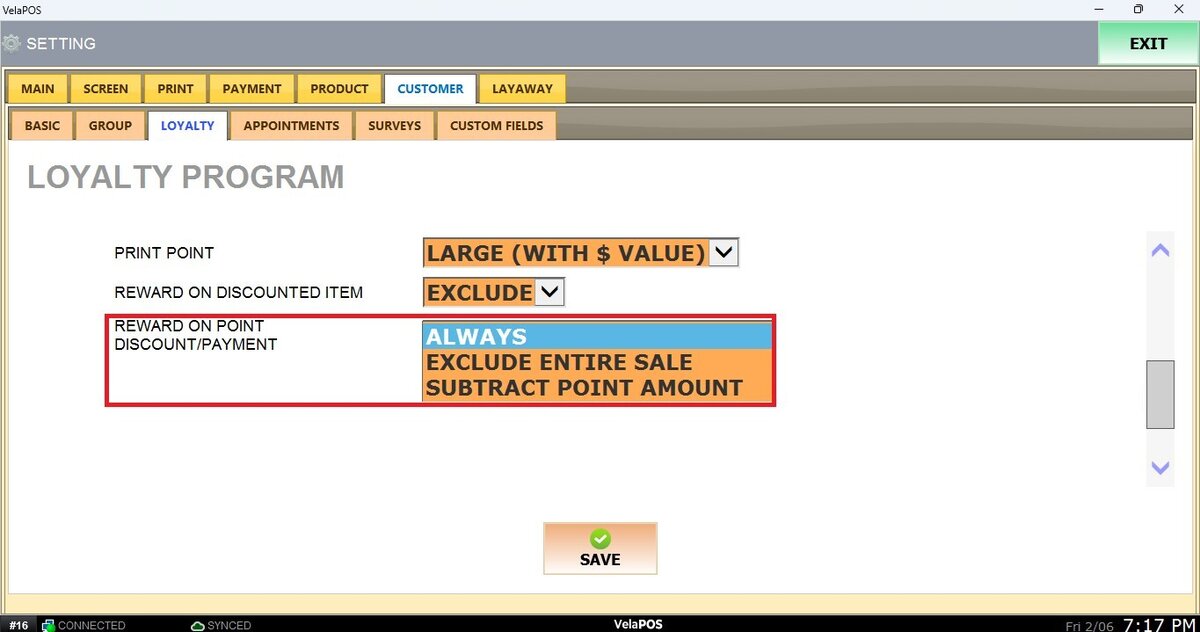
ALWAYS: If this option is selected, items discounted or paid using points will still be counted towards earning rewards.
EXCLUDE ENTIRE SALE: If this option is selected, the entire sale will be excluded from earning rewards when points are used as a payment method.
SUBTRACT POINT AMOUNT: If this option is selected, the system will subtract the number of points used in the transaction from the points eligible to earn rewards.
Messaging and time/event-based
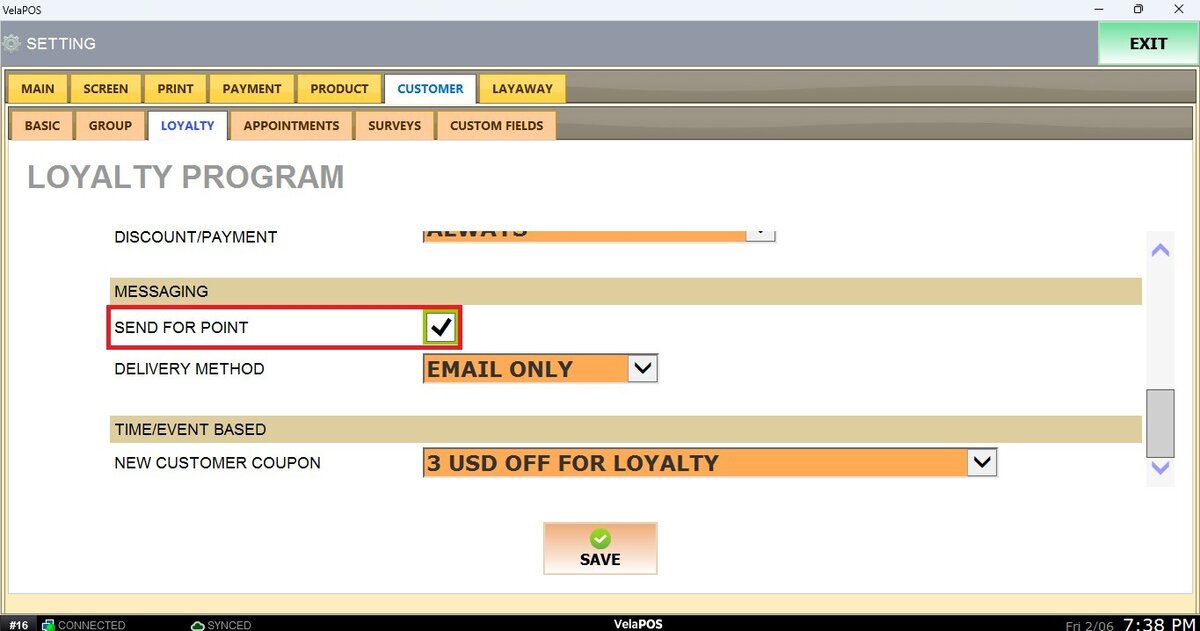
In this section, message sending behavior for earned points and the delivery method can be configured. It also defines which coupon is granted to a customer on their first visit.
Send for Point: Enable notifications when customers earn loyalty points.
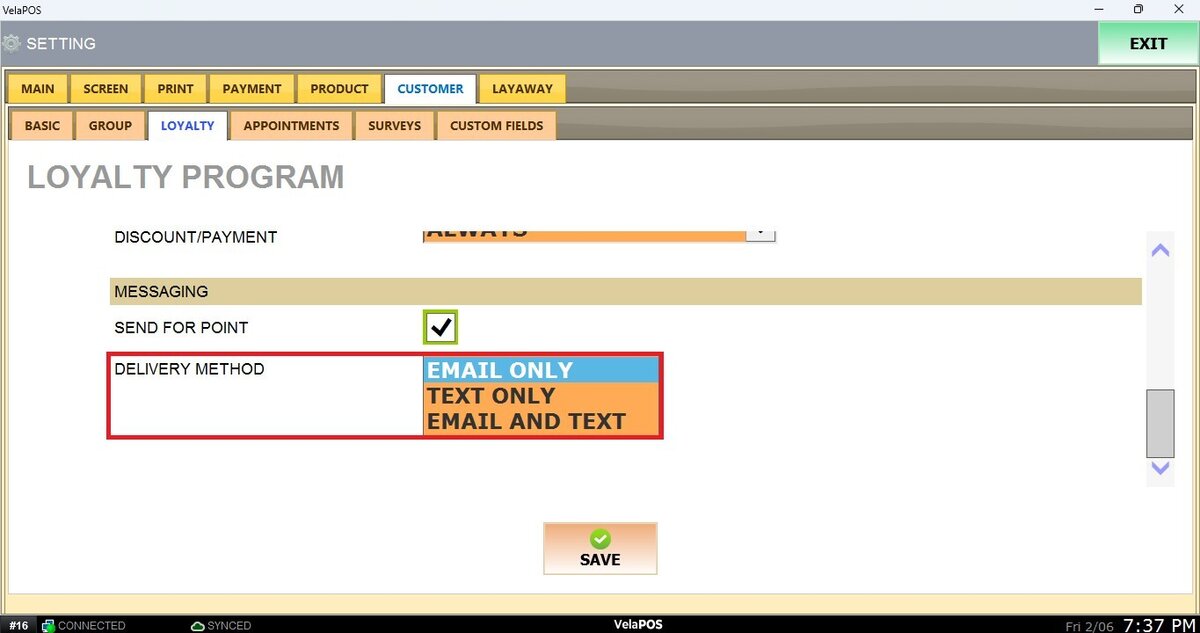
Delivery Method: Choose how notifications are sent, email only, text only, or email and text.
New Customer Coupon: Select which loyalty coupon will be rewarded to new customers on their first visit.

Don't forget to press SAVE and RESTART to apply any changes made.
To learn how customers can pay with the points earned, refer to Paying with Points.