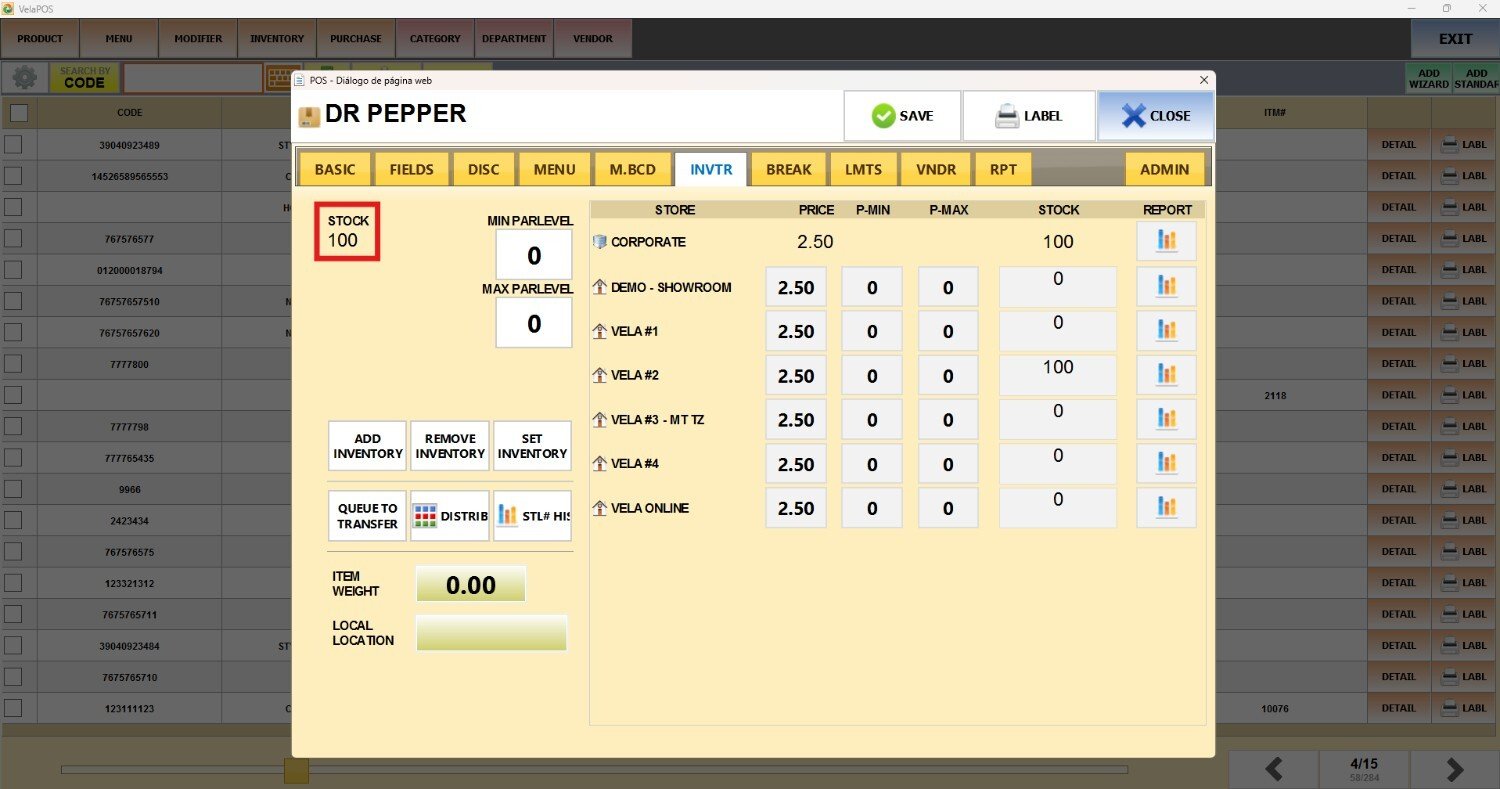
Add, Remove and Set Inventory
These functions allow you to quickly add, set, or remove stock from a product.
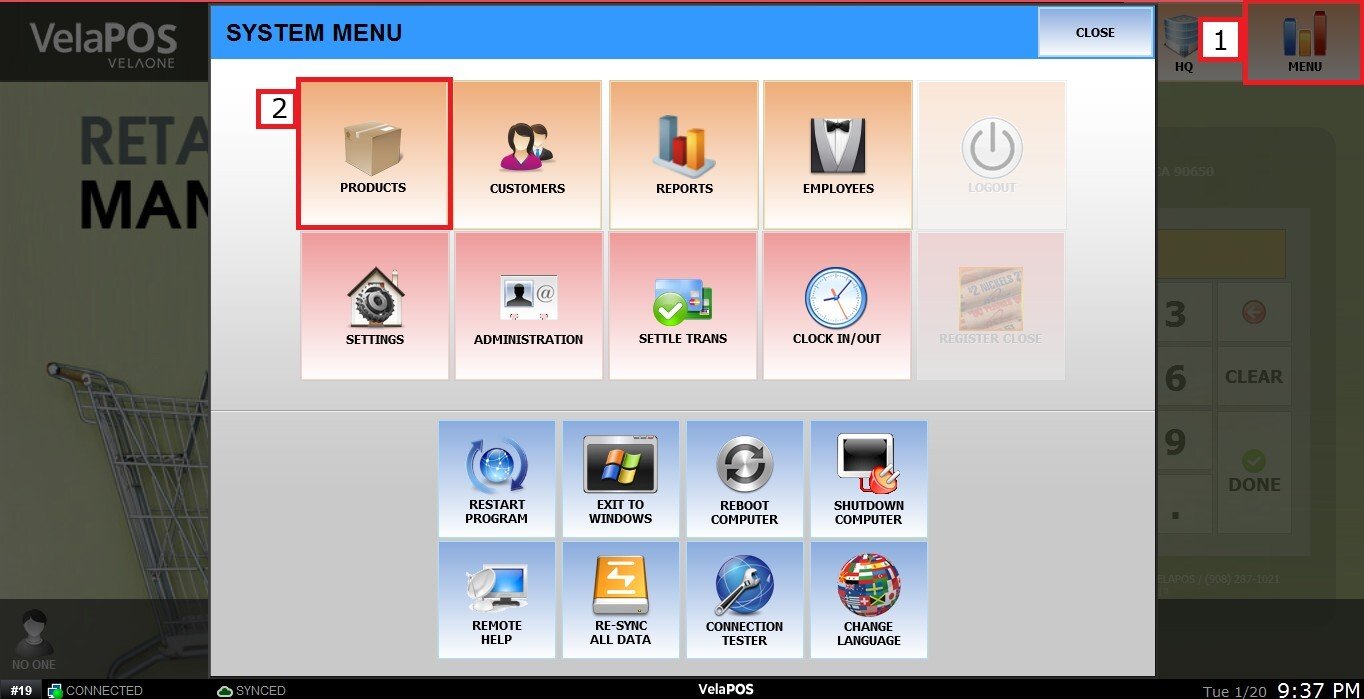
Main Screen> MENU> PRODUCTS> DETAIL> INVTR
Click on MENU, then select PRODUCTS.
In the PRODUCT section, press on the product DETAIL.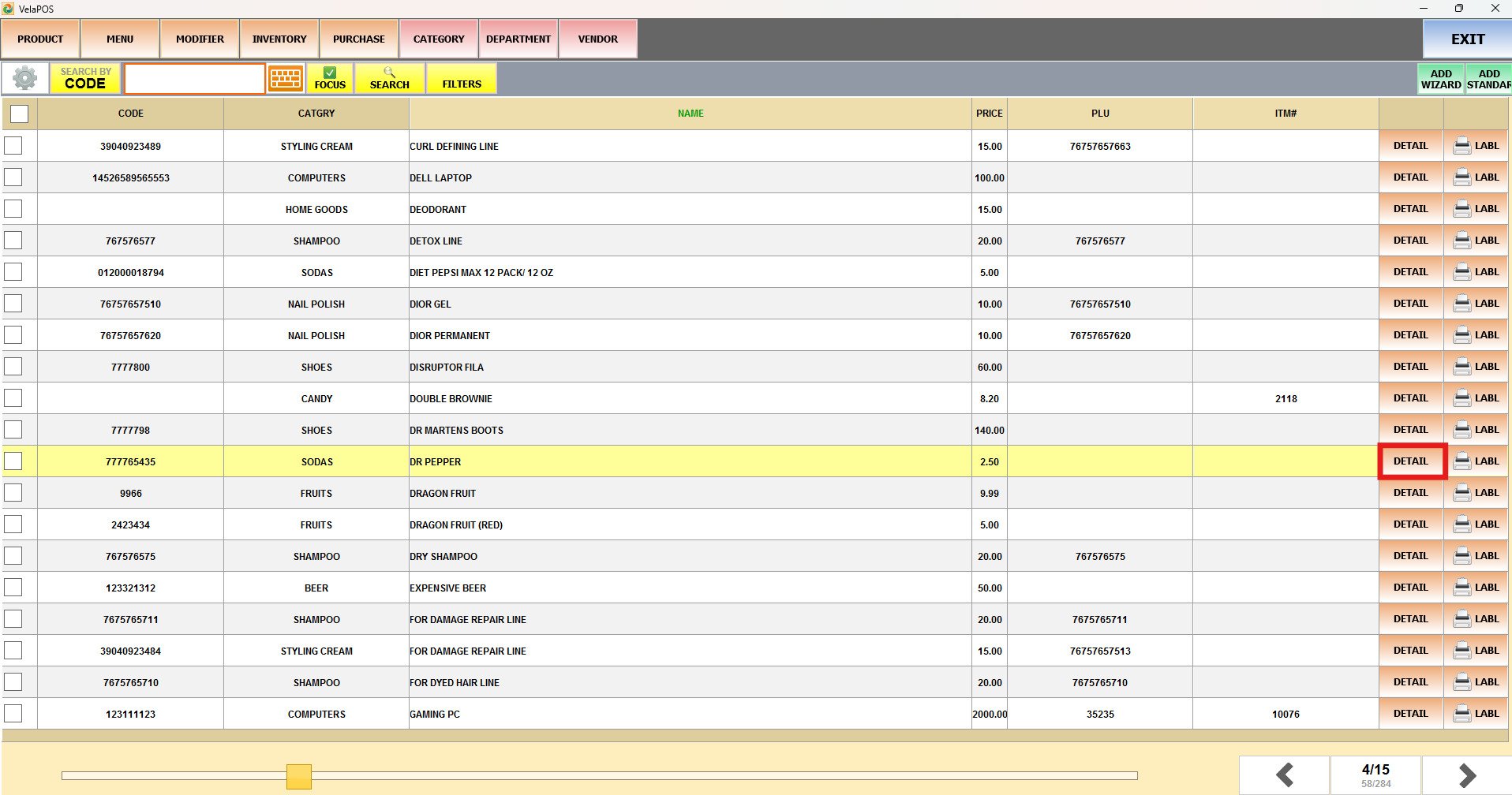
Go to the INVTR tab.
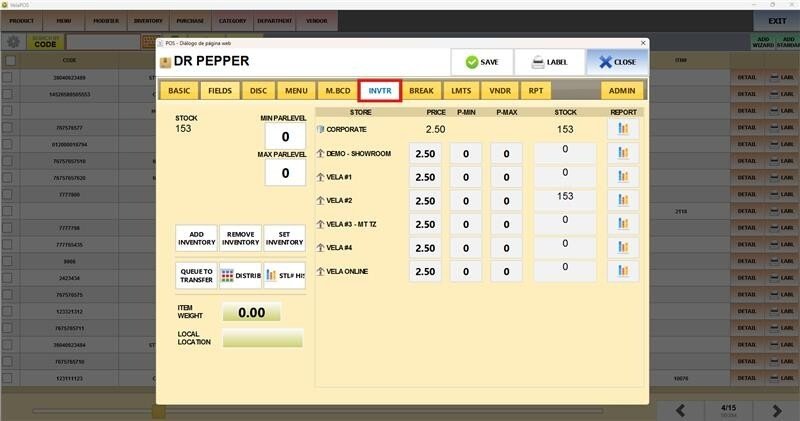
ADD INVENTORY
Press on ADD INVENTORY, select the desired amount, and press on DONE.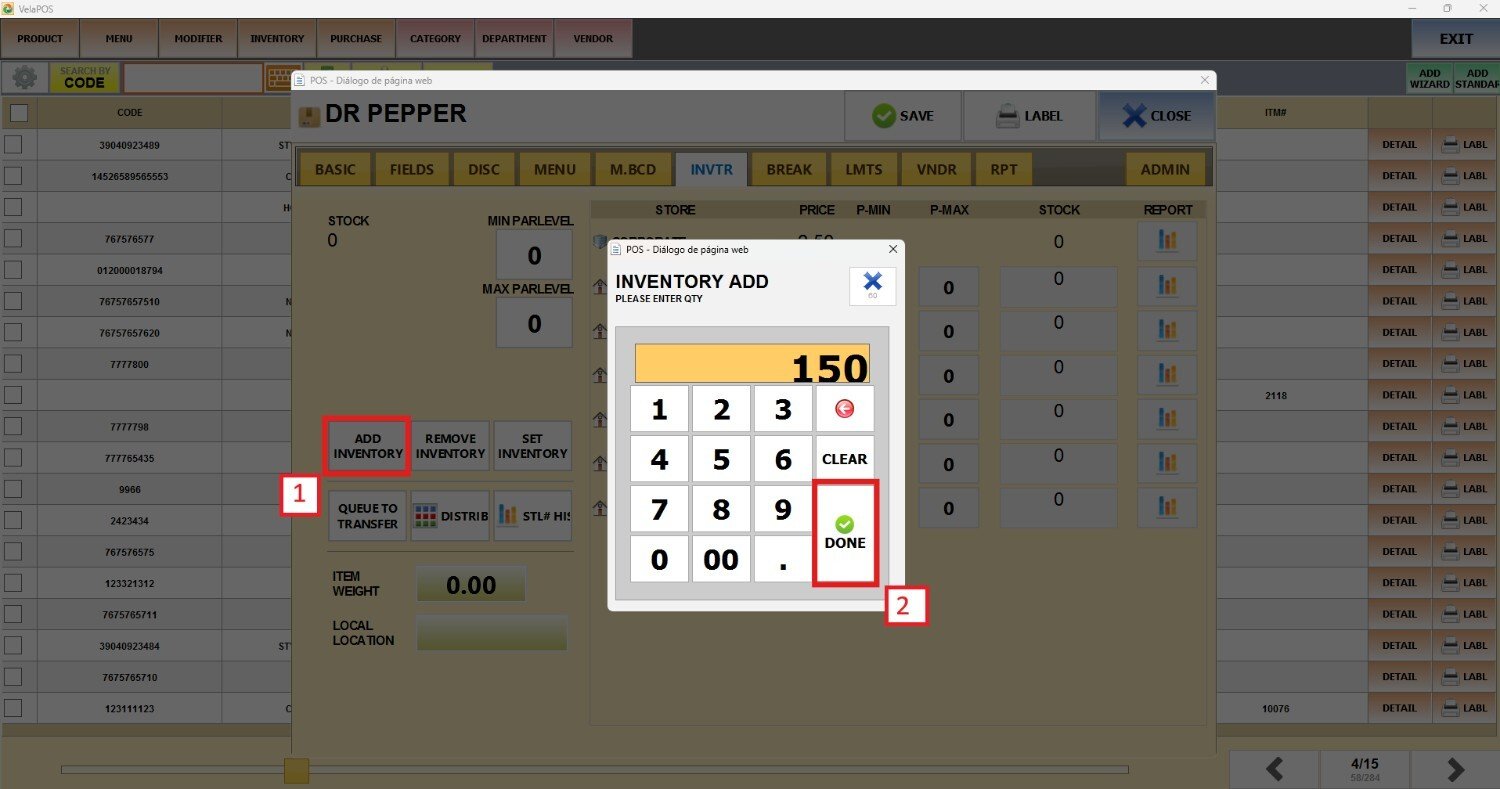
Result:
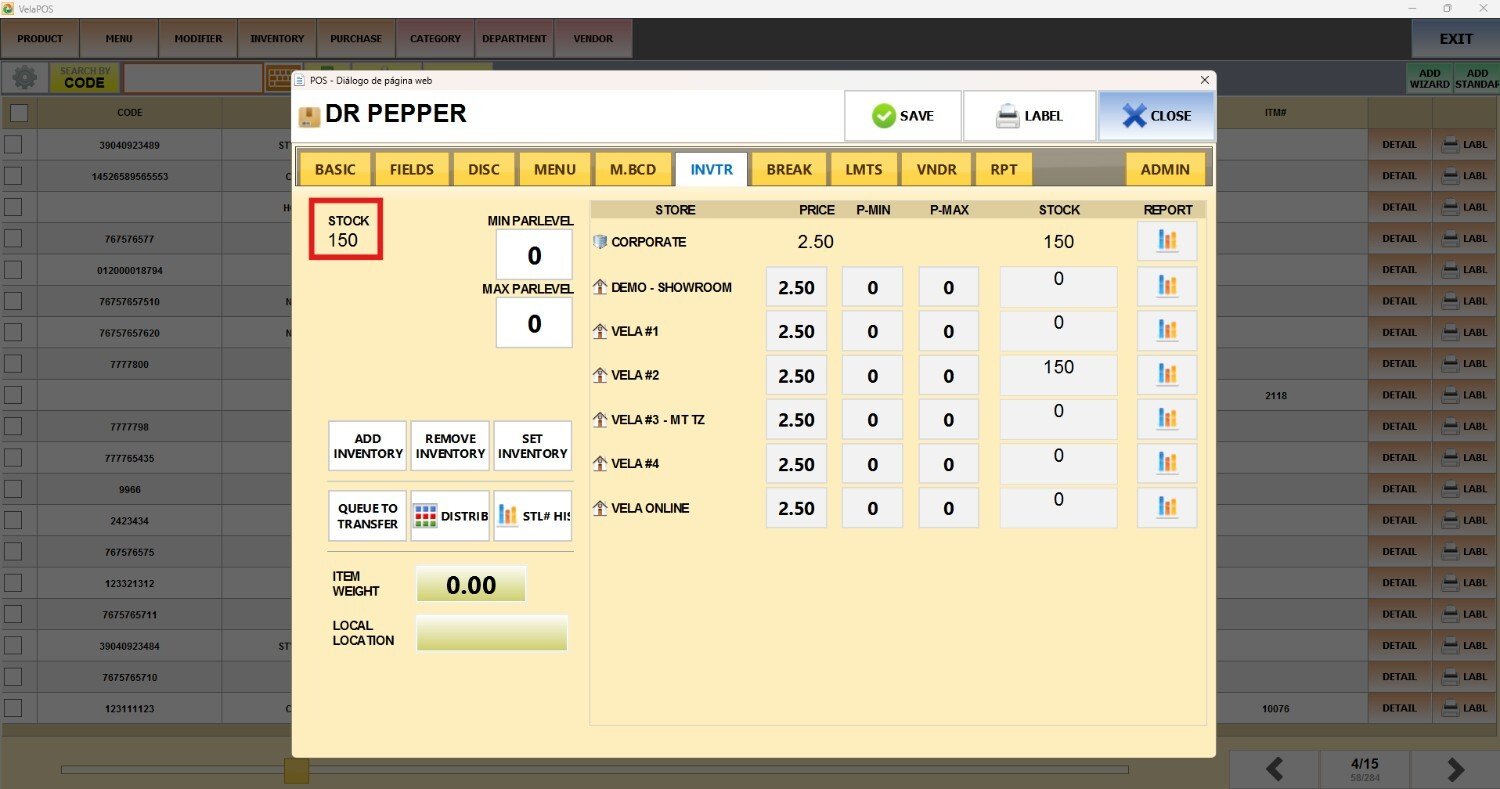
REMOVE INVENTORY
Press REMOVE INVENTORY and select between predefined inventory removal options to record the purpose. 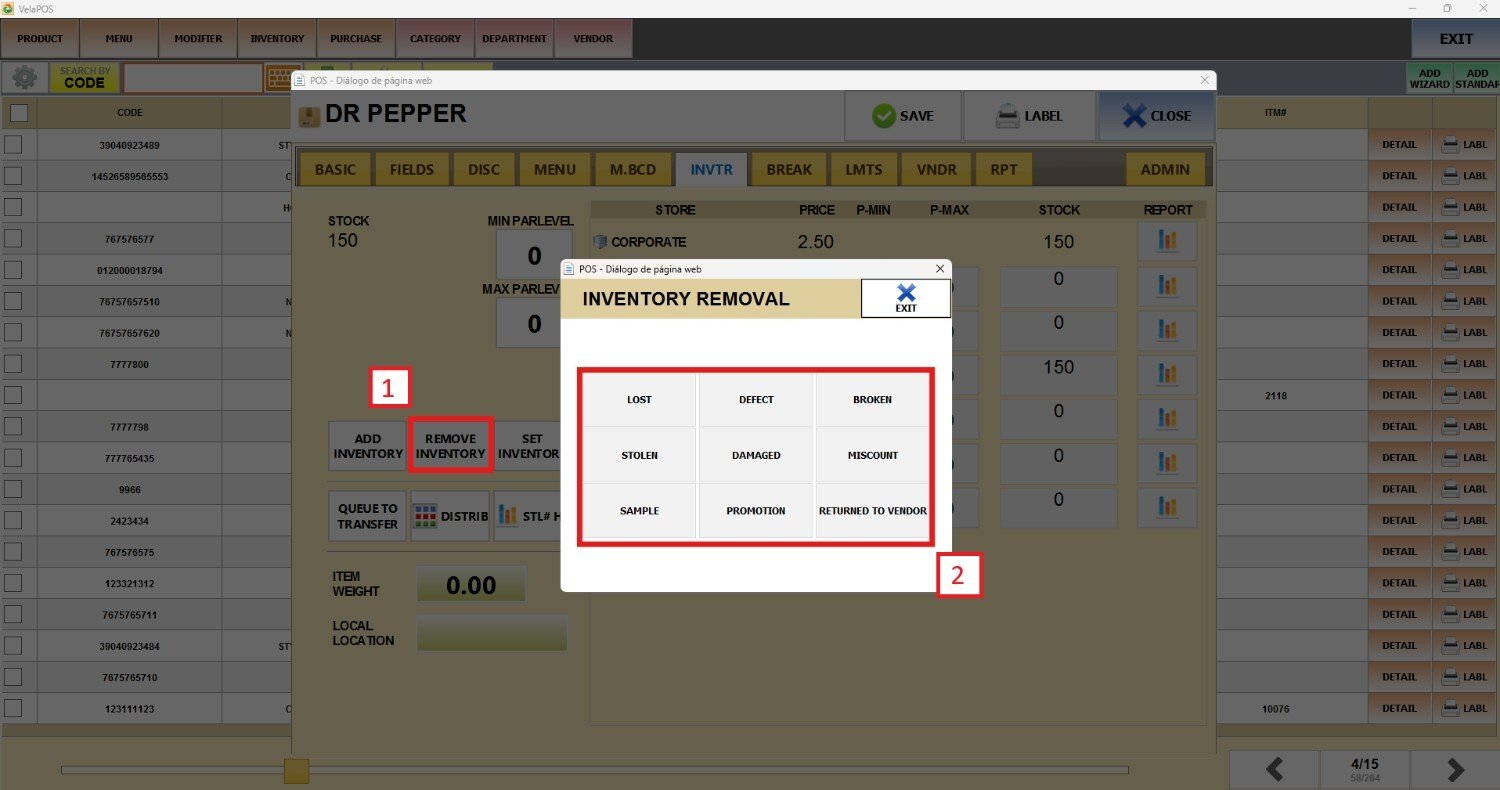
Input the amount to be removed and press DONE.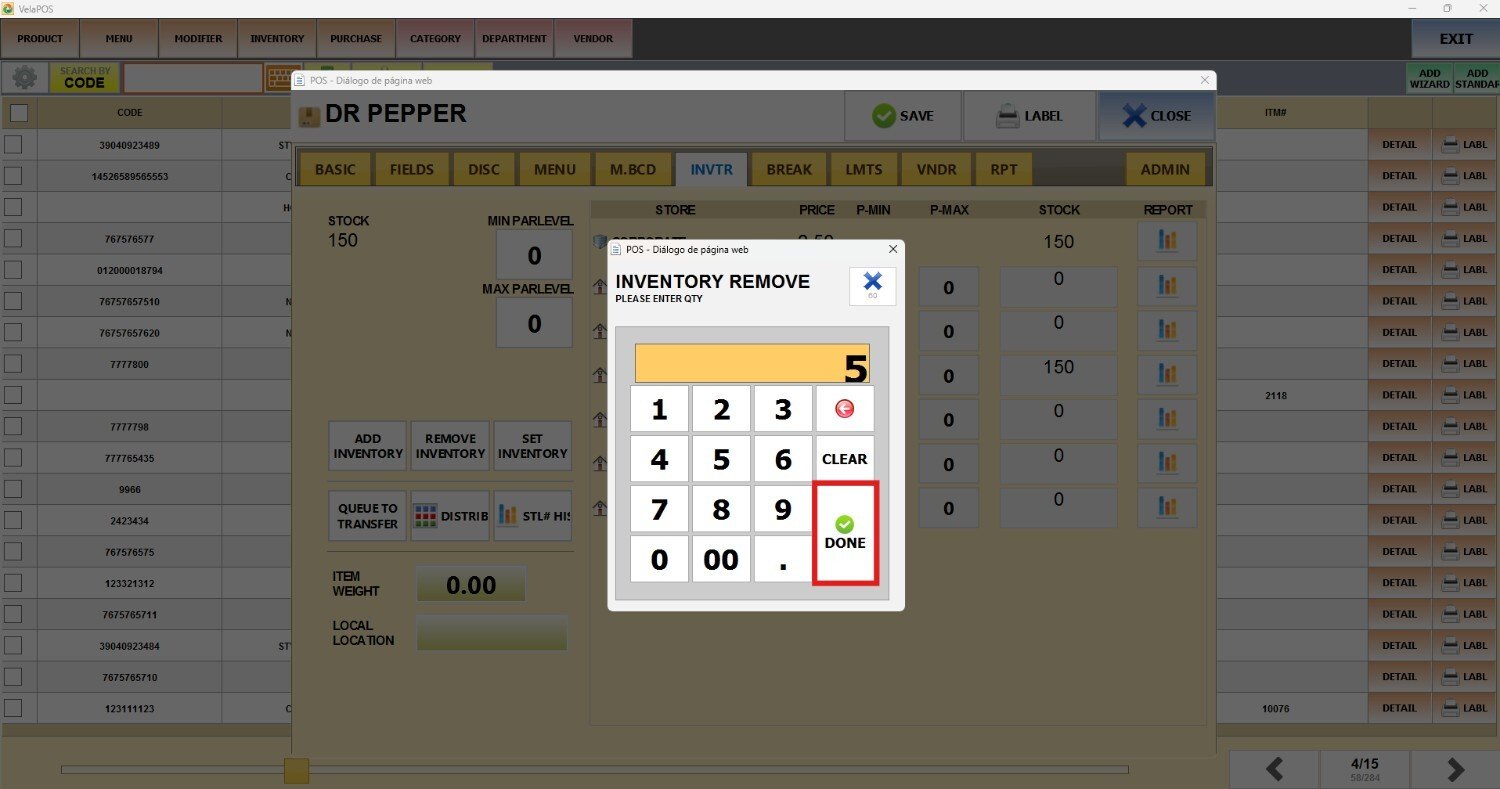
Result:
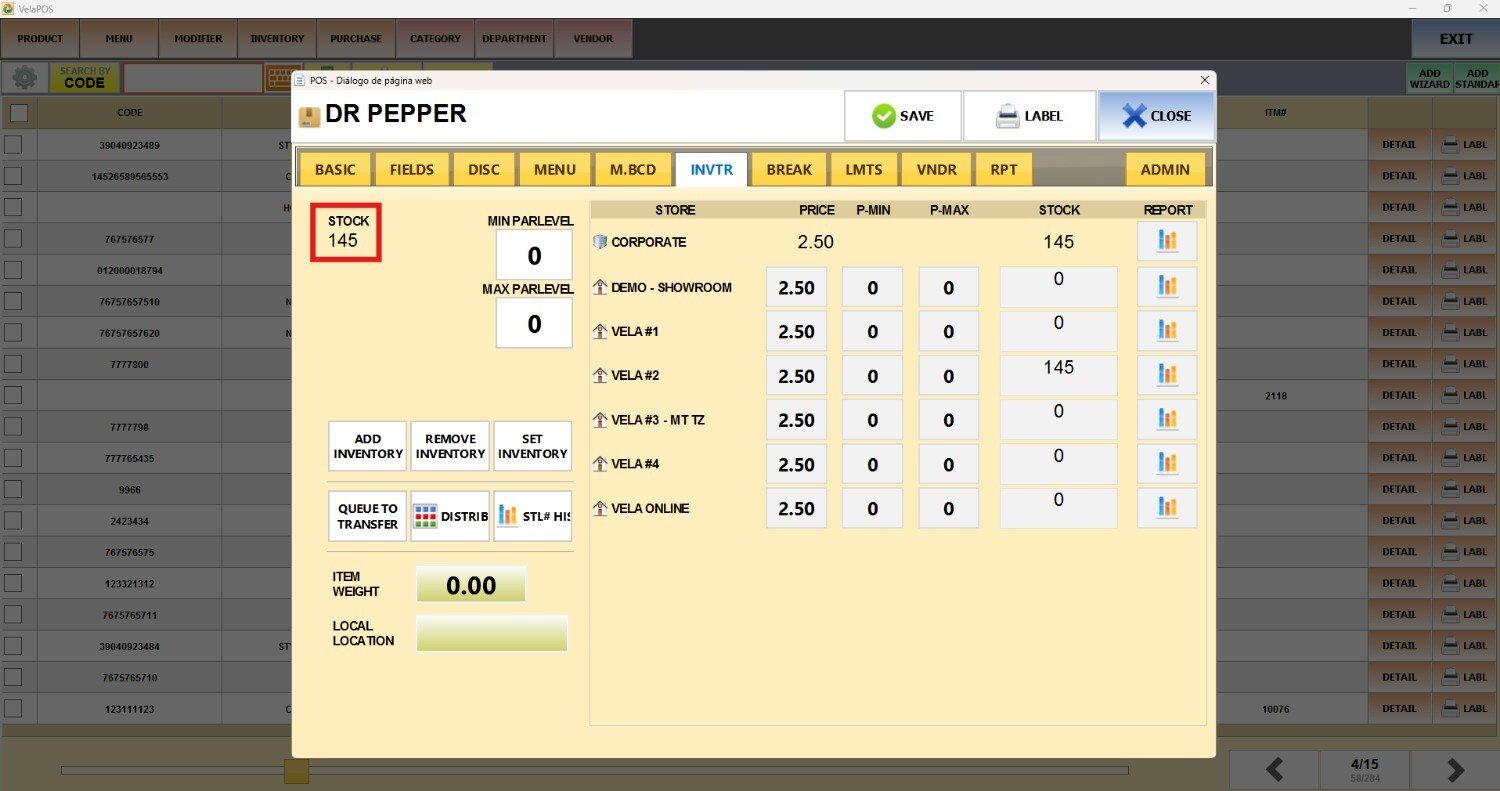
SET INVENTORY
Press SET INVENTORY to record a different amount. The number you input will be the one displayed on the stock. Click on DONE.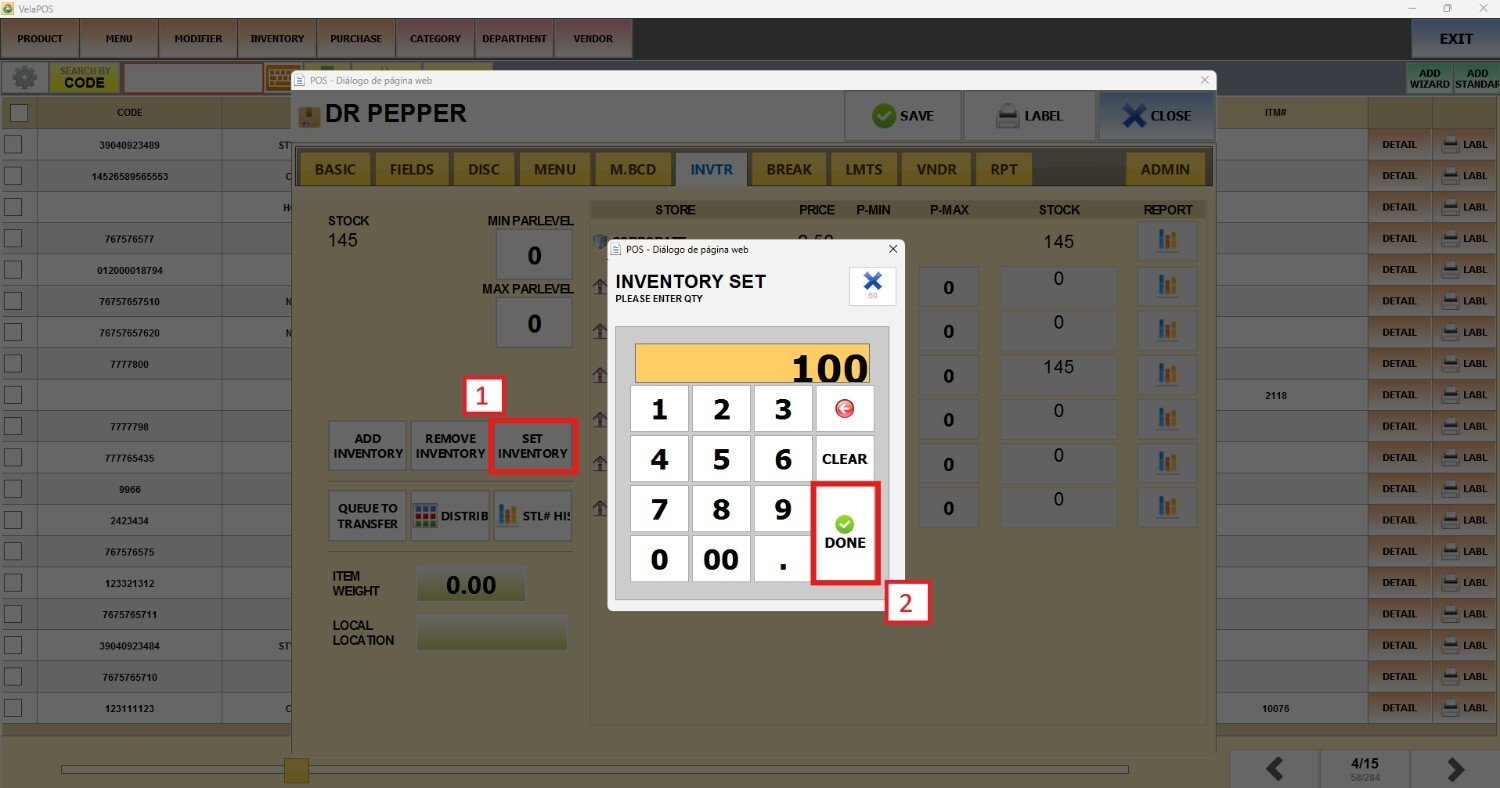
Result: