Location-Specific Inventory Table
This feature provides a detailed overview of a product’s inventory across all store locations.
MENU > PRODUCTS> DETAIL> INVTR tab.
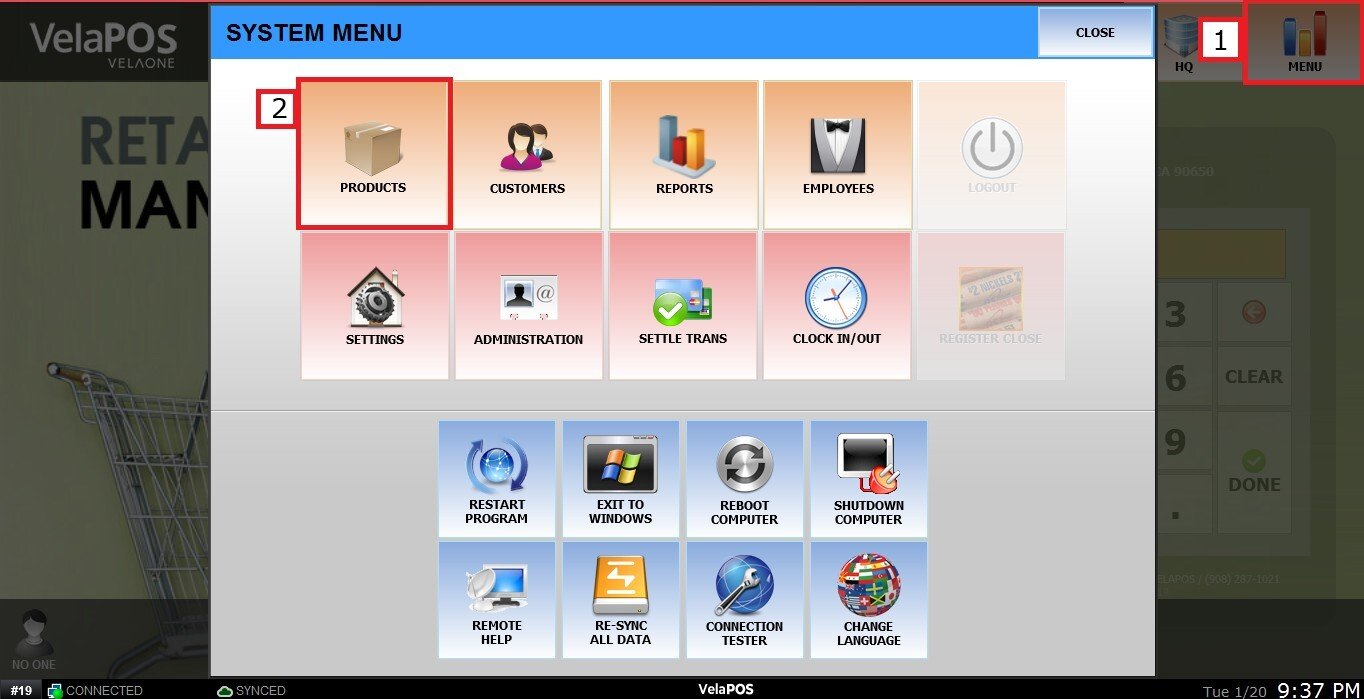
Go to MENU and PRODUCT.
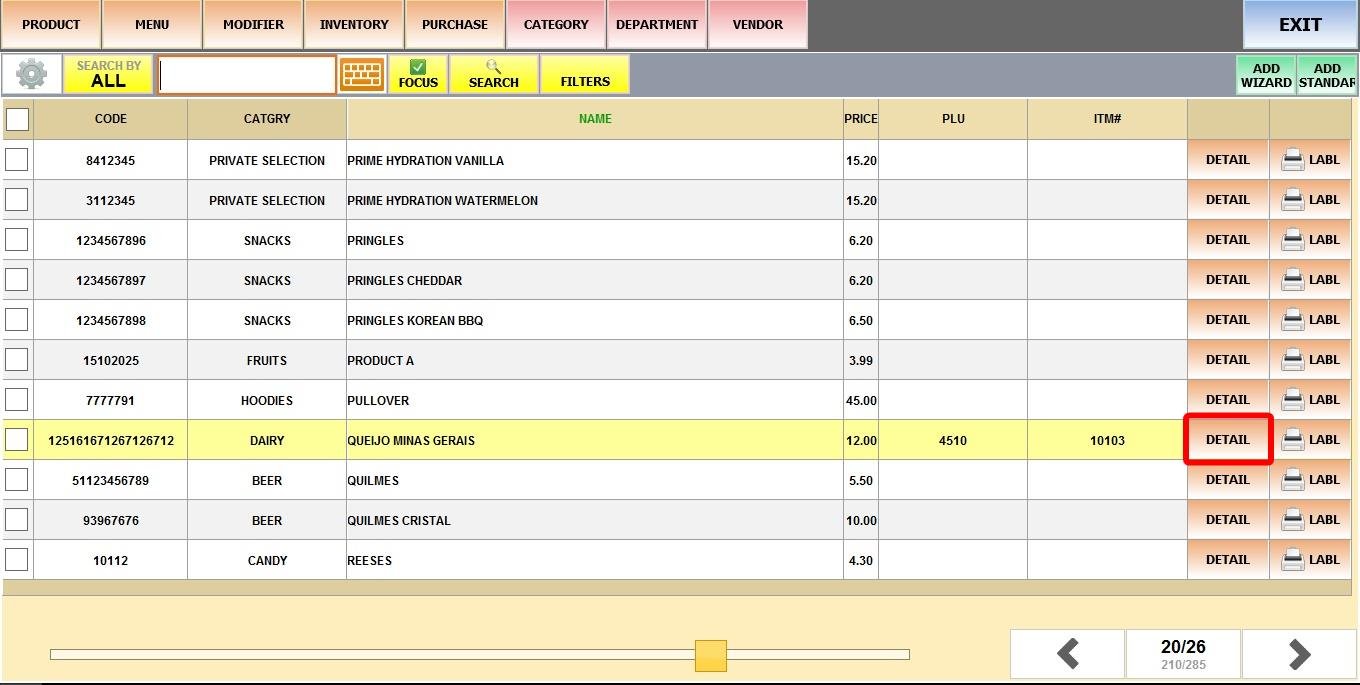
Find the desired product and click its DETAIL.
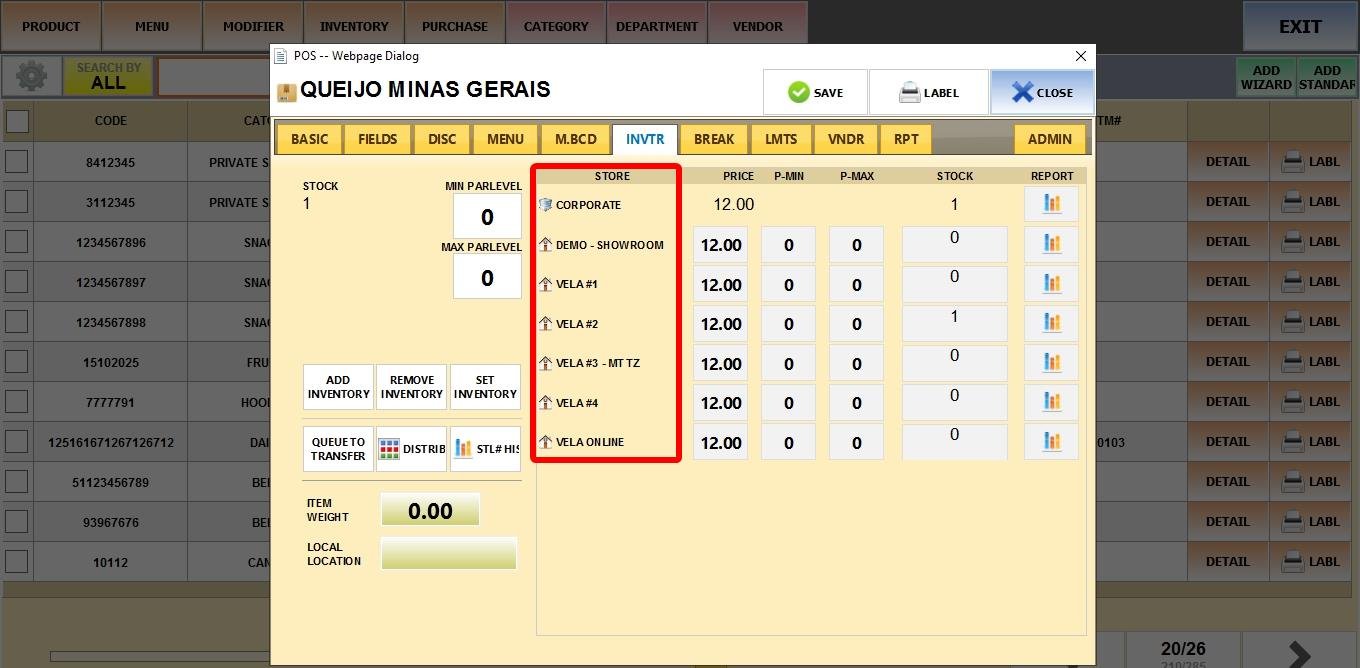
Click on the INVTR tab. The right side of the screen displays inventory details for individual stores or for the corporation as a whole.

STORE
If you have more than one location, each store will be listed here.
CORPORATE displays the combined information from all store locations.
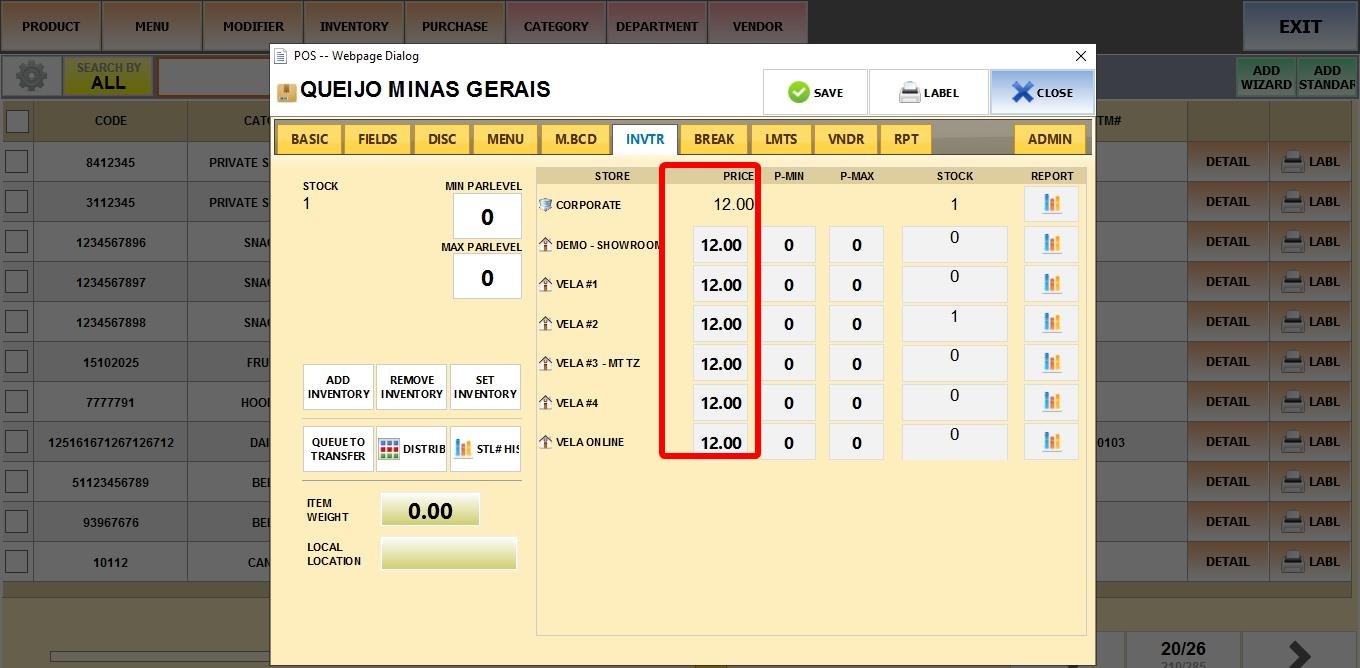
PRICE
The sale price for the product at that specific location.
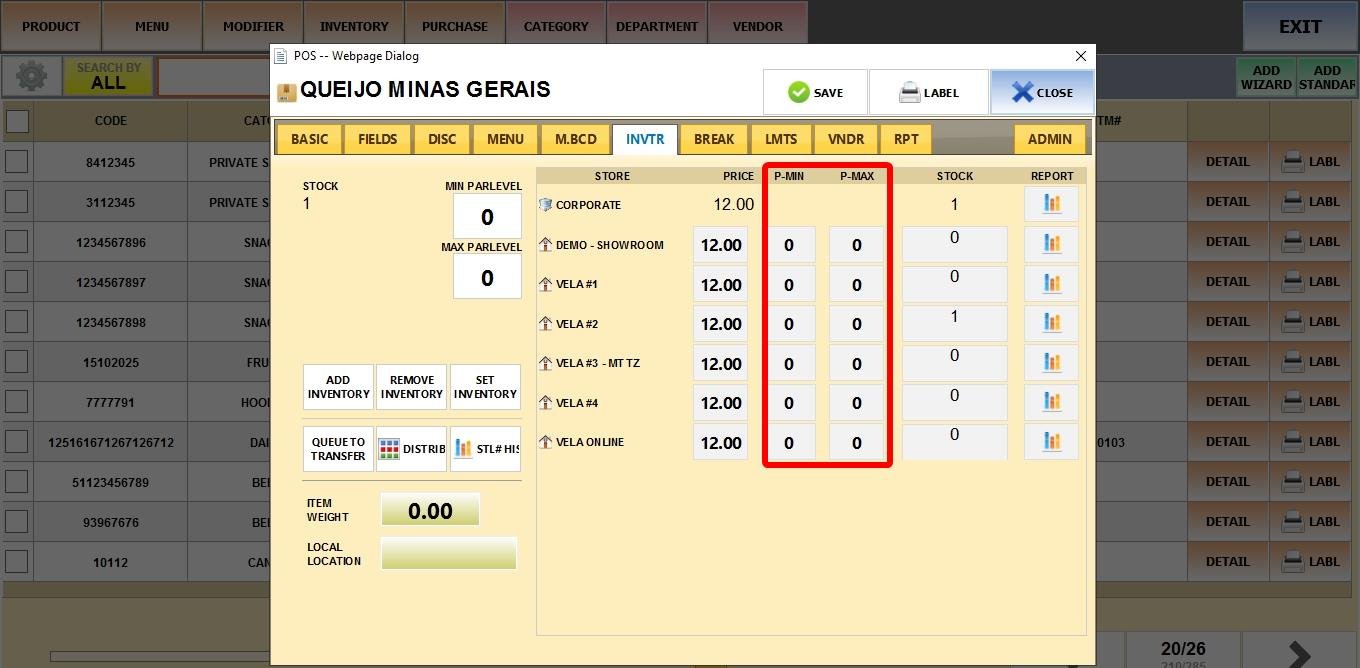
P-MIN / P-MAX
These fields set the minimum and maximum desired stock amounts you want to maintain at this specific store location. See Minimum and Maximun Parlevel to learn more.
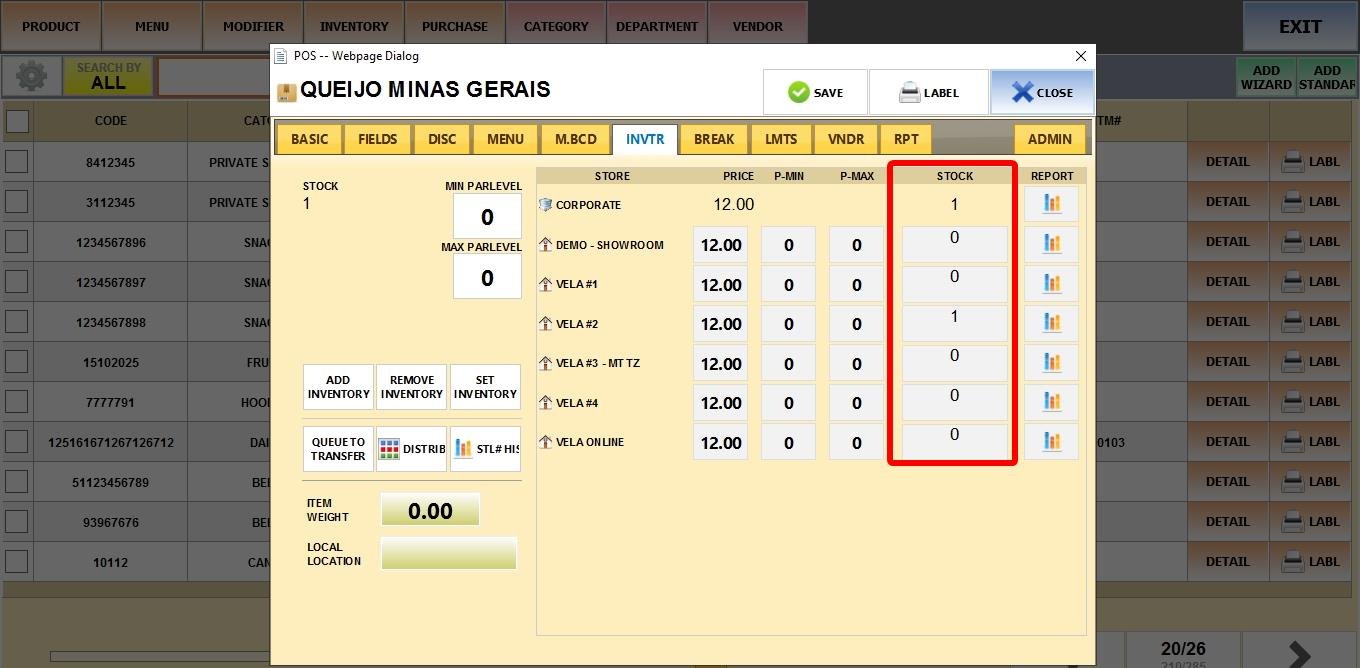
STOCK
Current physical quantity of the product available at that location.
REPORT
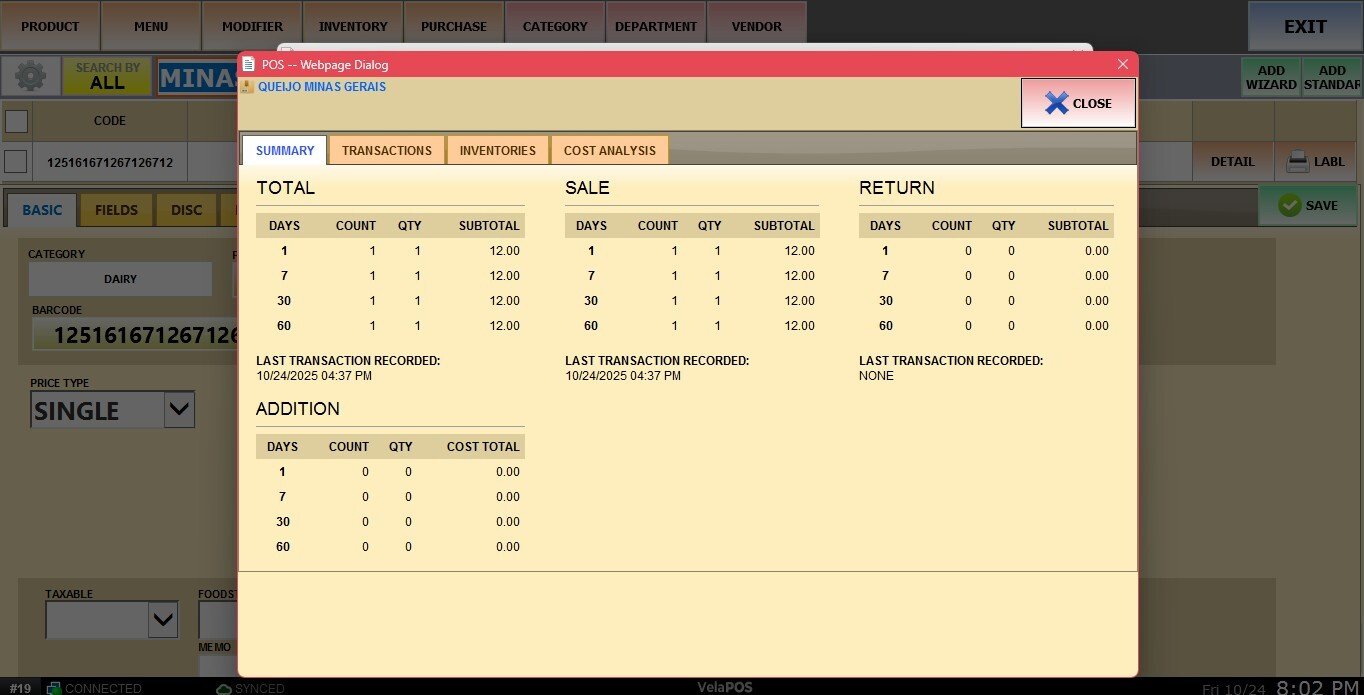
Click the REPORT icon to open a pop-up window displaying various reports.
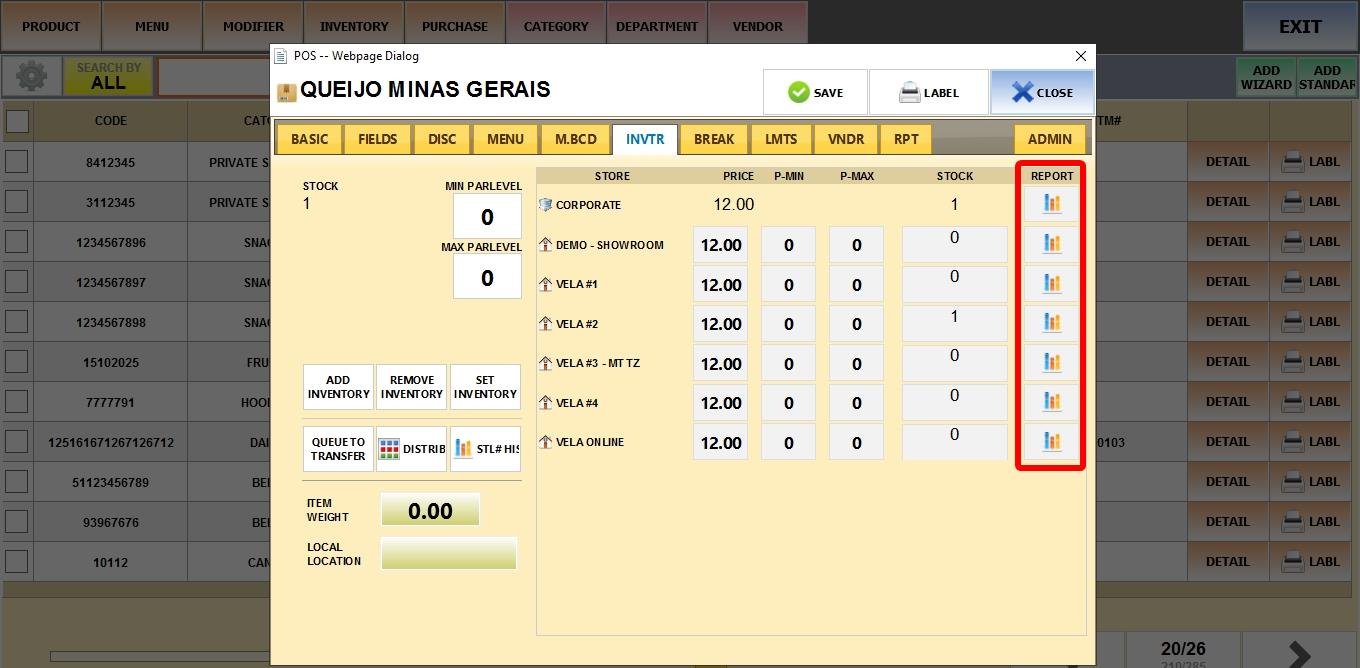
Detailed information about the selected product, including transactions, inventory additions or removals, and cost analysis, will be displayed. You can navigate through the tabs to see each report.