Level
This feature allows you to assign unique prices or margins to different Customer Groups (e.g., Regular, Employees, VIP), enabling you to tailor your pricing strategy for each customer type.
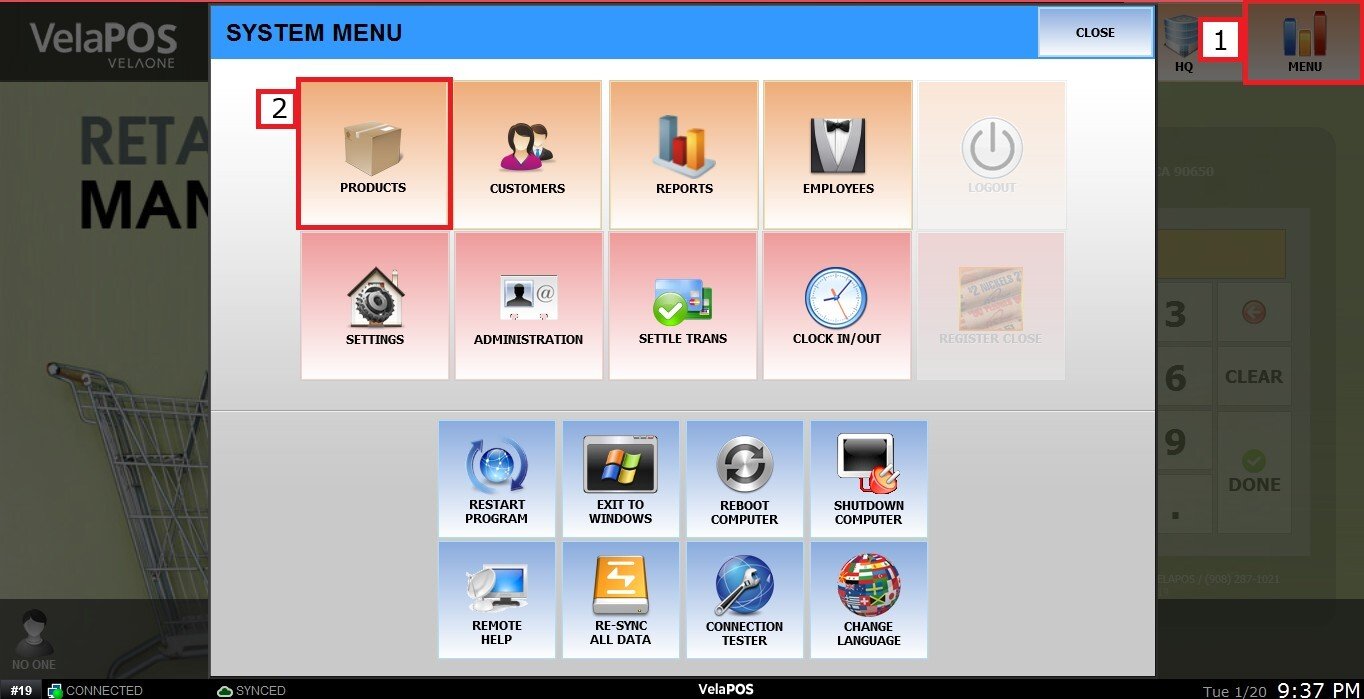
Main Screen> MENU > PRODUCTS> Select an Item> DETAIL> BASIC> PRICE TYPE.
Click on MENU, then select PRODUCTS.
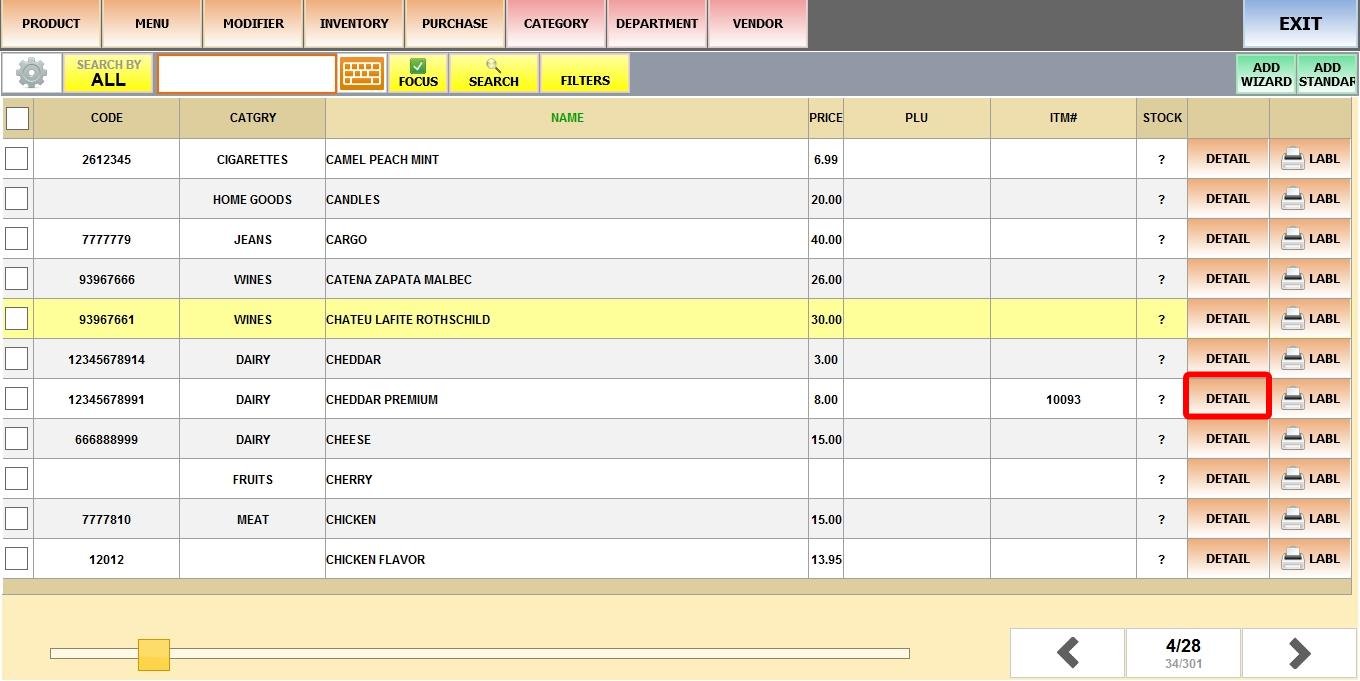
Find the product and click DETAIL.
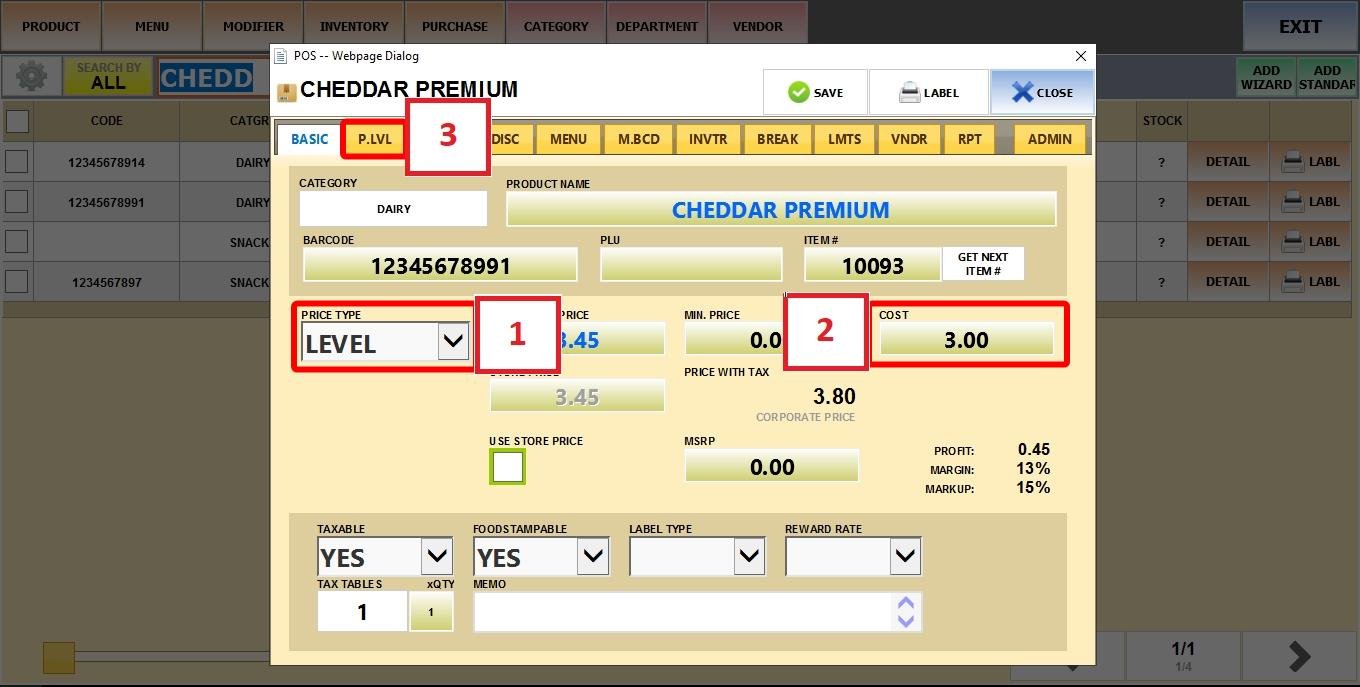
On PRICE TYPE select LEVEL. Set the COST of the product and go to the P. LVL tab.
In this tab, you’ll find the PRICE LEVEL dropdown, which includes several options:
1. Category Setting: Applies the price level rules defined for the product’s category. Refer to Category Detail to apply a price level category-wide.
2. Type 1 to Type 5: Uses one of the predefined configurations from your Price Level Settings. See Price Level Settings for configuration details.
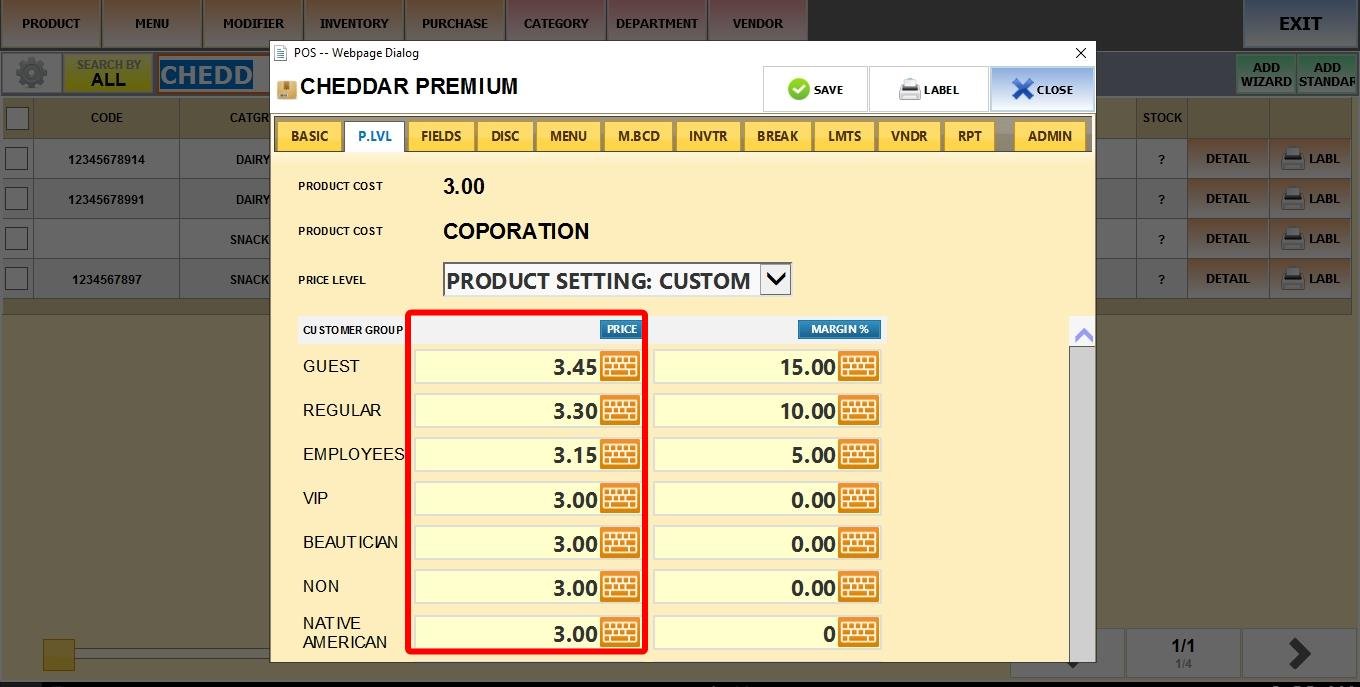
3. Custom: Lets you manually define the PRICE and MARGIN % for this specific product.

PRICE: The exact amount the selected customer group will pay.
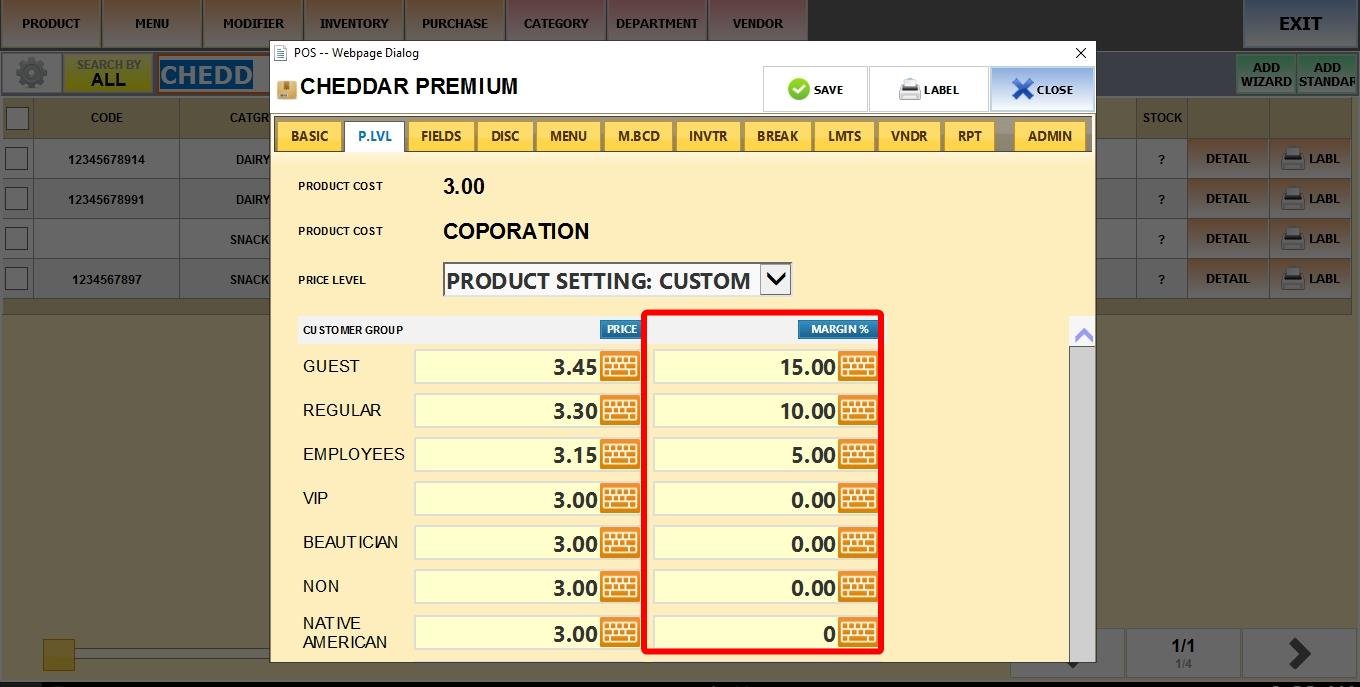
MARGIN %: The profit percentage added on top of the product’s cost.
(For example: 30% for Guest customers, 25% for Regular, 20% for VIP.)
Once everything is set up, click SAVE.
Result
The system will automatically apply the defined pricing levels.
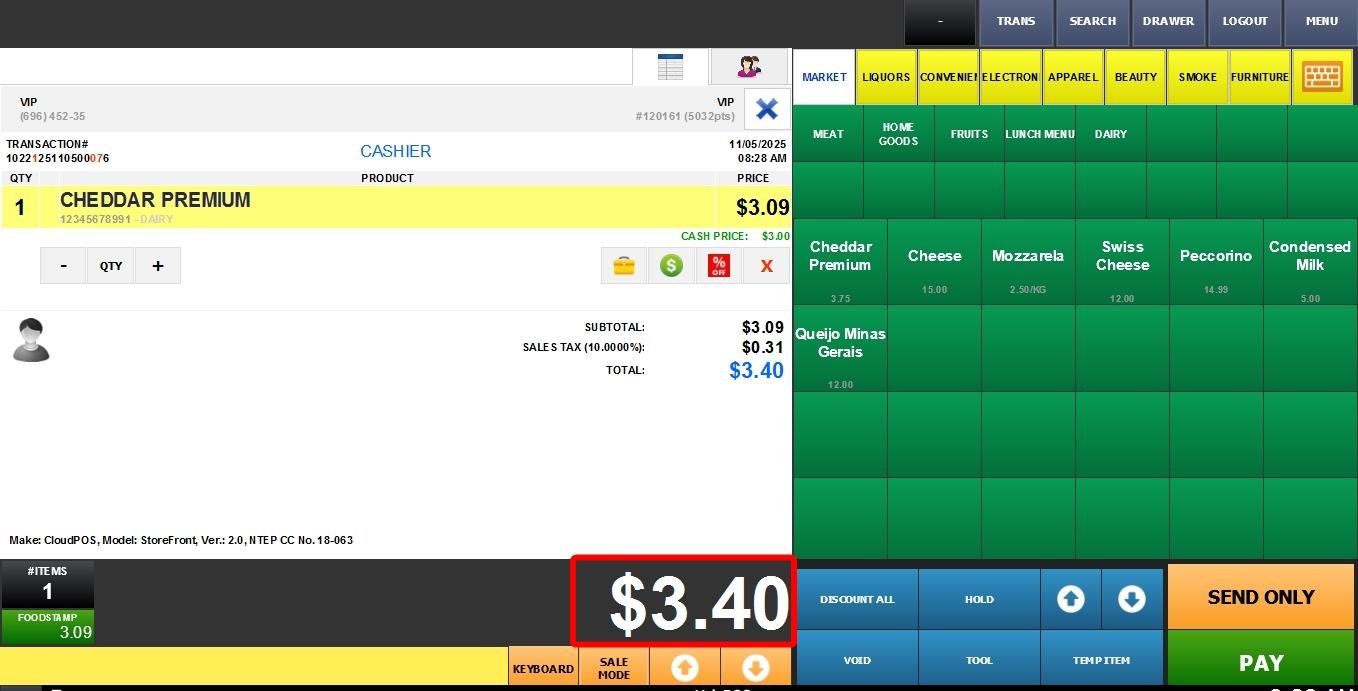
When ringing up the product in the Sales Screen, selecting different customer groups will display their corresponding prices.
Guest Customer with 25% margin
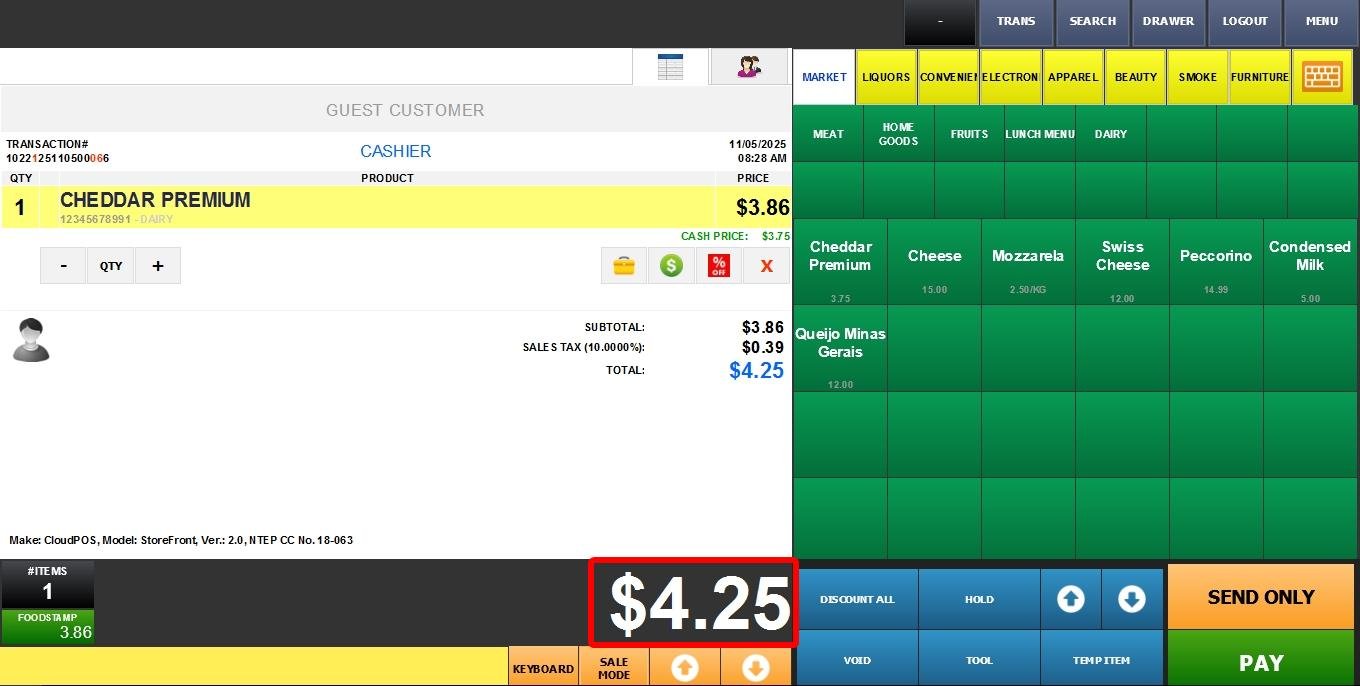
VIP Customer with 0% margin