Multiple Barcode
This tab allows you to assign more than one barcode to the same product. This feature is useful when an item may have different presentations, suppliers, or alternative codes, but you want to maintain a single inventory record.
MENU>PRODUCTS>Select an item>DETAIL>M.BCD
Click on MENU, then select PRODUCTS.

Choose an item and select DETAIL.

Go to the M.BCD tab, click on a field to enter a barcode. Each field (for example, BARCODE #2, BARCODE #3, etc.) represents an additional space where you can enter a valid barcode.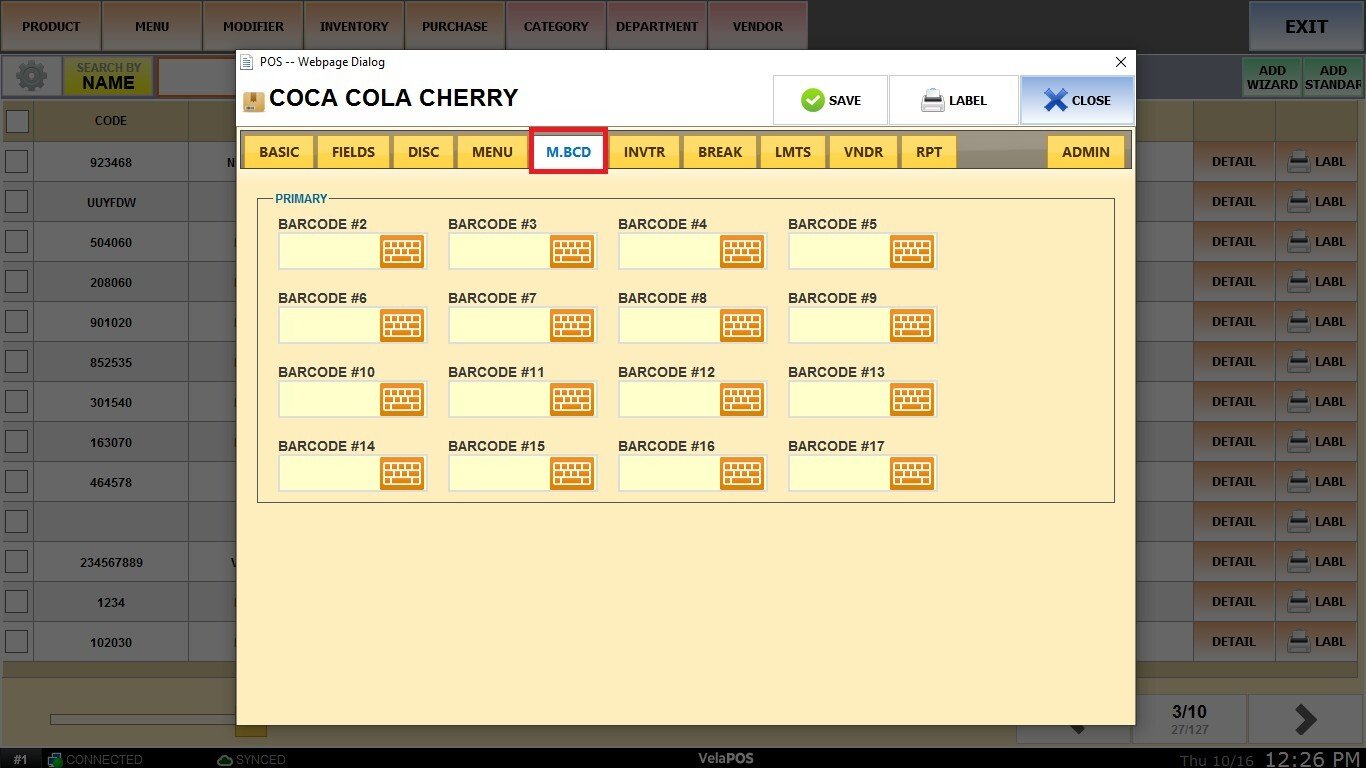
After entering the barcodes, click on SAVE. 
The system will recognize any of the registered barcodes as belonging to the same product, making sales, searches, and inventory control easier.