Assigning Modifiers to a Product
This option enables you to attach predefined options to the item, allowing you to quickly add extra details to the product without needing separate items for each variation.
Main Screen> MENU> PRODUCTS> Product's Detail> MENU Tab> Modifiers
On the Main Screen, go to MENU and press on PRODUCTS.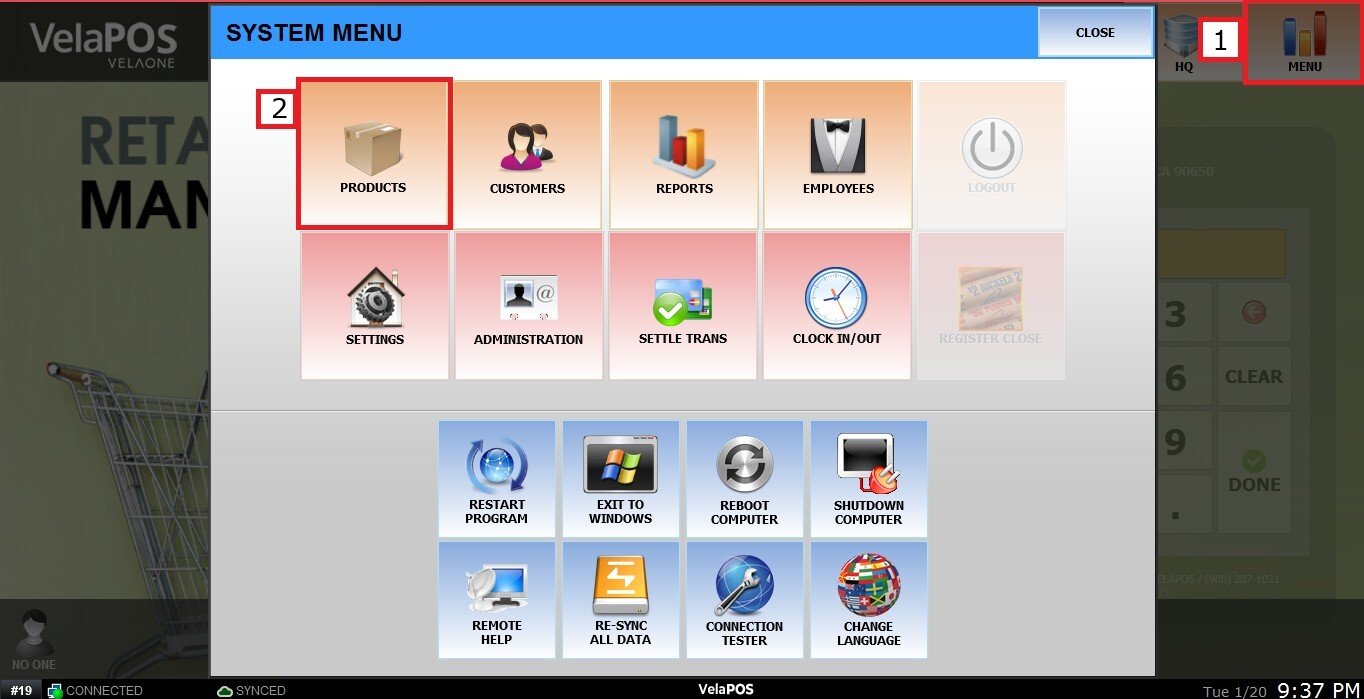
On the Item's detail, navigate to the MENU Tab.
Press on the MODIFIER field and choose the group of your choice.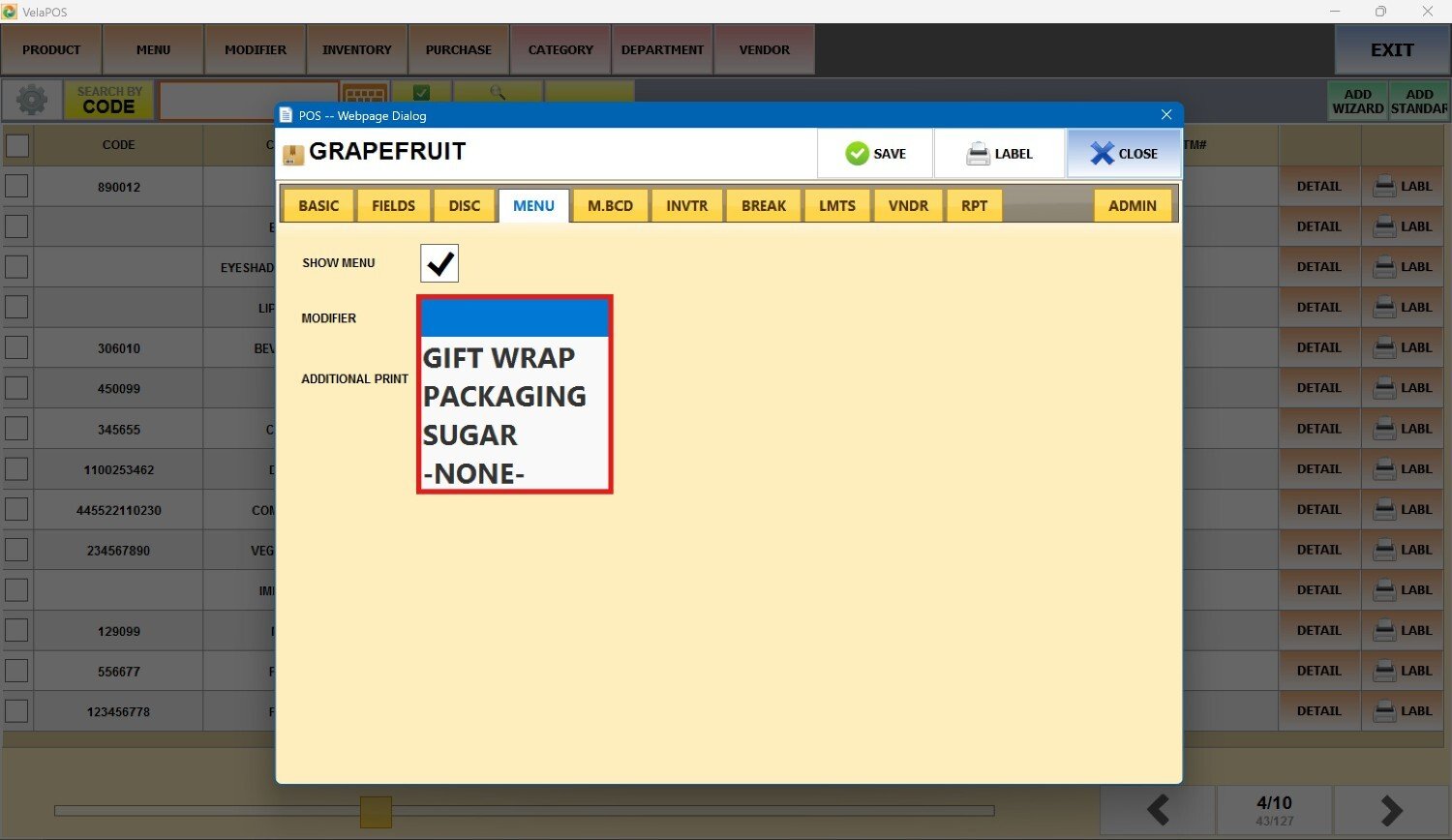
Note: If you don't have any option on the MODIFIER drop-down menu see Modifiers for guidance on how to set them up.
Press on SAVE.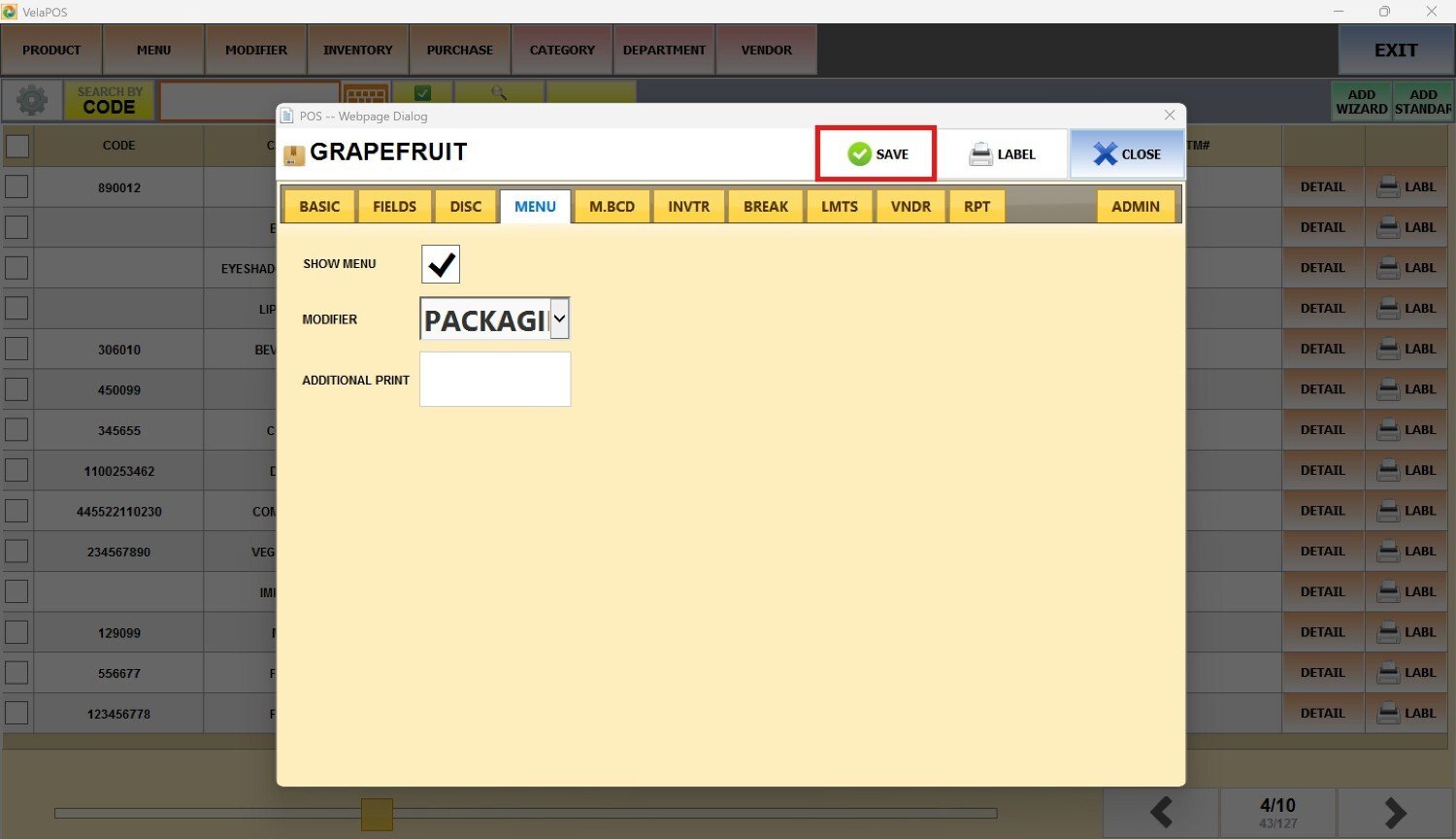
Result:
Ring up the item on the sales screen.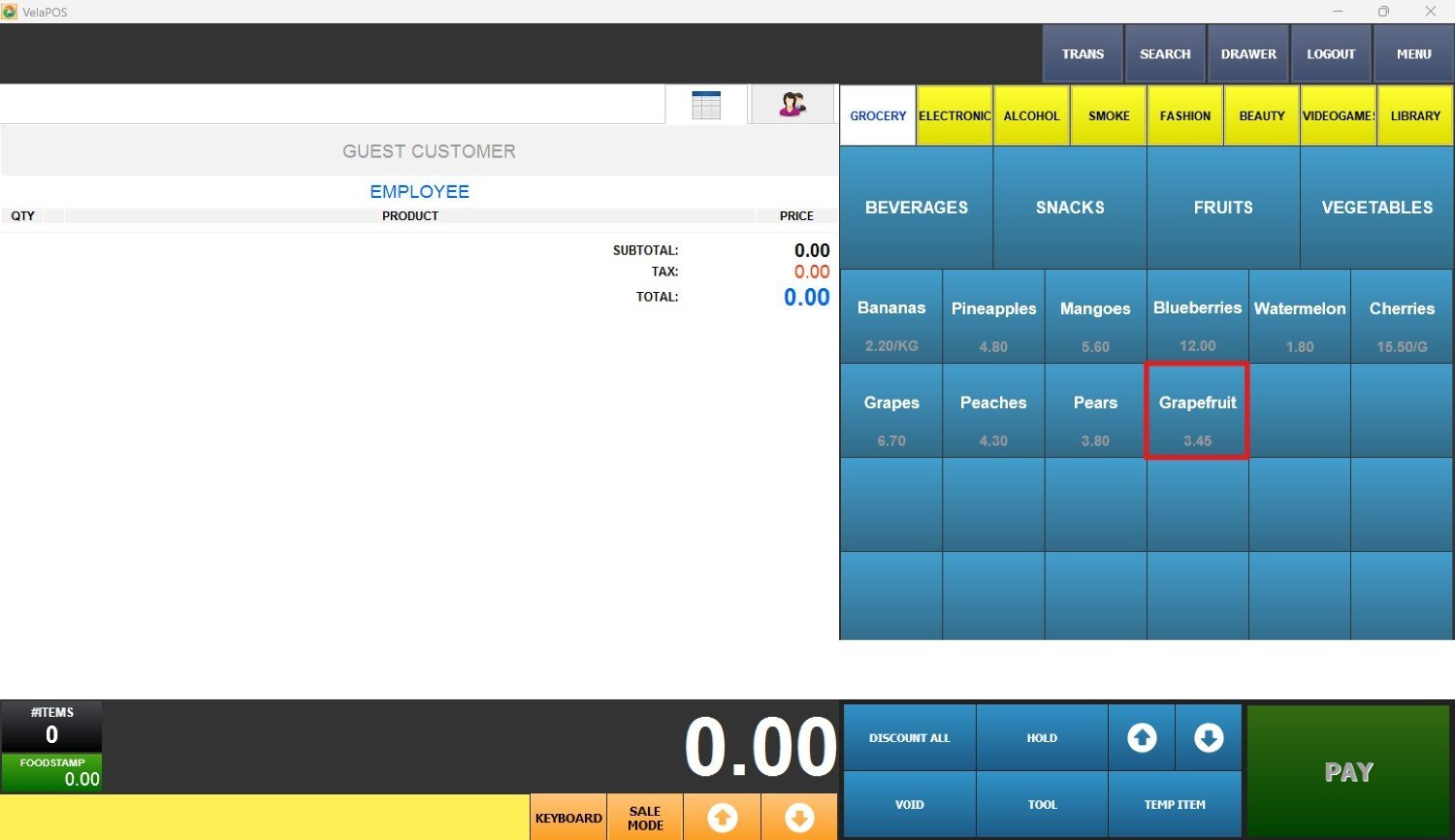
The modifier screen will appear, displaying the options linked to the modifier group chosen in the product details.
Choose the modifier of your choice and press DONE.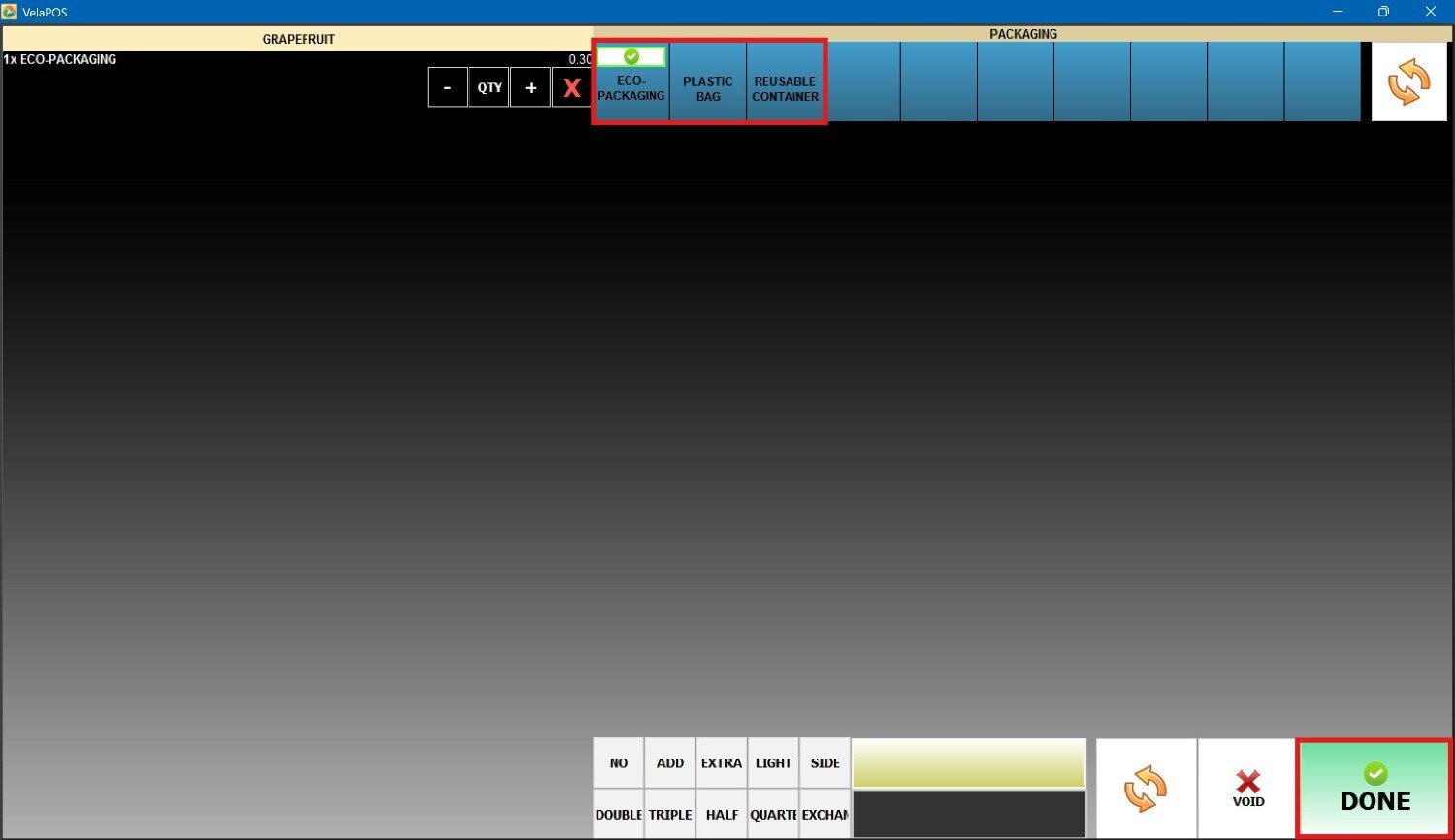
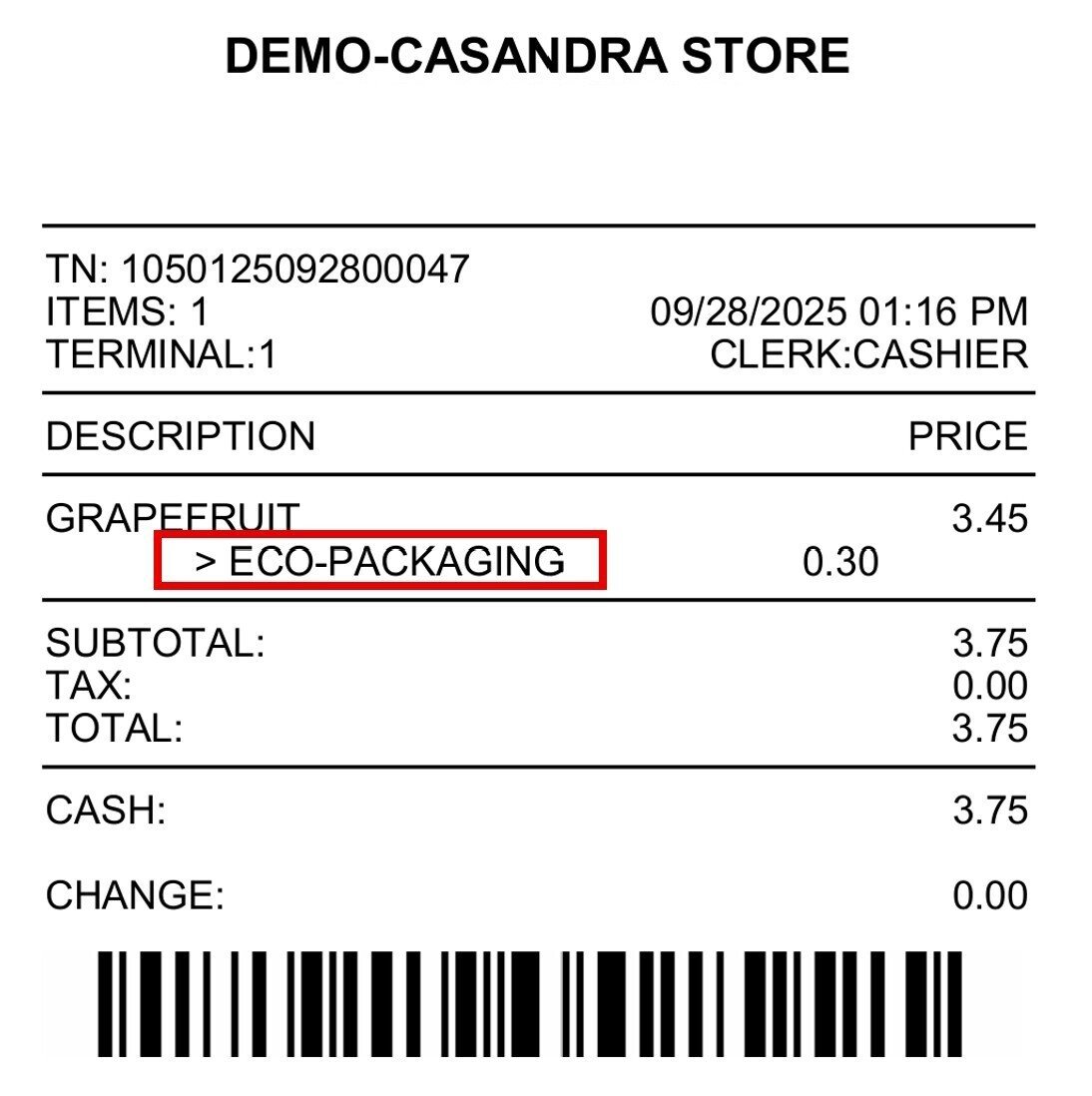
The modifier selected will be displayed below the item as shown in the following image.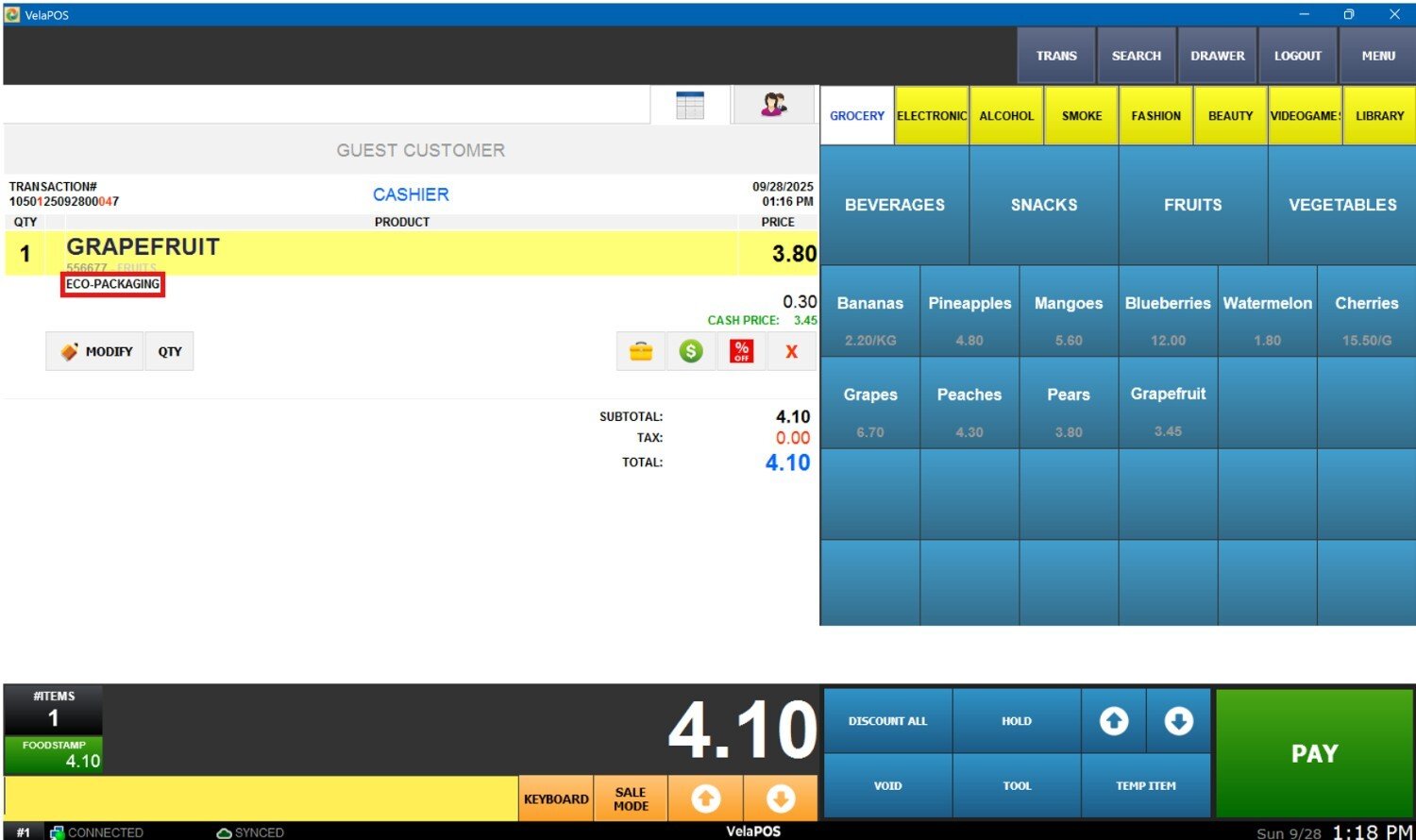
Modifier shown on the customer's receipt: