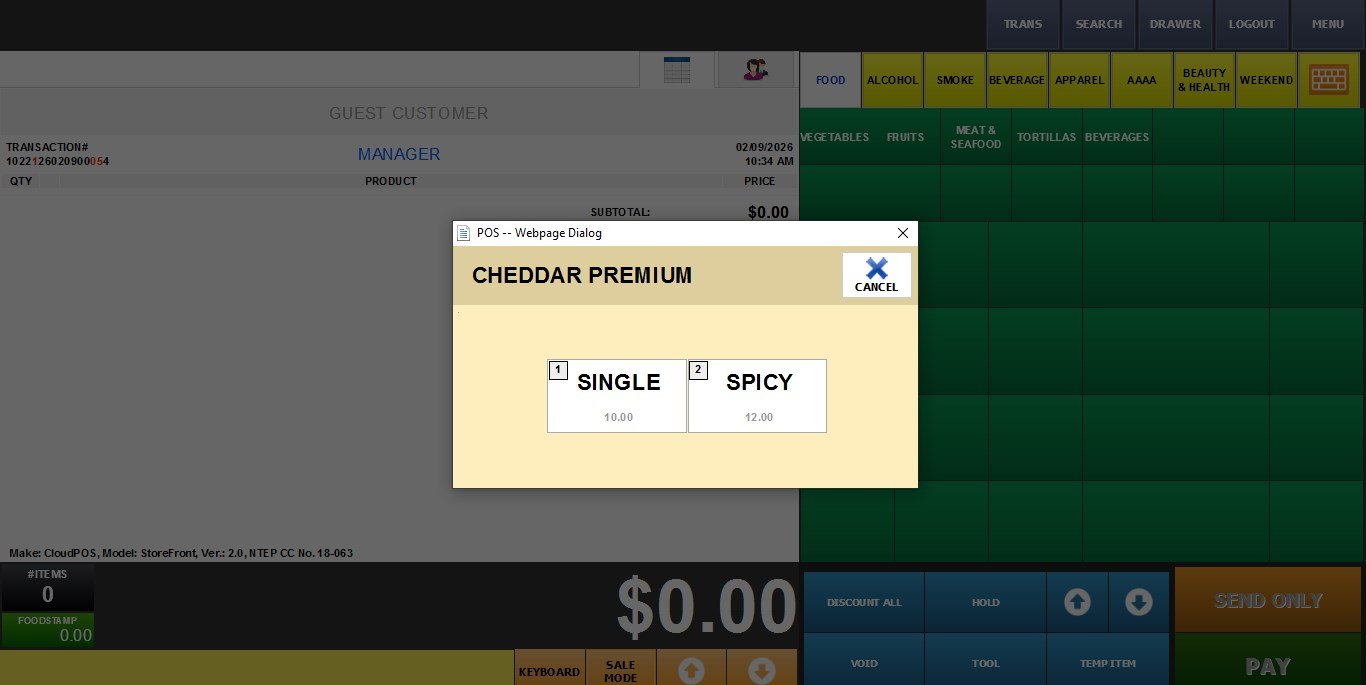
Multiple
You can create custom pricing rules based on quantity and variations of a product (e.g Mild, Spicy), allowing for more flexible sales structures than a standard single-unit price.
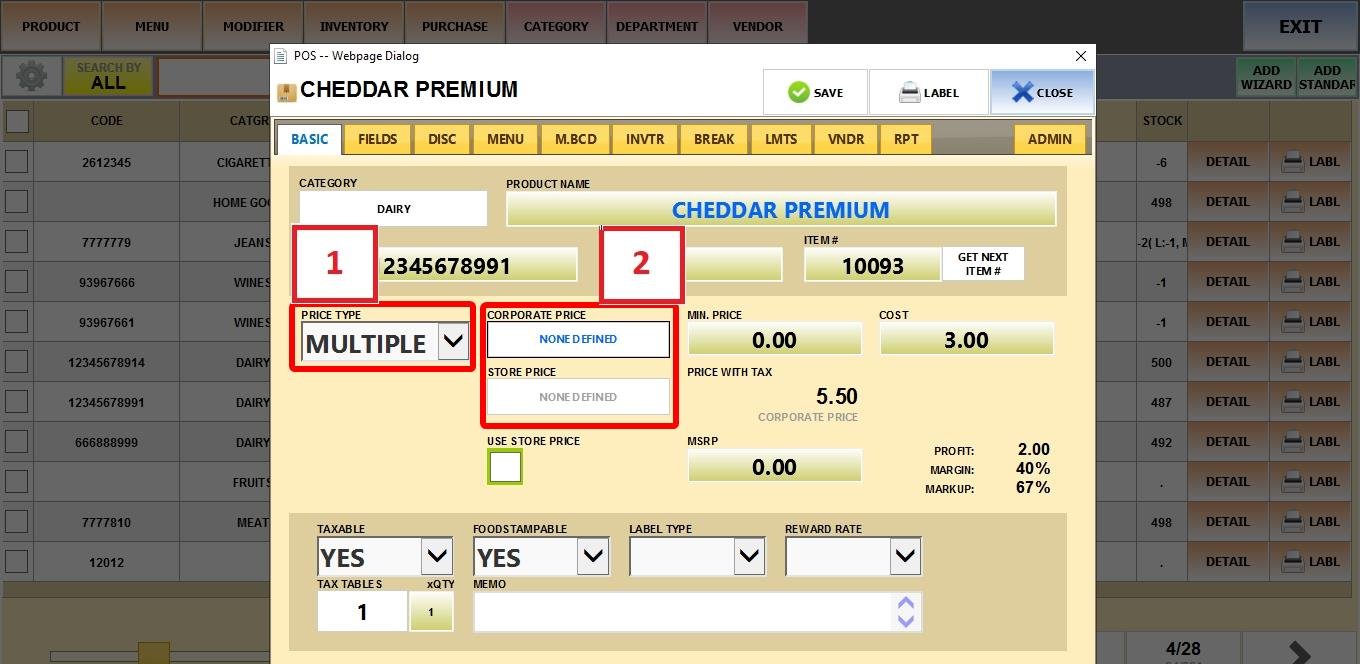
MENU > PRODUCTS> Select an Item> DETAIL> BASIC> PRICE TYPE.
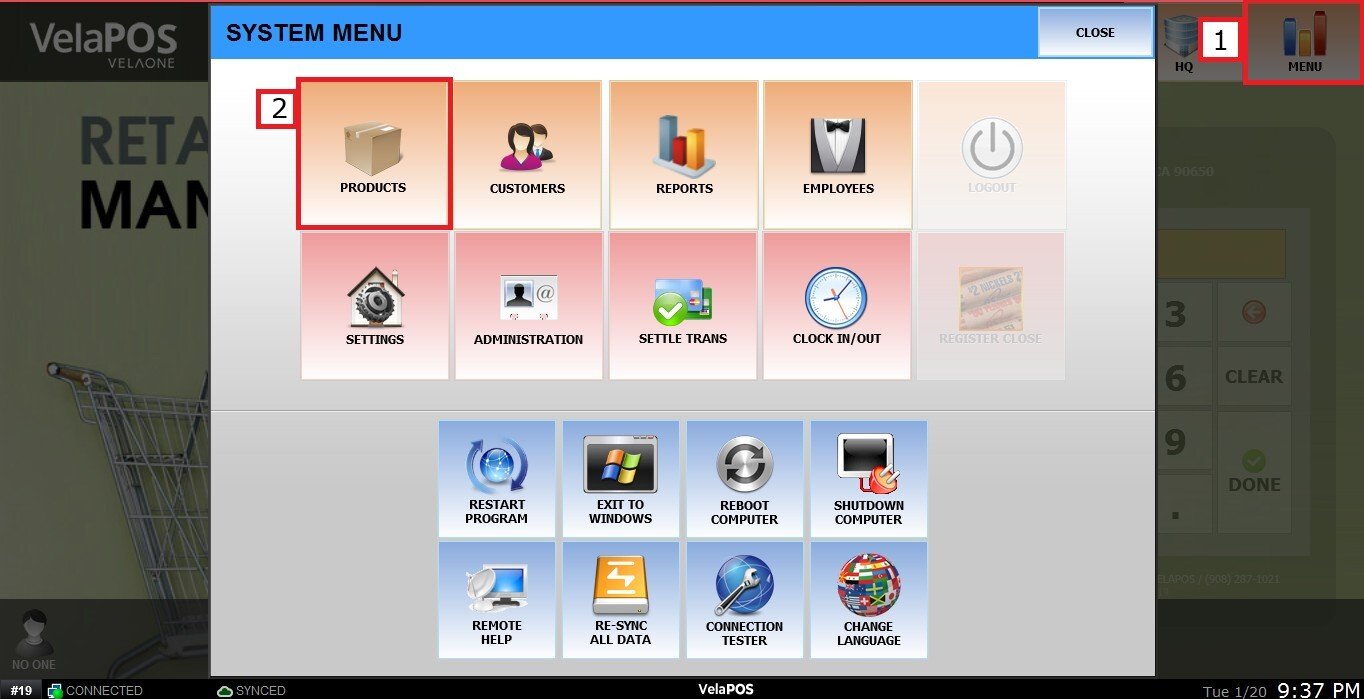
Click on MENU, select PRODUCTS
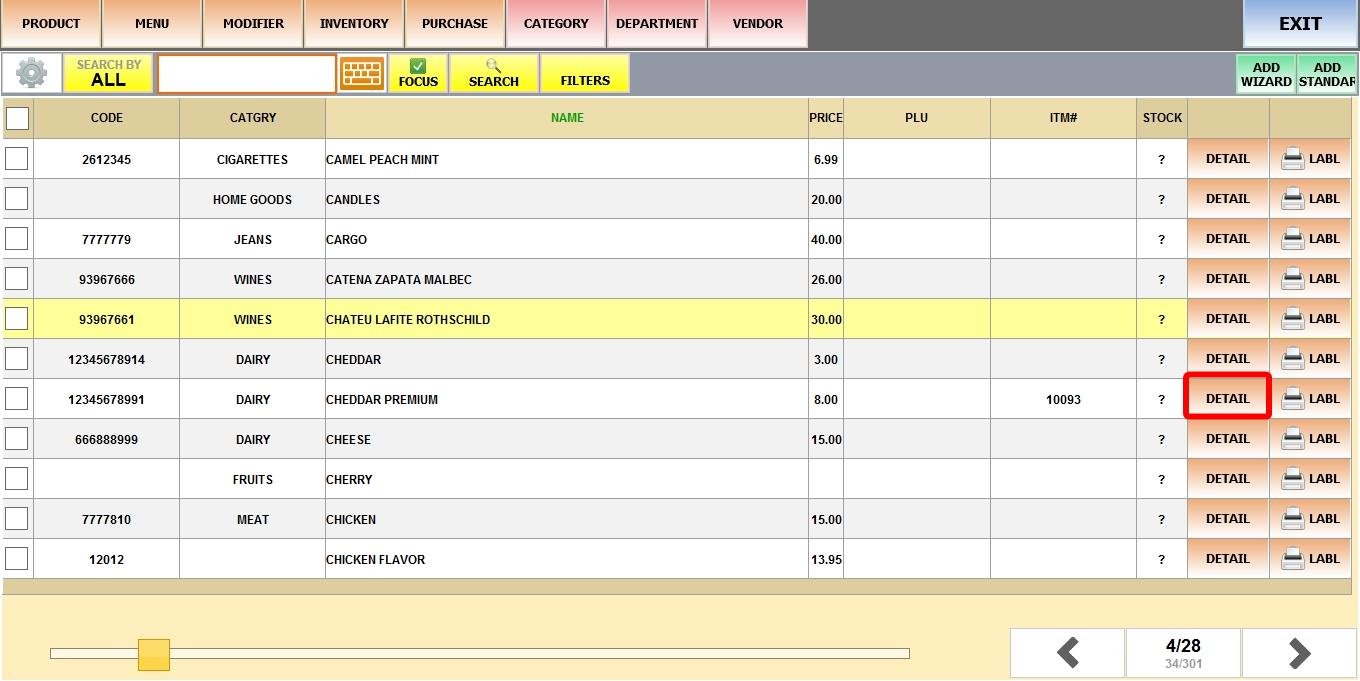
Find a product and click DETAIL
Under BASIC, set Price Type to MULTIPLE. Choose either CORPORATE PRICE or STORE PRICE, depending on which pricing field you use for this product.
You can offer different pricing levels for a single item. This is not limited to quantity-based discounts; it is also used to manage different versions or variations of the same product (such as different sizes, flavors, or styles) e.g:
1. NAME: A unique internal name for this specific pricing tier
2. UNIT PRICE: The base price for each individual unit within this tier.
3. DISCOUNT: The percentage discount applied to the UNIT PRICE when the corresponding QTY is met or exceeded.
4. QTY: The minimum number of units a customer must buy to activate this price tier
Next click APPLY
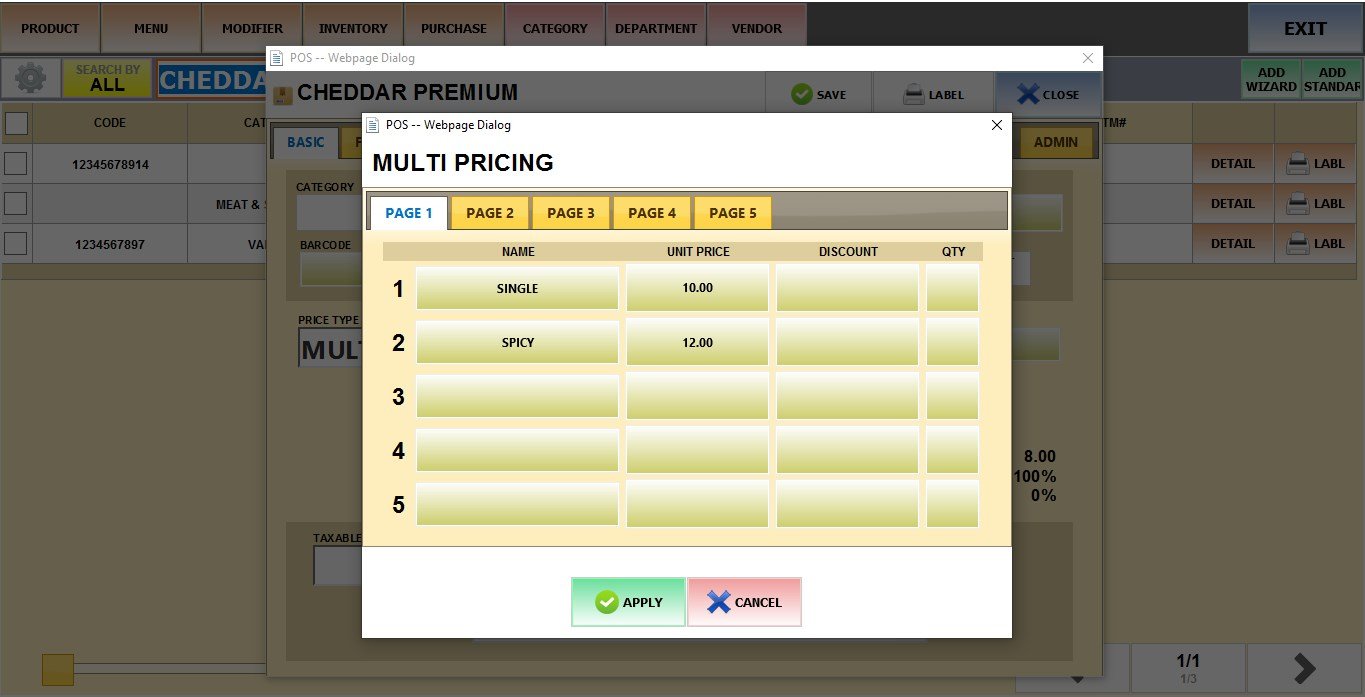
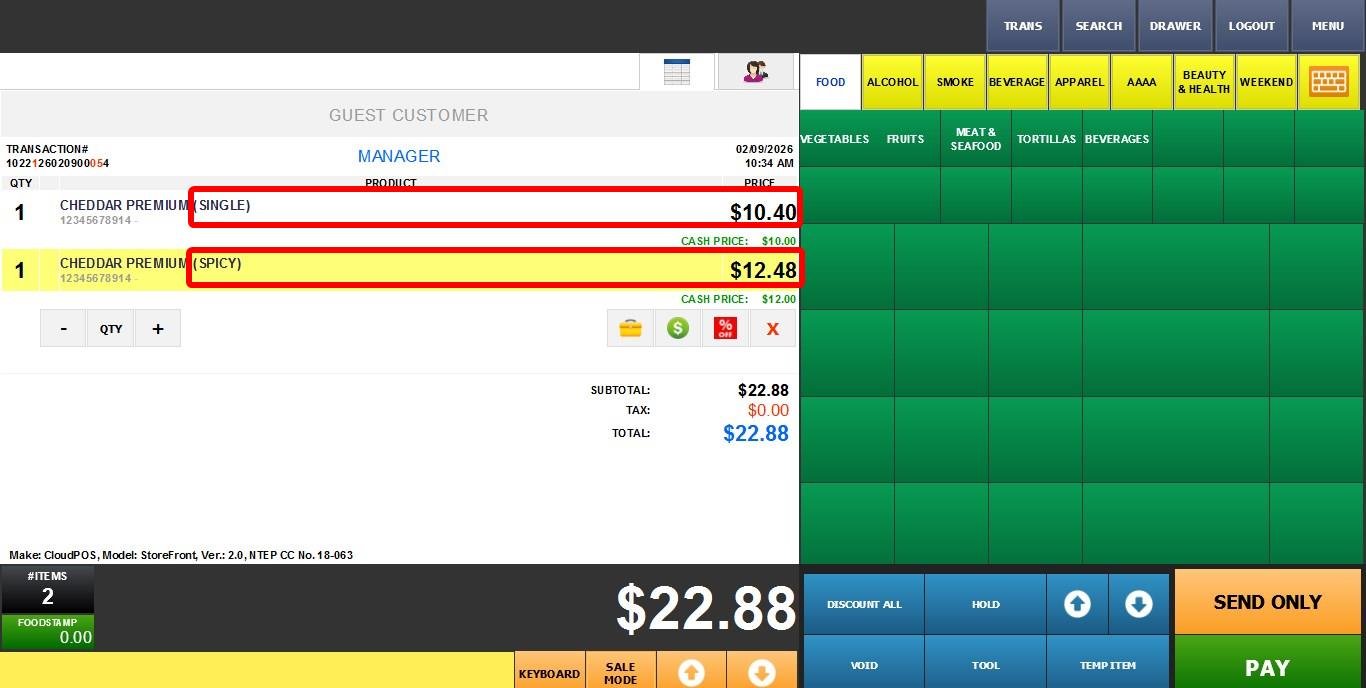
Result:
Go to the Sales Screen and ring up the product to see the pricing take effect