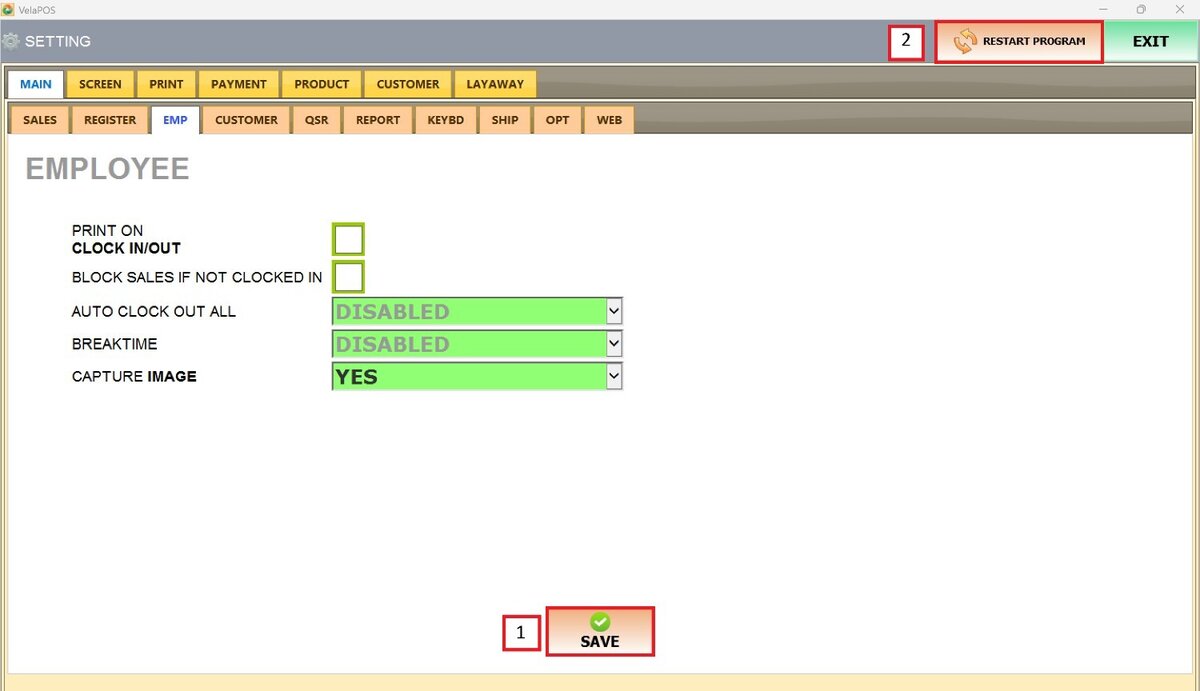
Employee
This tab allows you to configure employee-related behaviour in the system.
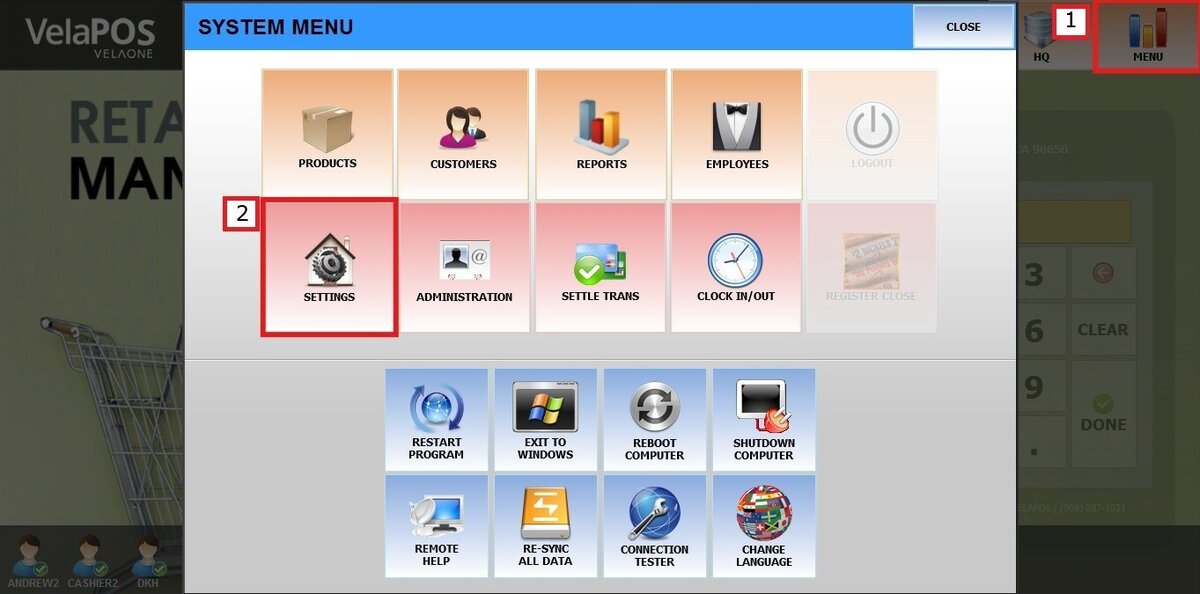
Main Screen> MENU> SETTINGS> MAIN> EMPLOYEE
Go to MENU and press SETTINGS.
Under MAIN, go to EMP tab to view the available employee configuration options.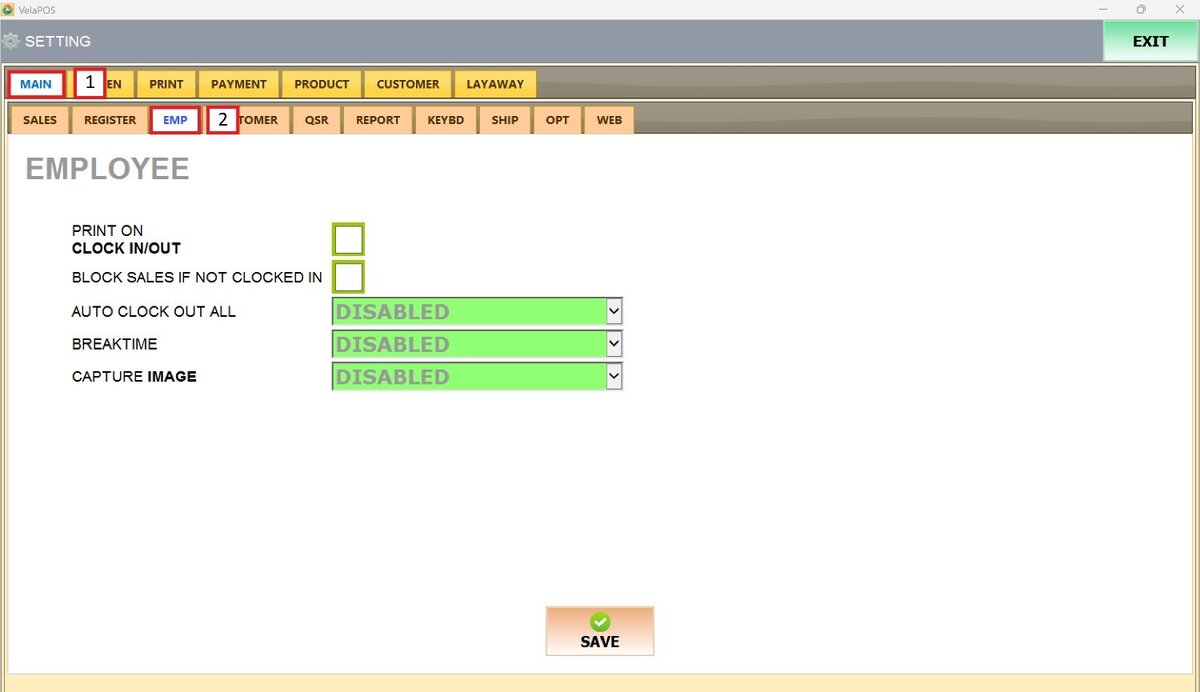
PRINT ON, CLOCK IN/OUT
Enables the printing of a physical receipt or slip when an employee clocks in/out.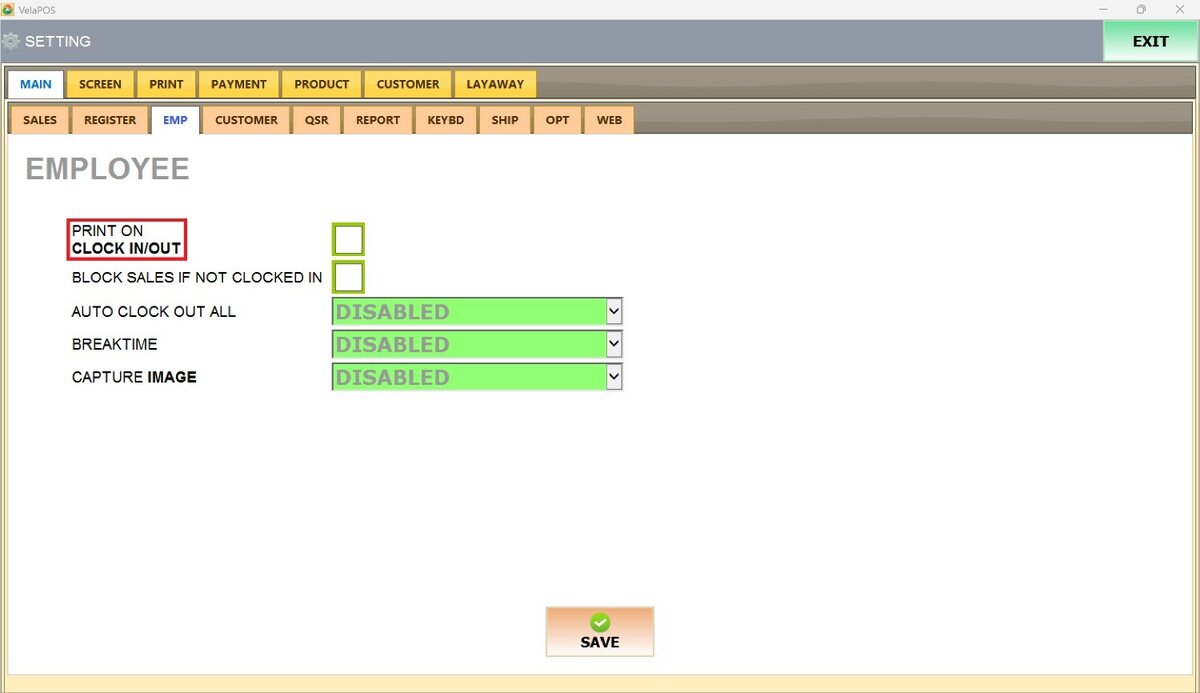
Leave the box unchecked to disable it.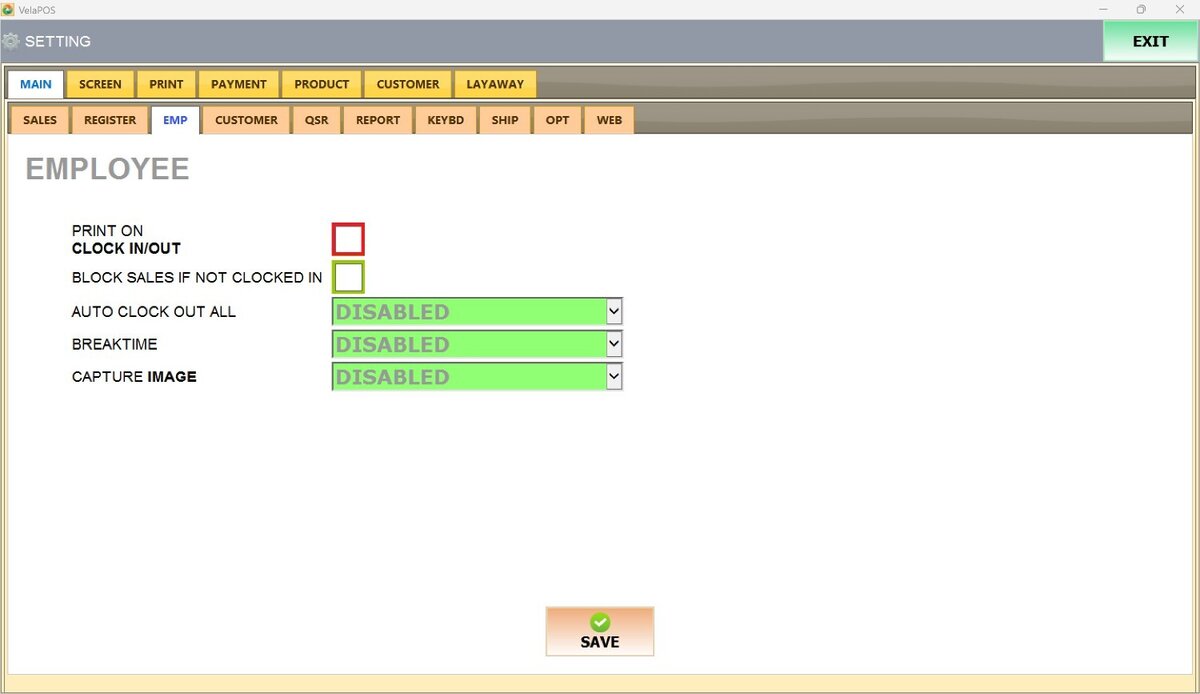
Check the box to enable it.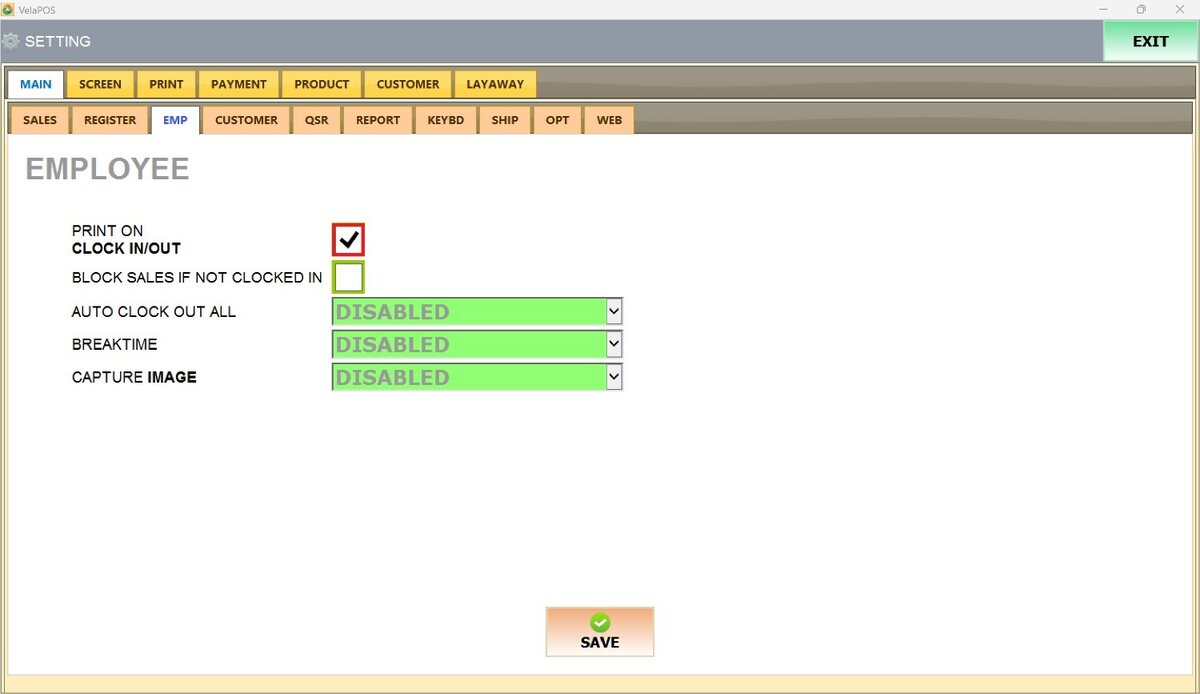
Result:
Clock In: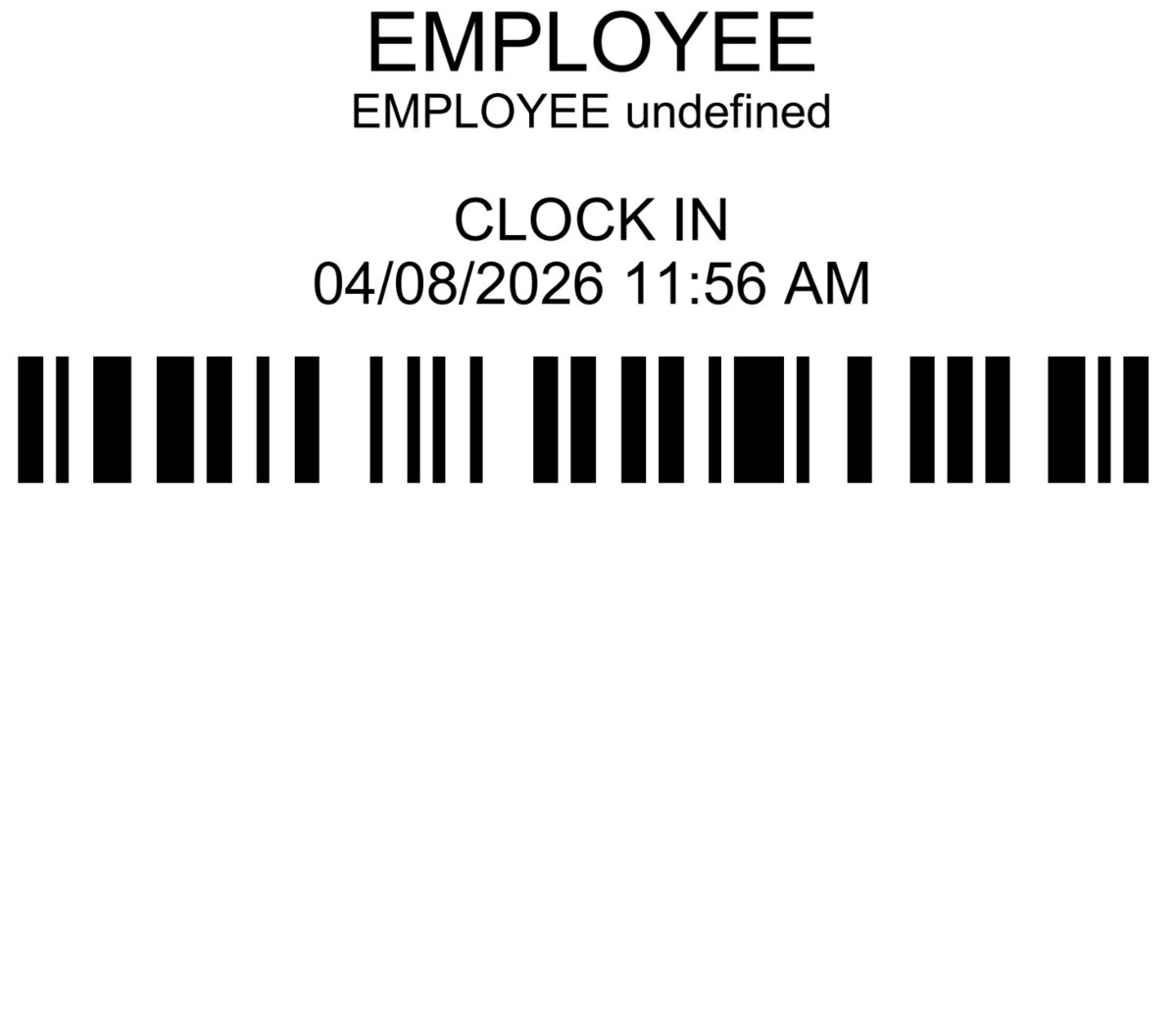
Clock Out: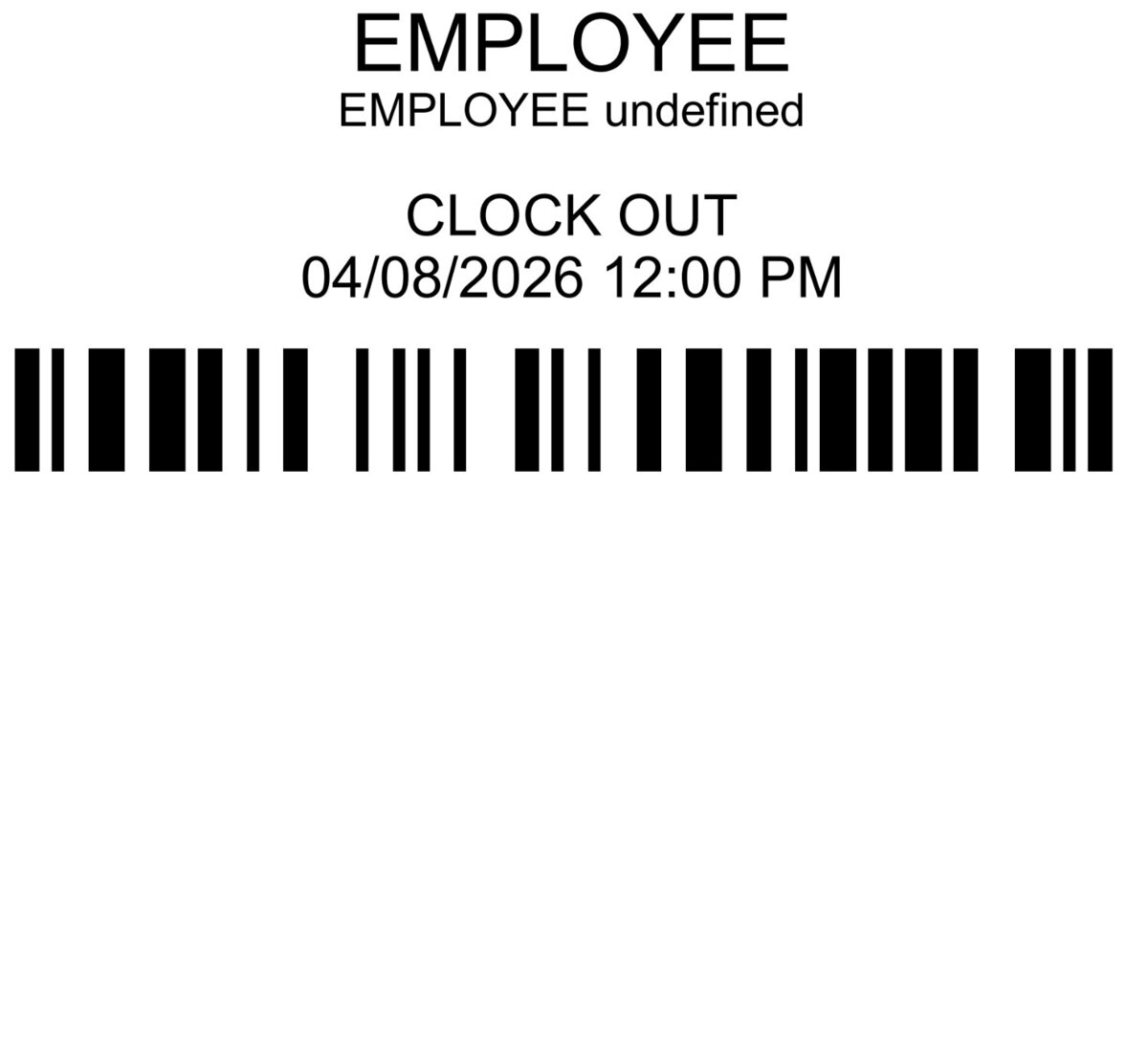
BLOCK SALES IF NOT CLOCKED IN
Ensures accountability by preventing employees from processing sales unless they are clocked in.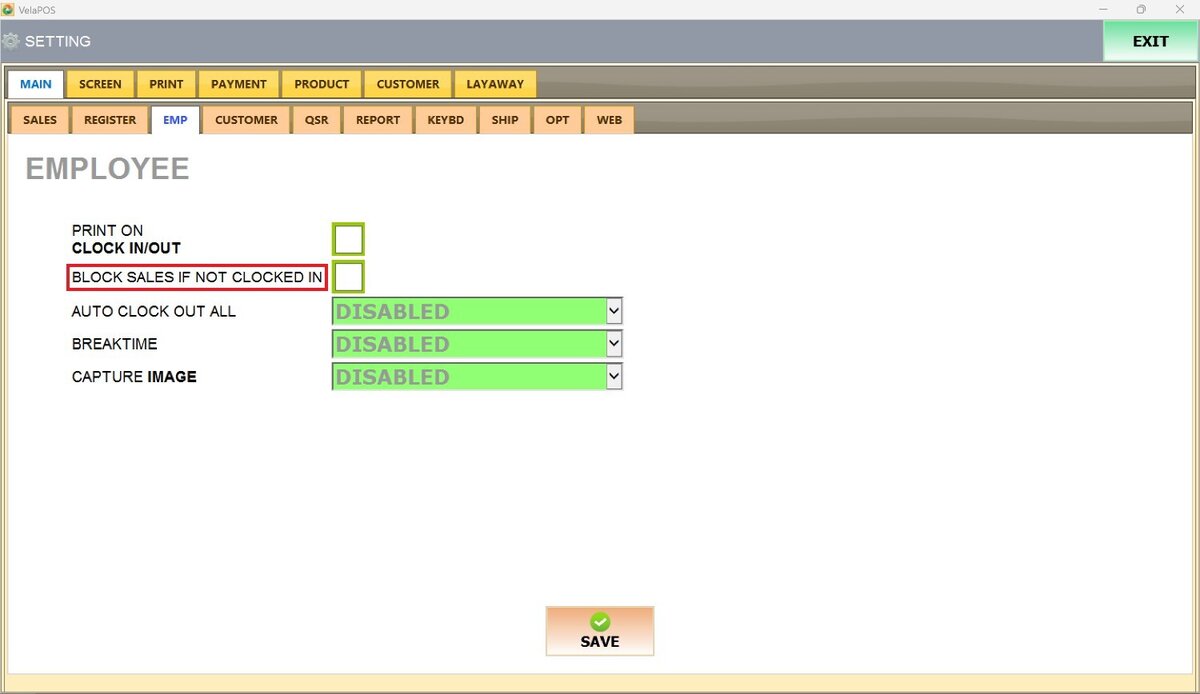
Leave the box unchecked to disable it.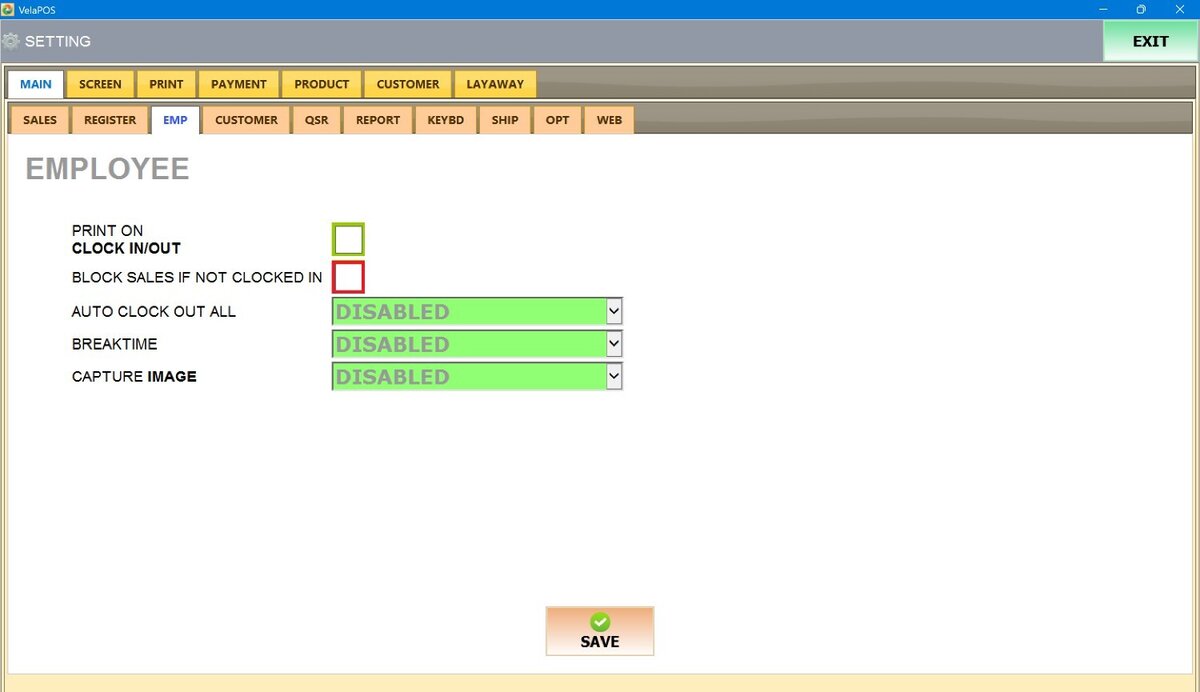
Check the box to enable it.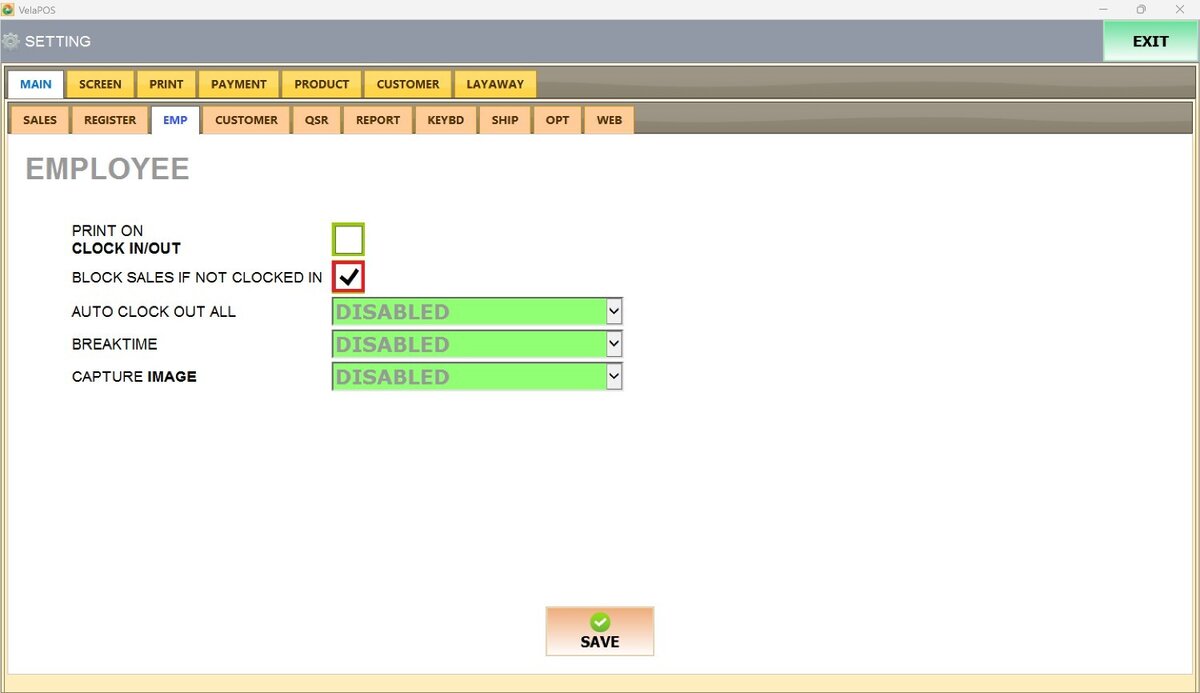
Result:
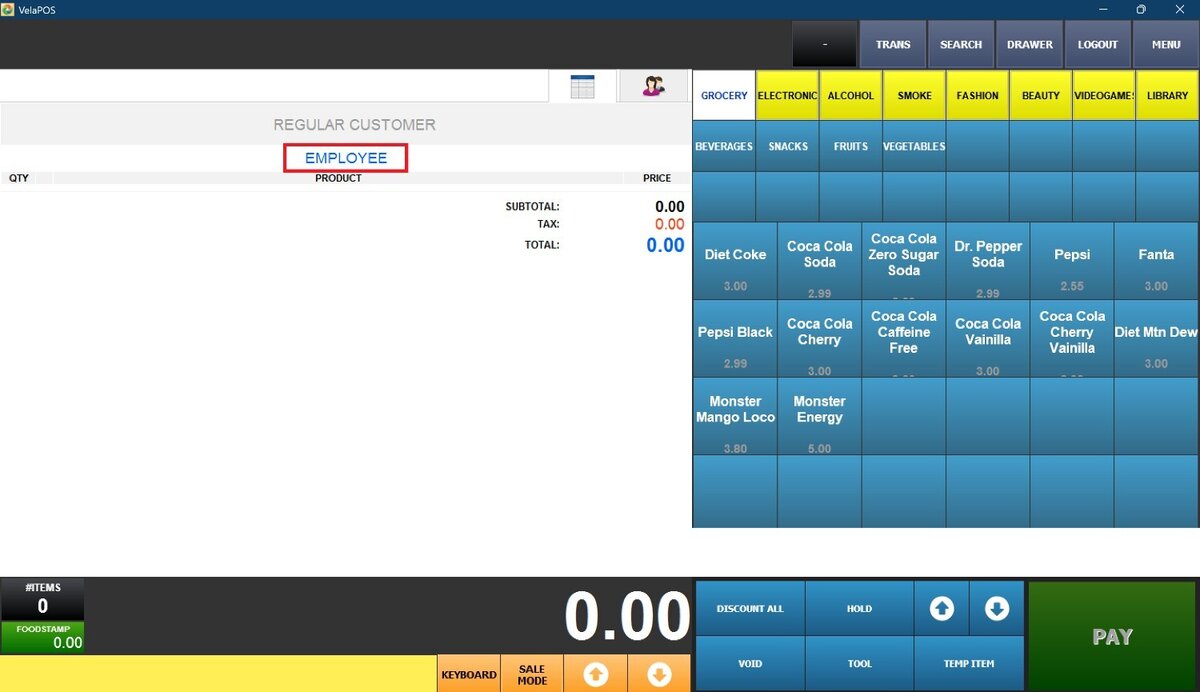
When the box is checked, the employee will be unable to access the Sales Screen and will be prompted to clock in first.
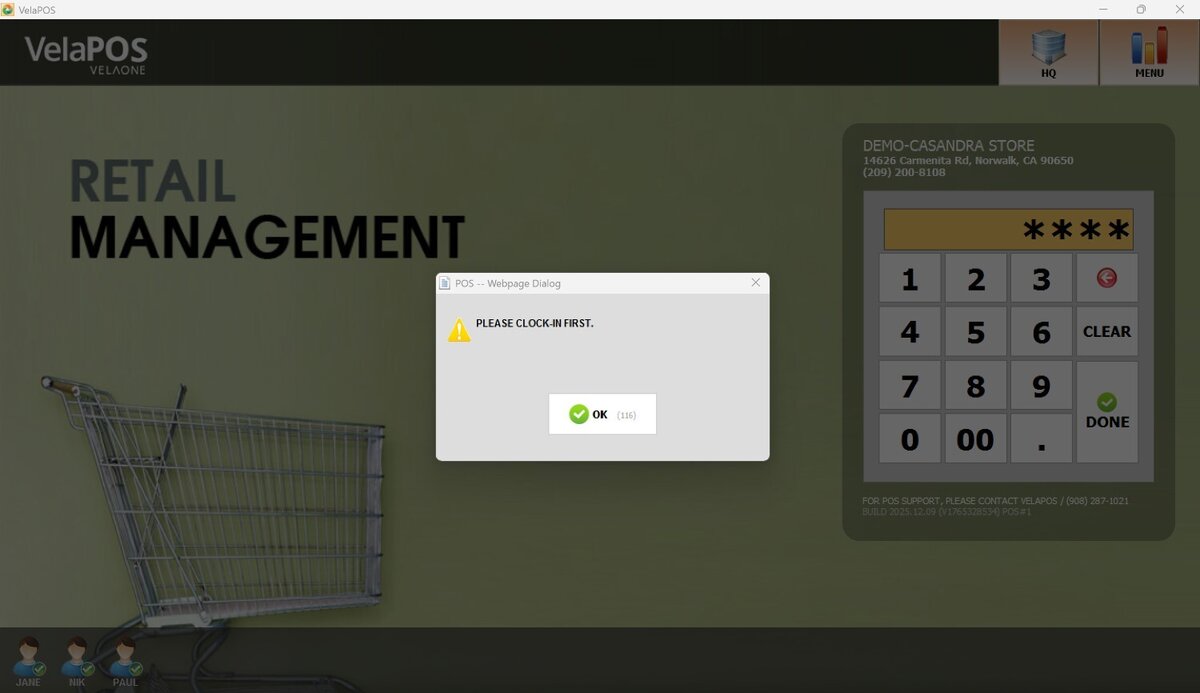
When the box is unchecked, even if the employee hasn’t clocked in yet, access to the Sales Screen remains available.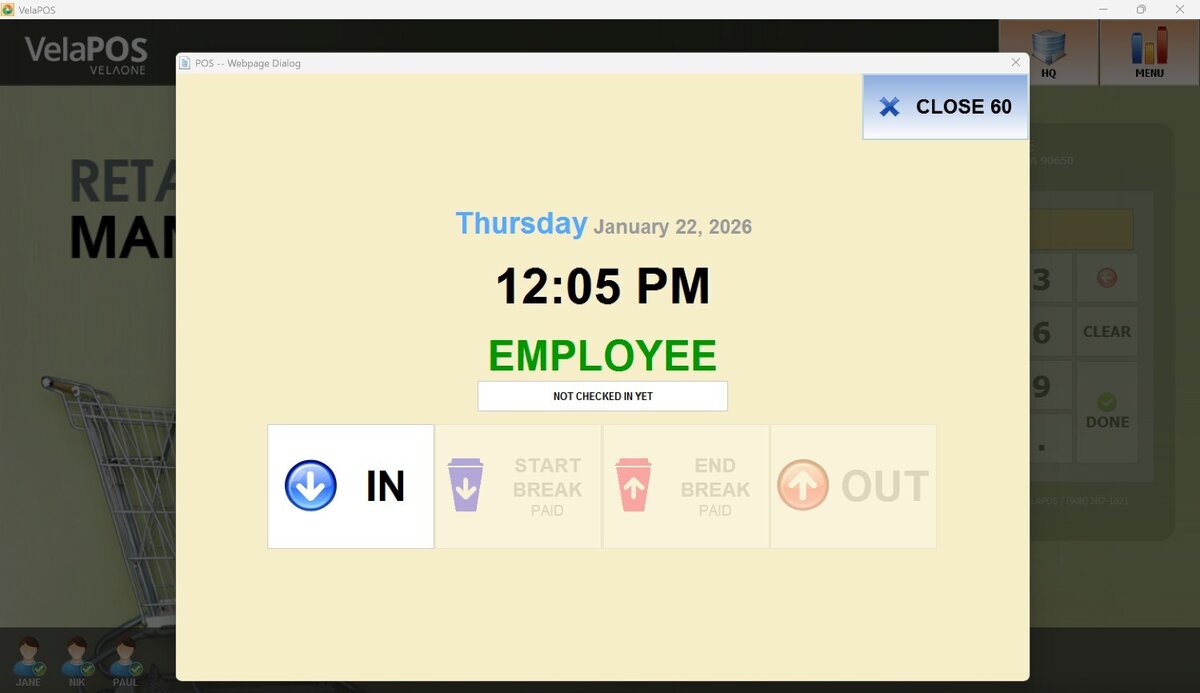
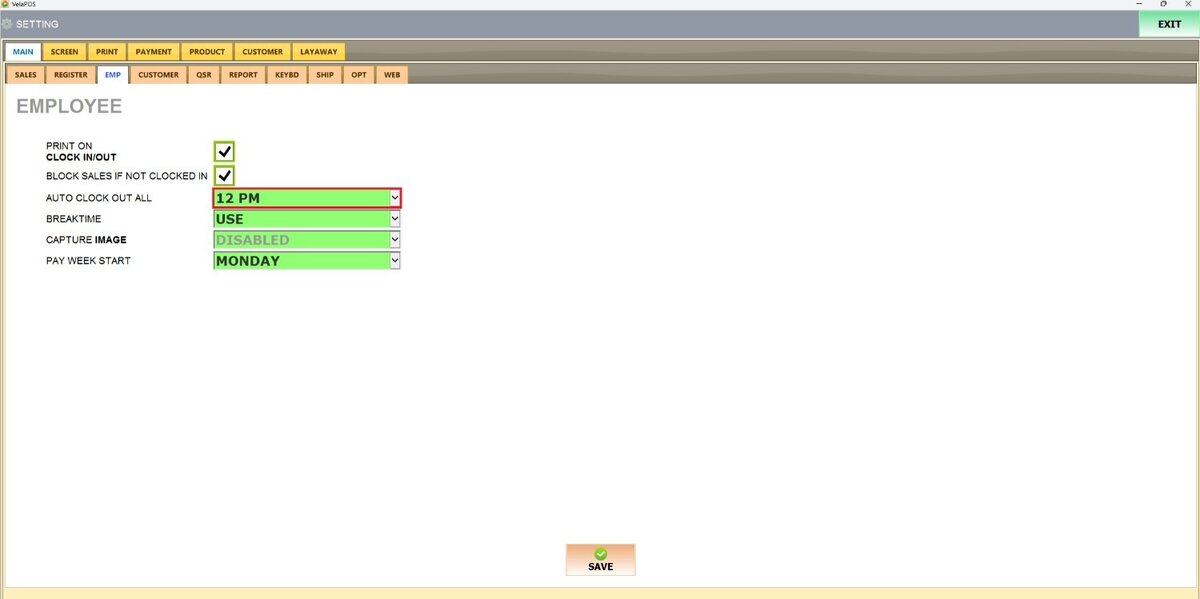
AUTO CLOCK OUT ALL
When enabled, automatically clocks out employees at a specified time, helping maintain accurate time records and preventing missed clock-outs.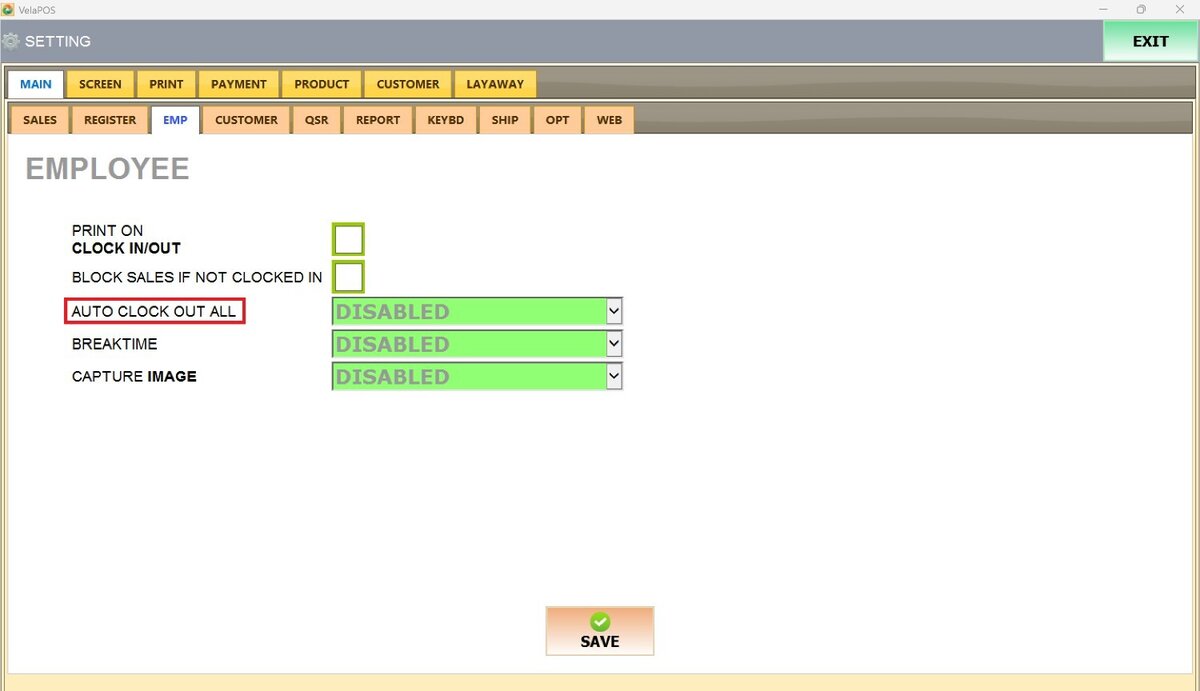
From the drop-down menu, select:
1. DISABLED: to disable it.
2. HOURS: to enable it by selecting the time of your choice.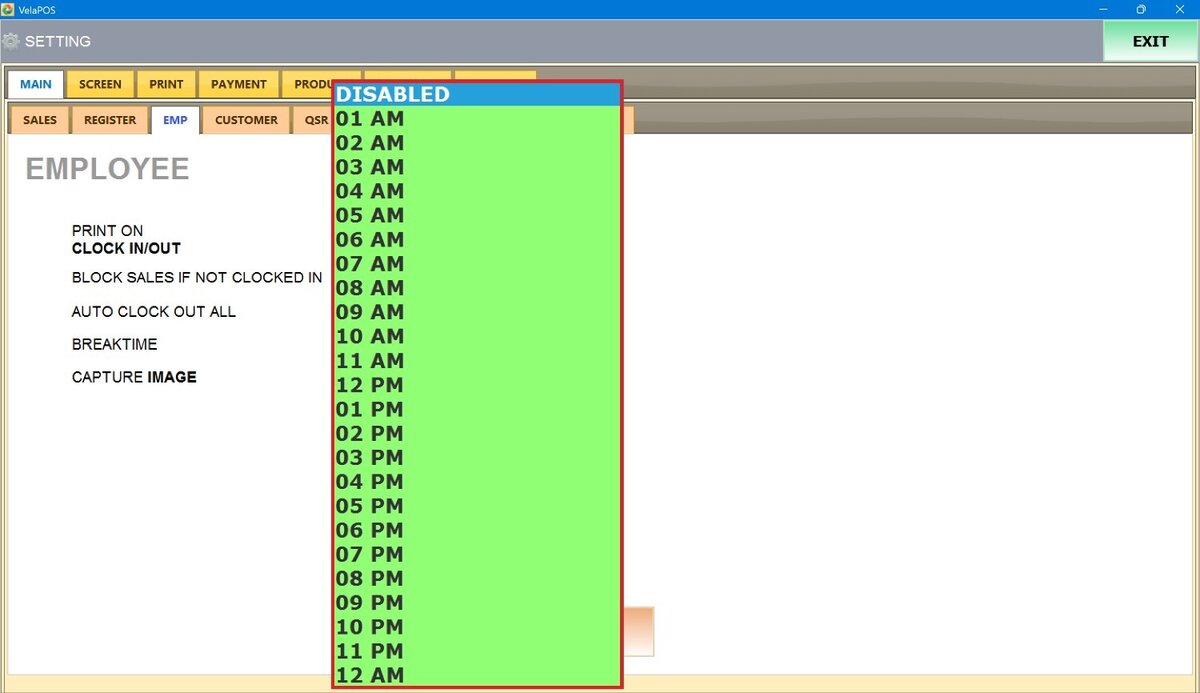
After making changes, press SAVE and RESTART THE PROGRAM to apply them.
Result:
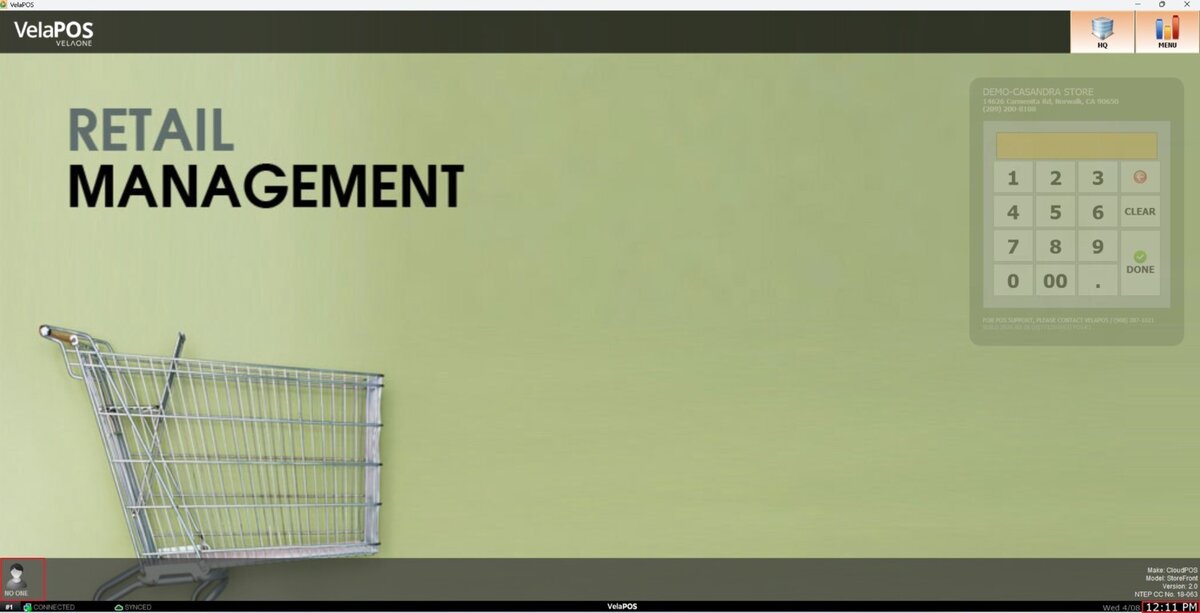
The auto clock-out is set at 12 pm.
Shows NO ONE clocked in at 12 pm.
BREAKTIME
Allows employees to record break periods in the system.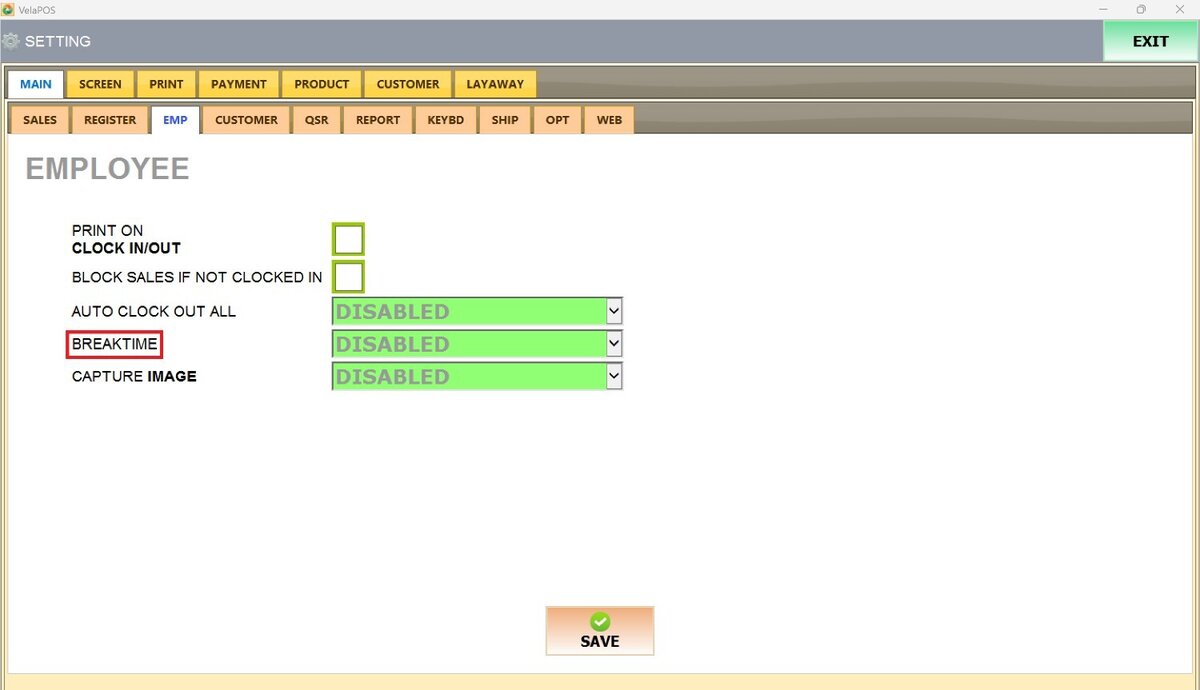
From the drop-down menu, select:
1. DISABLED: to turn this feature off.
2. USE: to enable it.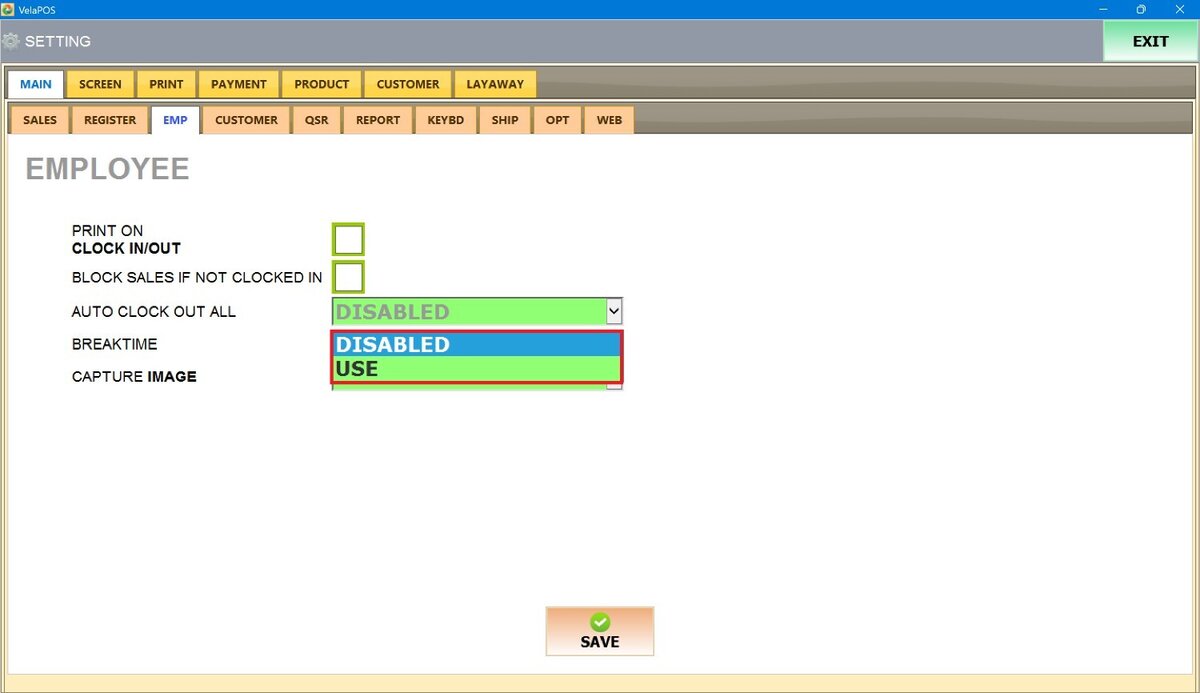
Result:
When the USE option is selected, the employee can view the Break Time options.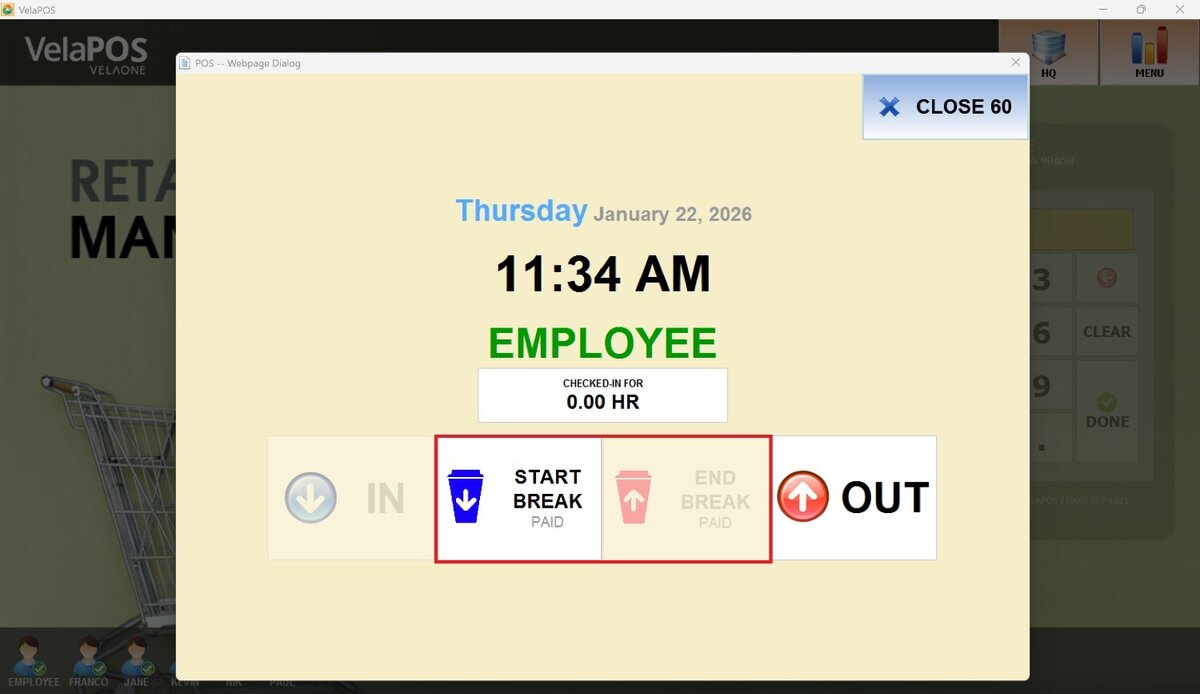
If the DISABLED option is selected, the Break Time feature will not be shown.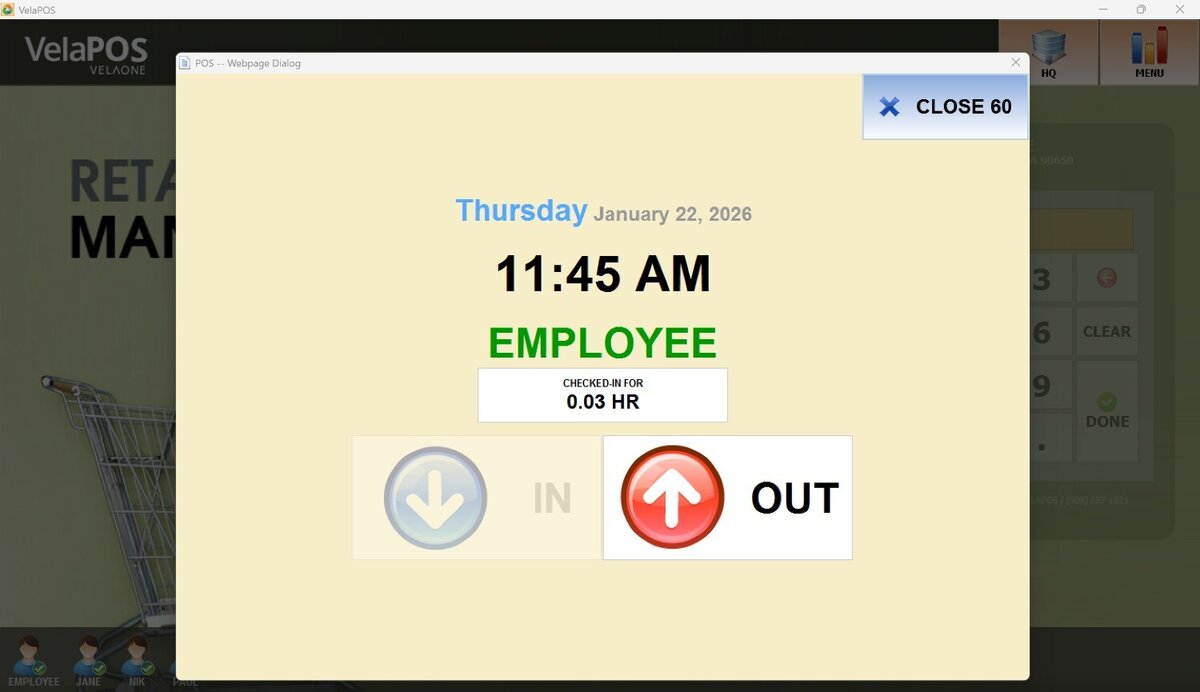
CAPTURE IMAGE
Enable this feature if your biometric system includes a camera. When enabled, an image of the employee is captured each time they clock in, providing an additional layer of verification.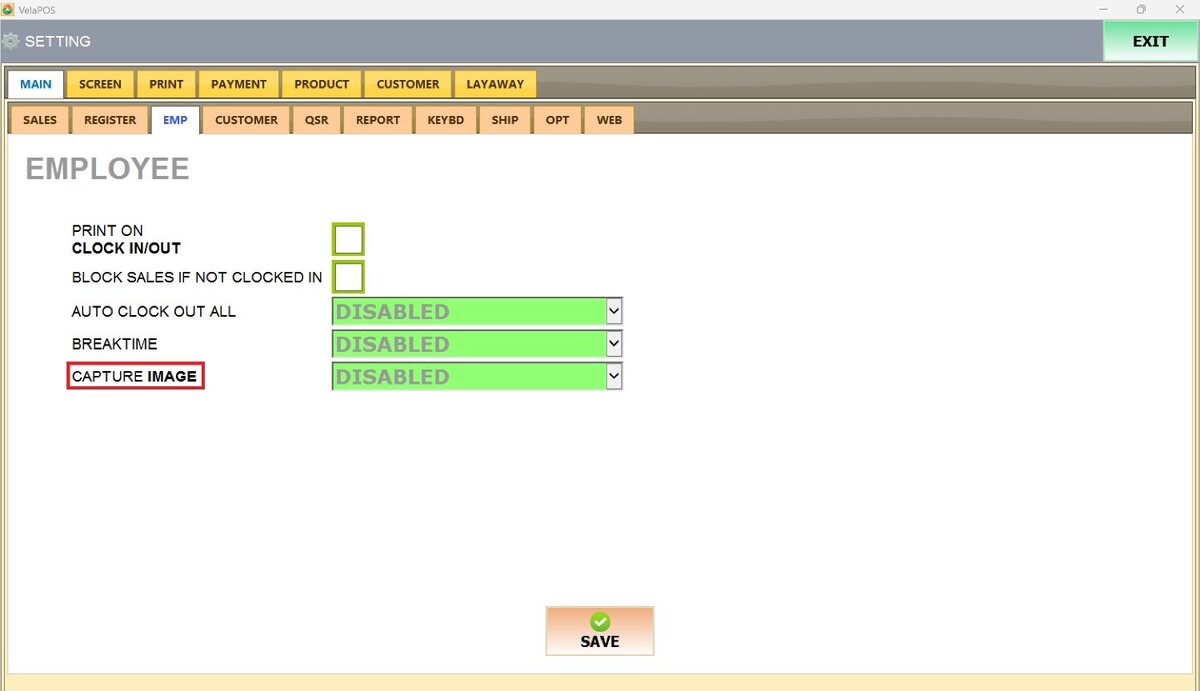
From the drop-down menu, select:
1. DISABLED: to disable this feature.
2. YES: to use this feature.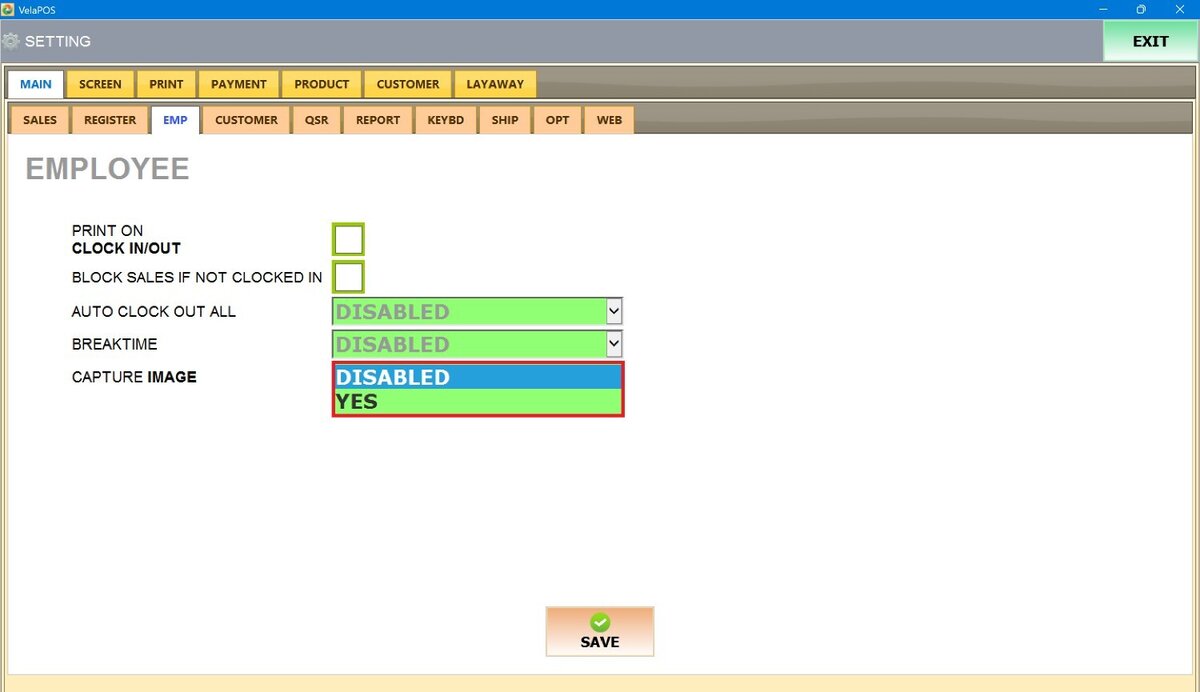
After making any modifications, press SAVE to store them, and RESTART THE PROGRAM to ensure the updates are applied correctly.