Creating an Admin Account
Admin accounts have full access to POS information, hardware settings, security settings and Head Quarters.
Main Screen> MENU> ADMINISTRATION> USER LIST> ADMINS
Go to MENU and press ADMINISTRATION.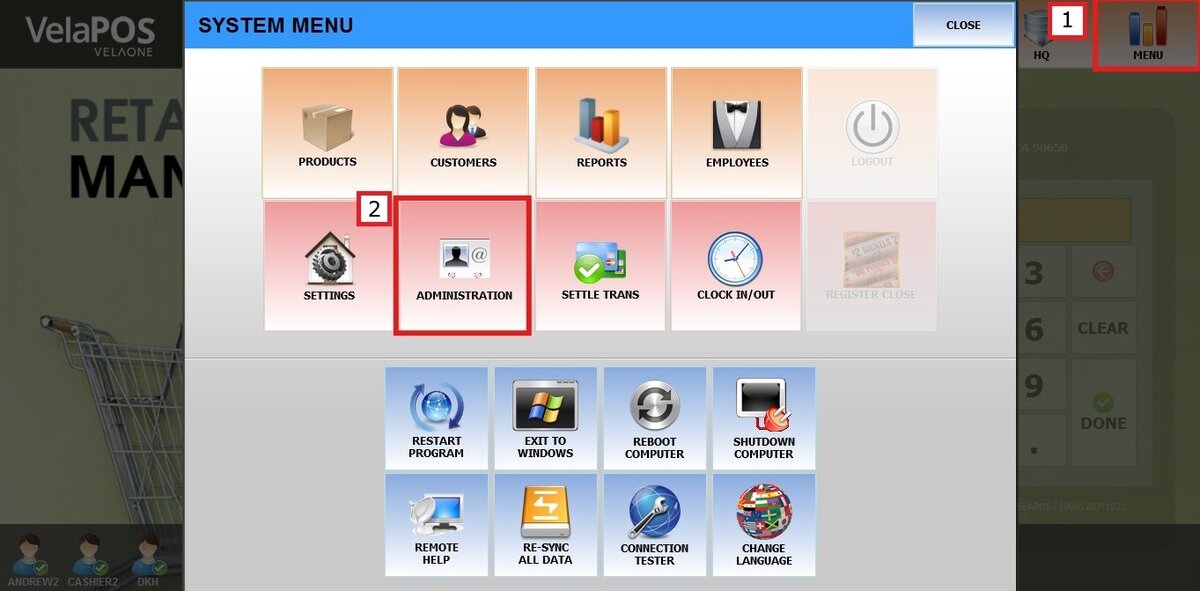
The system will prompt for an Admin Login. Since no admin account exists yet, you can temporarily bypass this step. 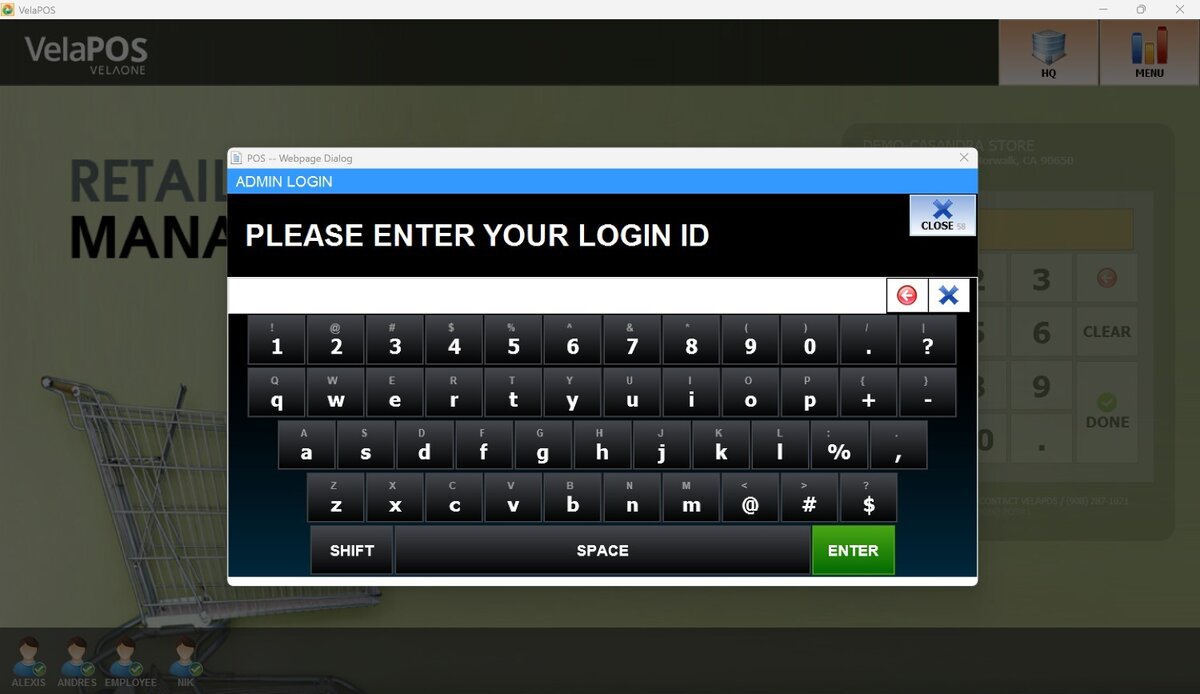
Double click inside the ADMIN LOGIN field,when prompted enter the ACCESS CODE.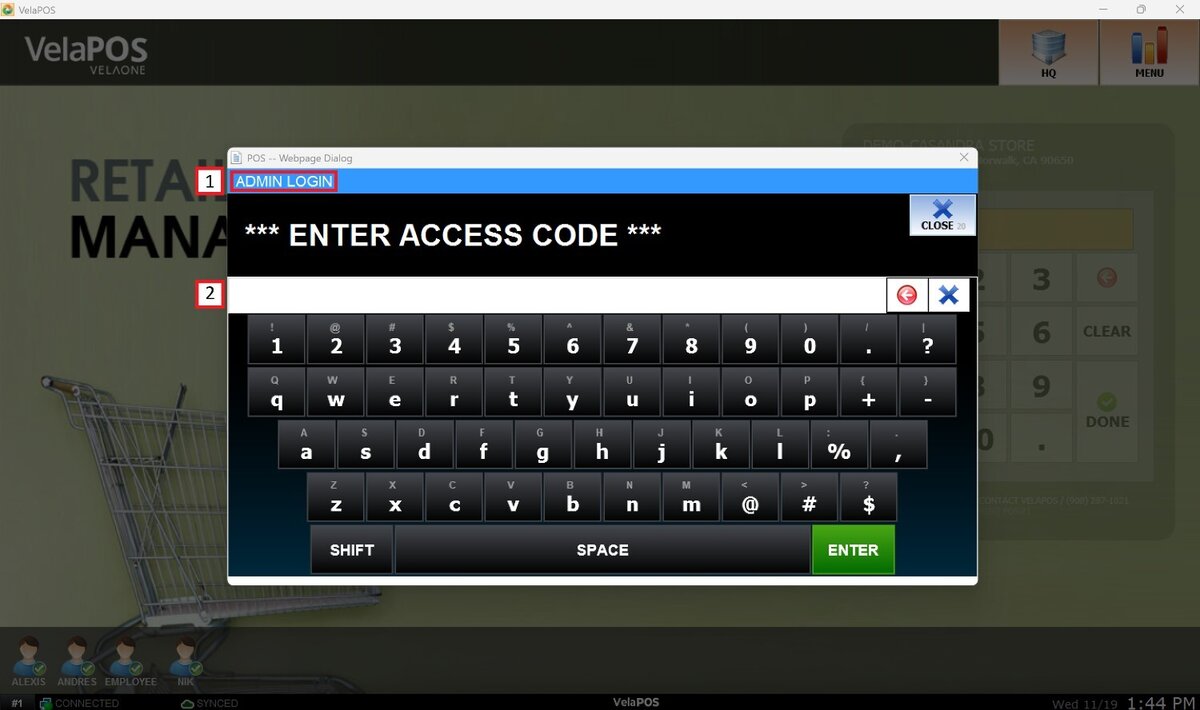
Note: The Access Code is available in your Dealer Portal and changes daily. Always use the most current code.
After entering the Access Code, the system will open the Administration Settings.
Select USER LIST, then choose ADMINS, and tap ADD USER to create a new admin account.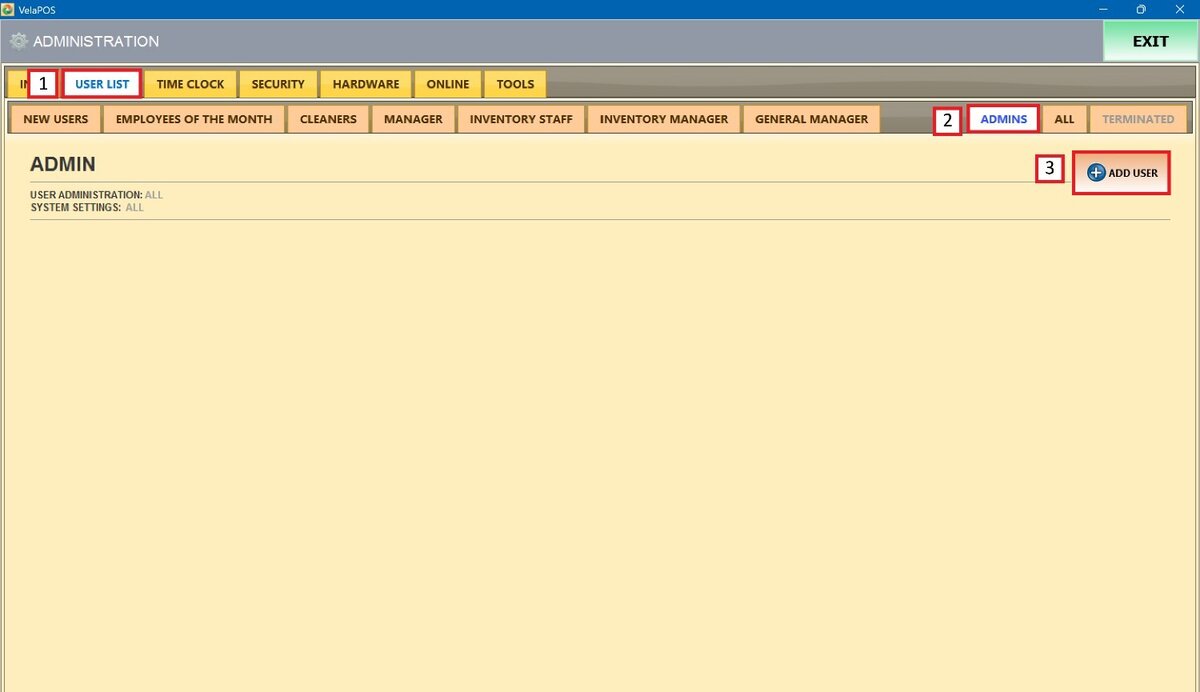
Basic
The User Information screen will appear.
Enter the NAME, LOGIN ID, and press SAVE.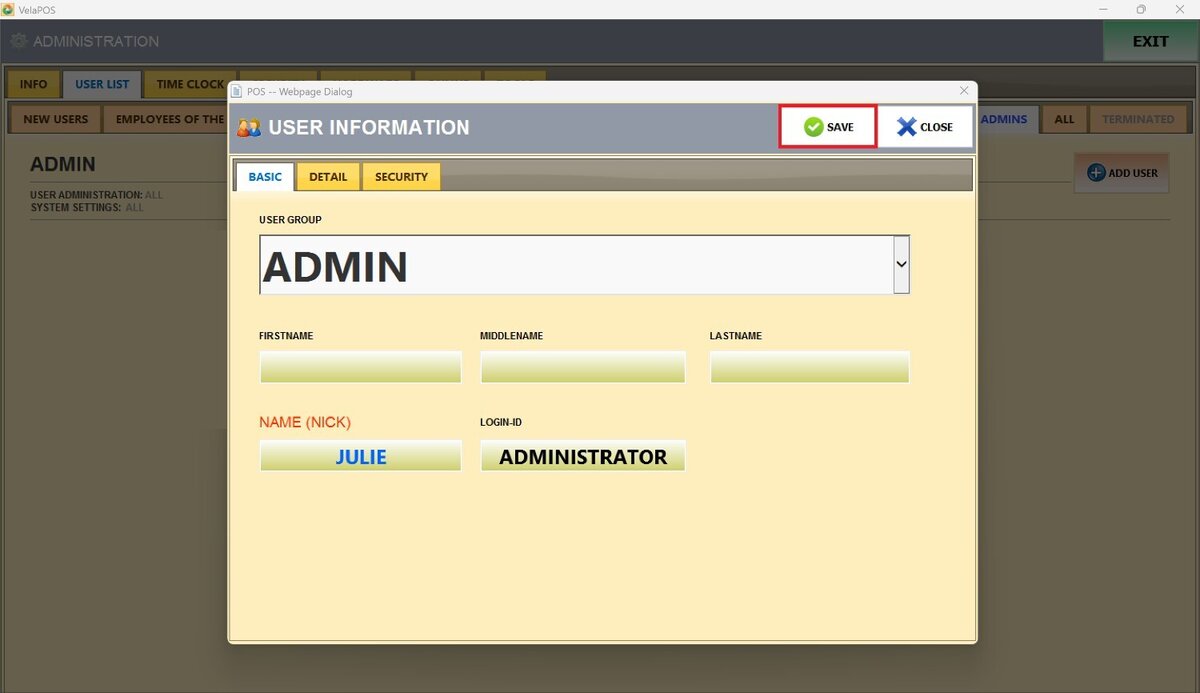
Note: Make sure to remember the Login ID. You will need it to access Administration in the future.
Detail
In this section, you can also enter additional user information, such as address, phone number, and email address.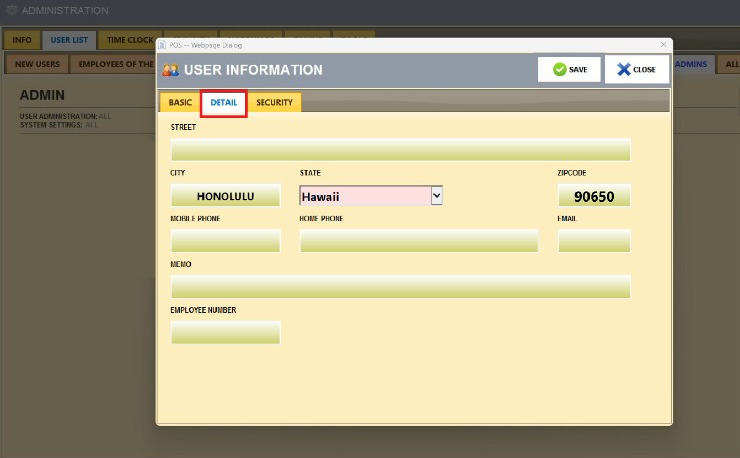
If an email address is entered in the EMAIL field for the Admin user, the system will automatically send daily sales reports to that email by default. This allows Admin users to receive reports without requiring any additional configuration. After filling in the information, press SAVE.

Find the admin user you just created and press PASSWORD to set it.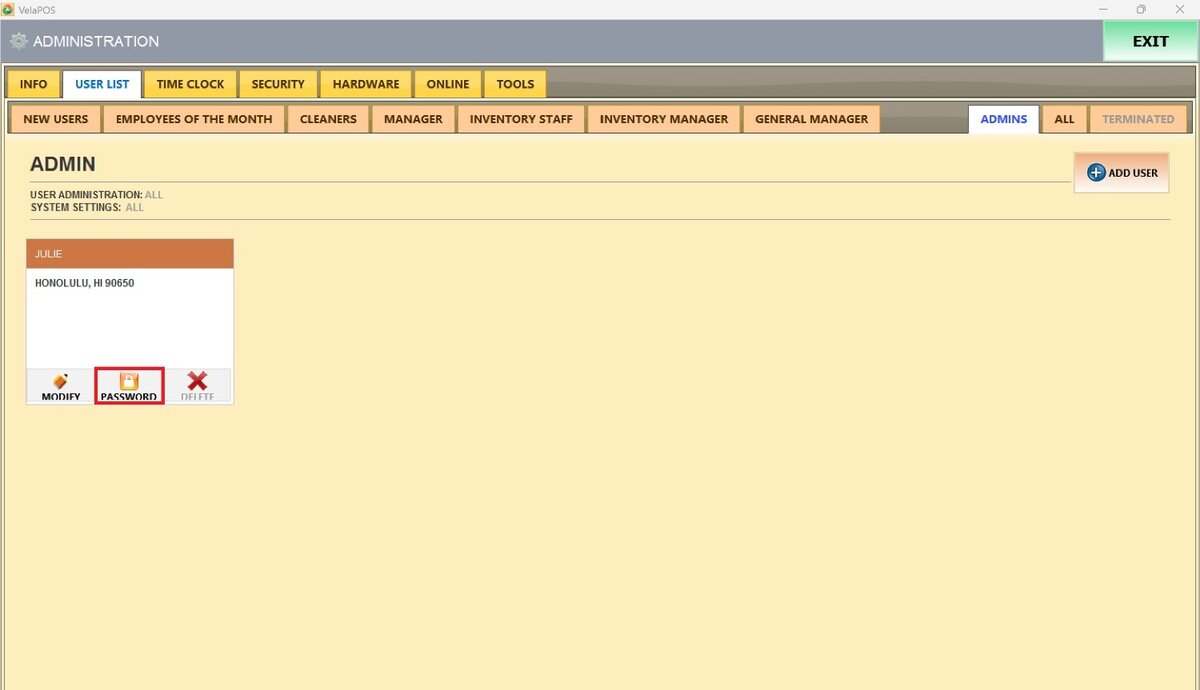
You'll need to enter the password in the blank space.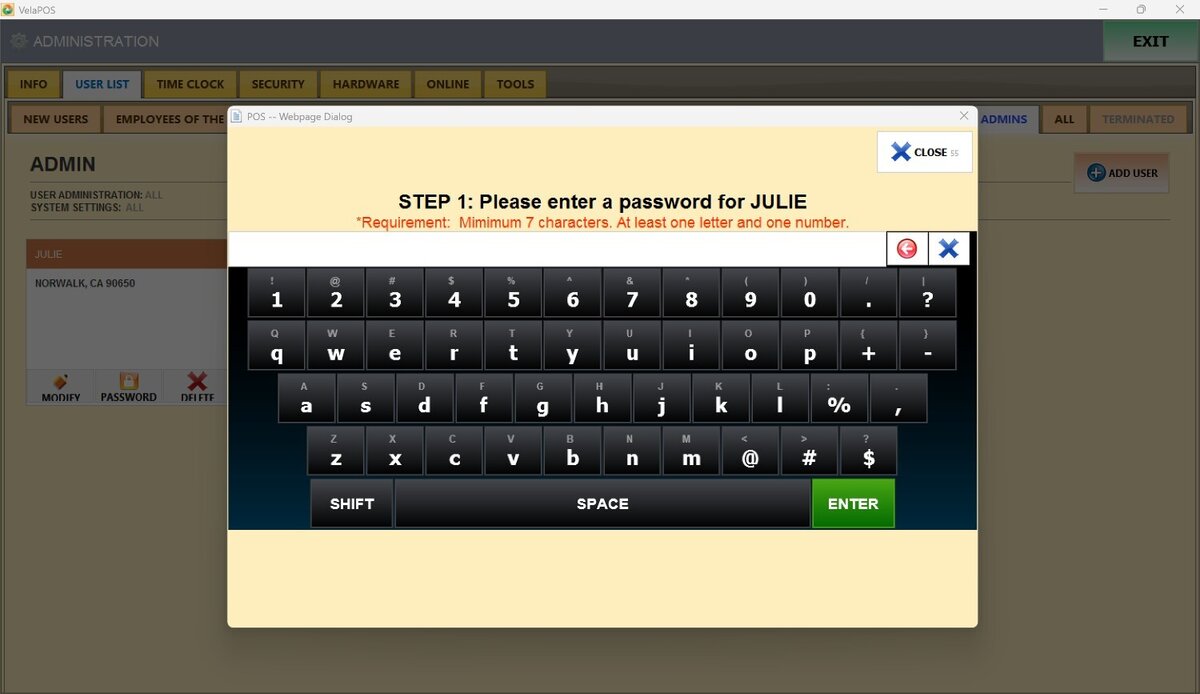
Re-enter it to confirm. 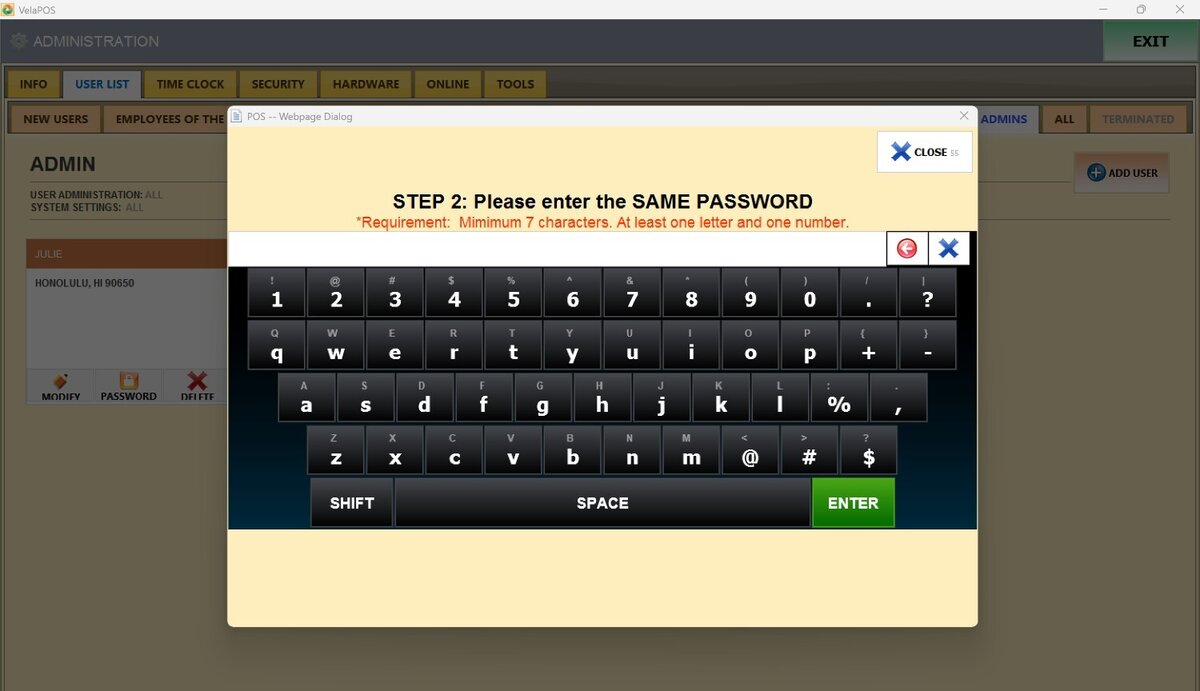
Press OK to complete the setup of the password.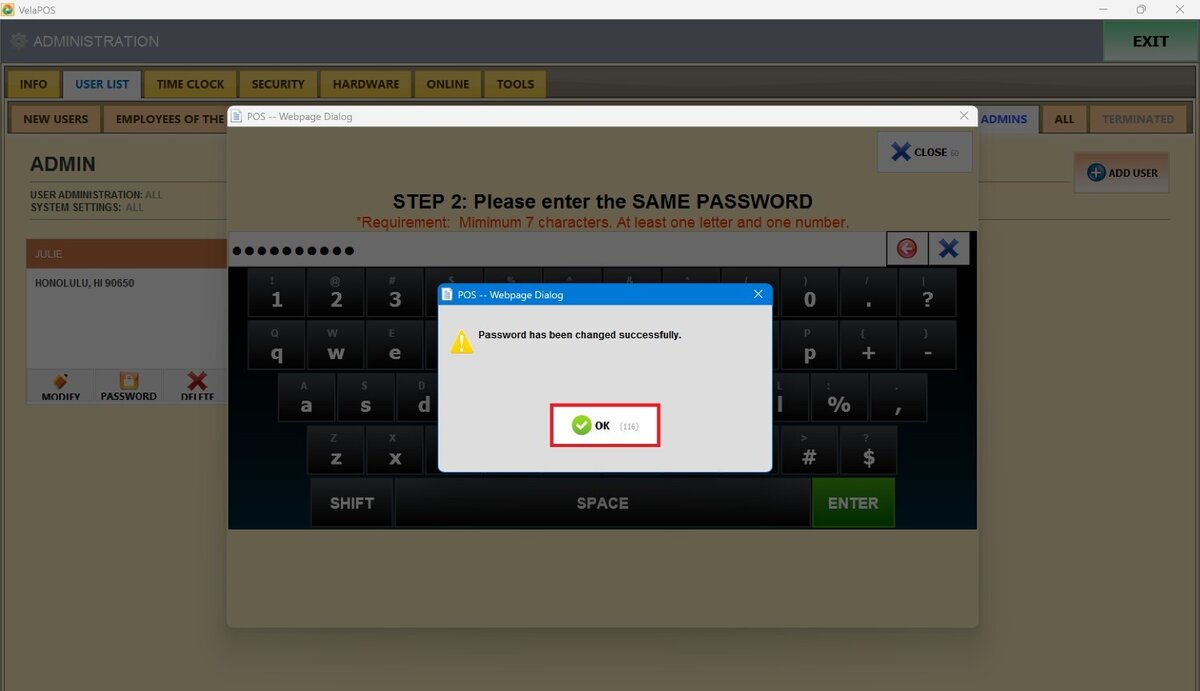
Note: Passwords must follow the system requirements: start with a letter, then numbers, and a minimum of 7 characters.
Once completed, the new Admin account will be fully active and ready to use.