Accept transfer
This feature is used by the receiving store to confirm the physical reception of products sent from another location. Once accepted, the inventory is officially moved from In Transit status to the receiving store’s available stock.
MENU > PRODUCTS > INVENTORY > ACCEPTS
From the Main Screen, go to MENU and press on PRODUCTS.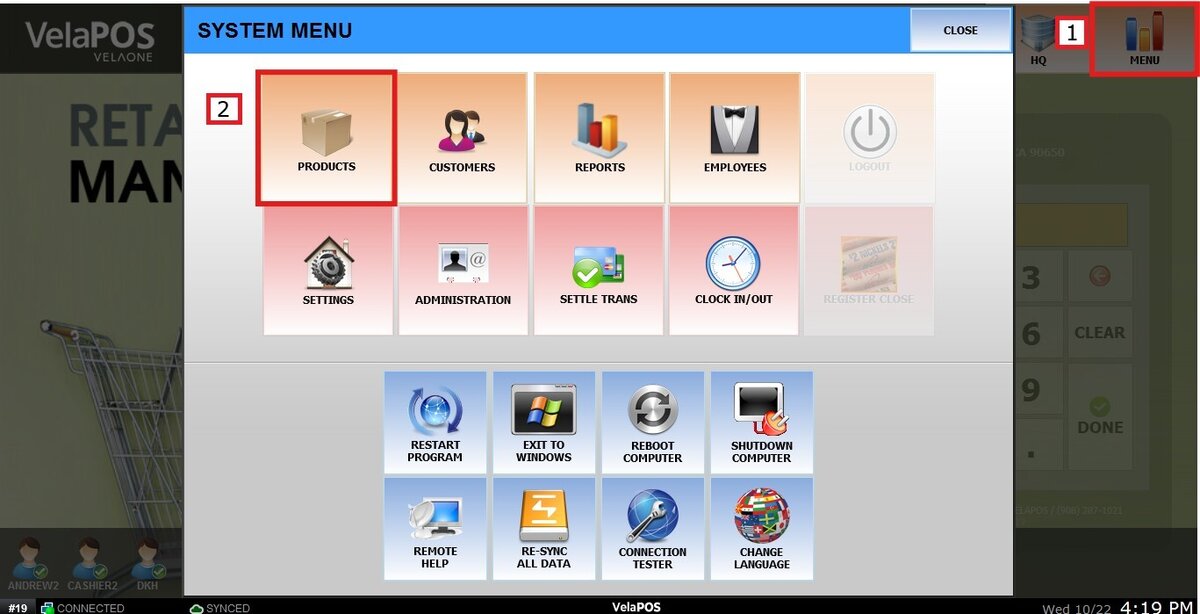
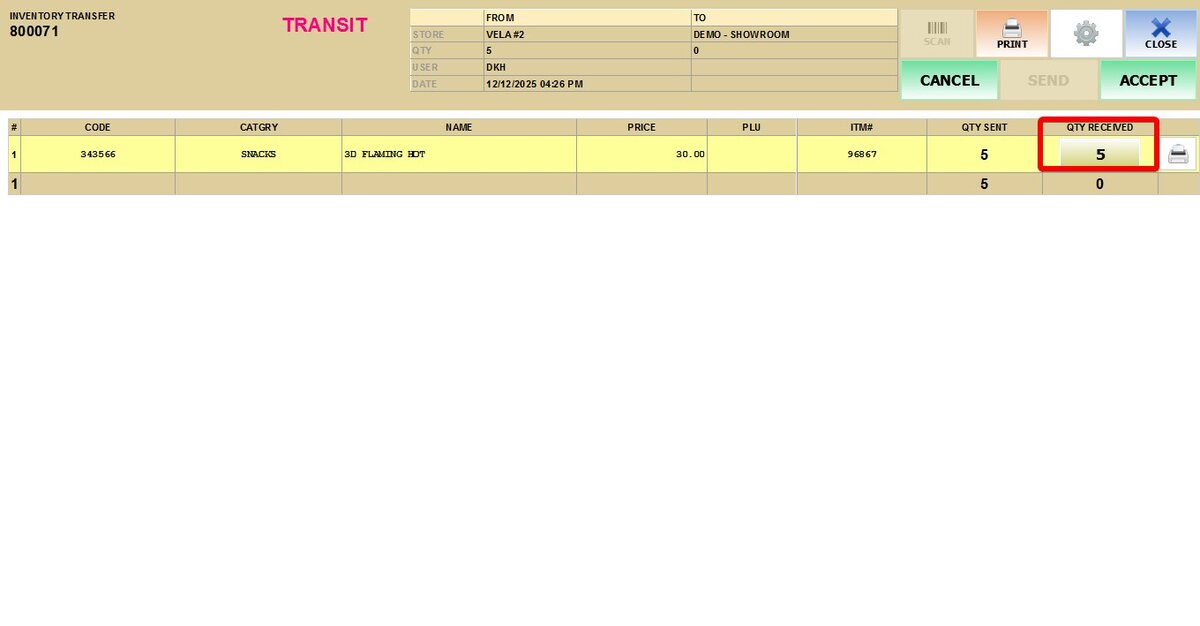
Under the INVENTORY tab, selec ACCEPTS, locate the transfer request marked as TRANSIT and press VIEW.

Review the transfer details. If everything is correct, click ACCEPT.
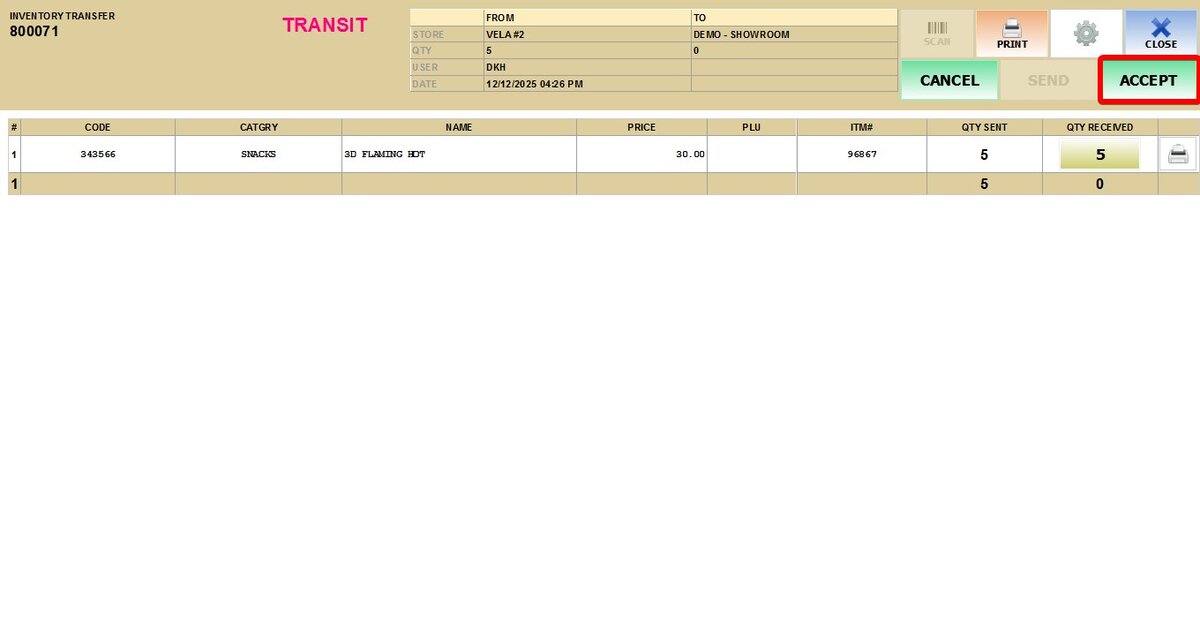
If the quantity received differs from what is listed, update the QTY RECEIVED field to reflect the actual quantity, then click ACCEPT.
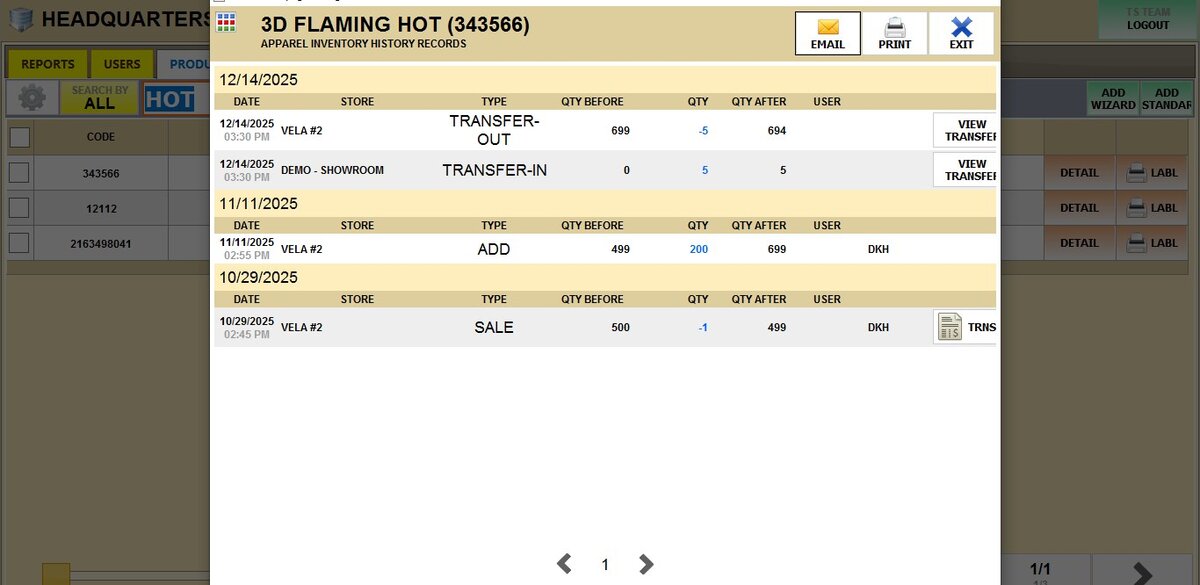
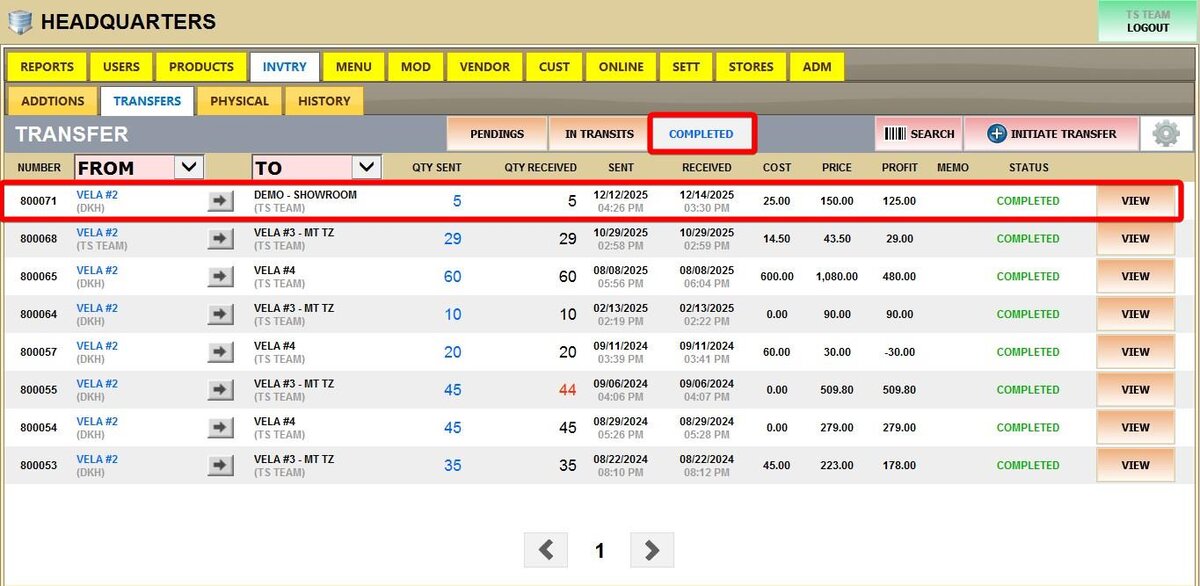
Once accepted, the transfer will be moved to the COMPLETED section, the stock will be added to your inventory, and the transaction will be recorded in the product’s history.
To initiate a transfer, refer to the Initiate a Transfer Guide.
Result:
The inventory is updated, and the transfer is successfully completed.
To view the transfer record:
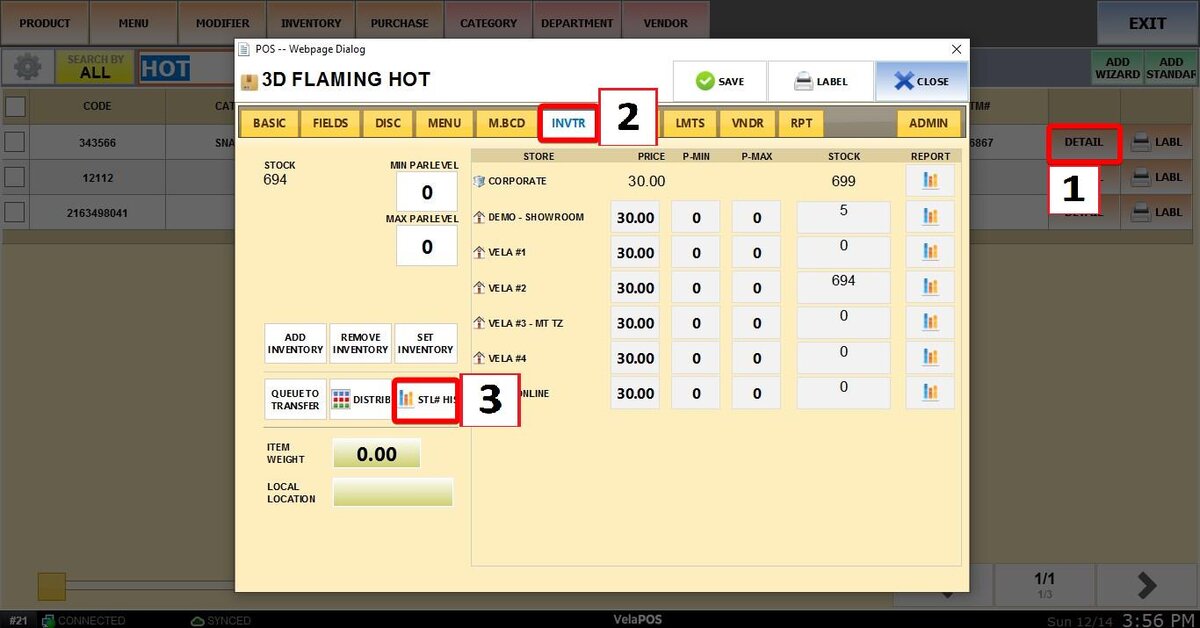
Go to MENU > PRODUCTS. Search for the specific product you received, and press DETAIL. Then navigate to INVENTORY > STL# HISTORY. The accepted transfer will appear in the history log.