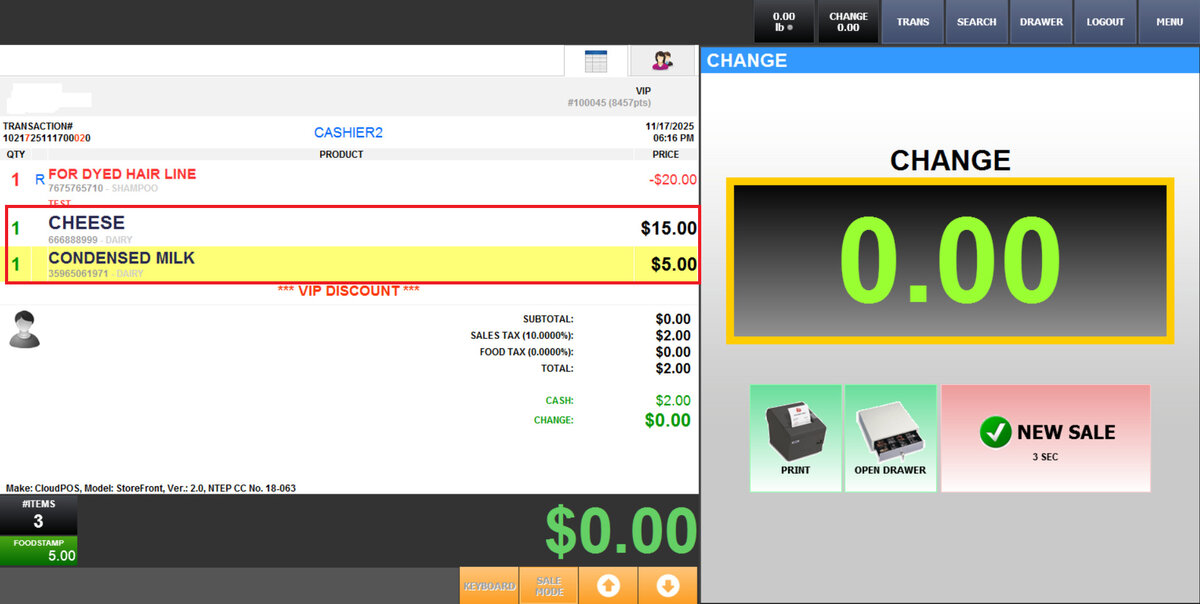
Standard Exchange
This method is used for exchanging items from a closed sale for different ones.
Main Screen> Number Pad> Sales Screen> TRANS List> RETURN
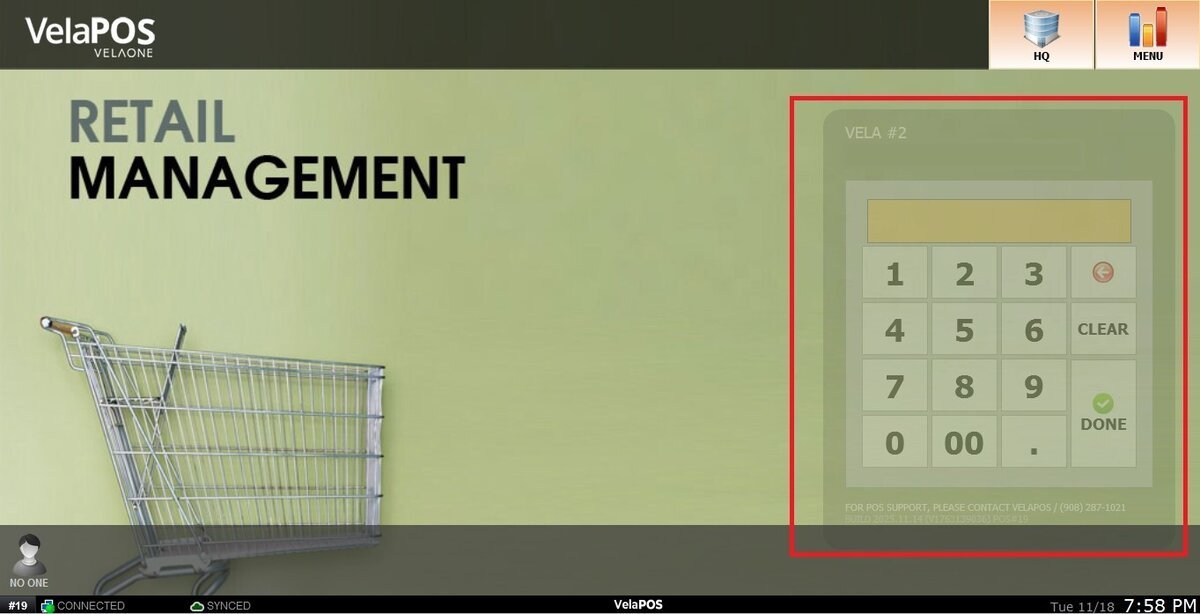
On the Main Screen, click on the NUMBER PAD and input your personal password to log in.
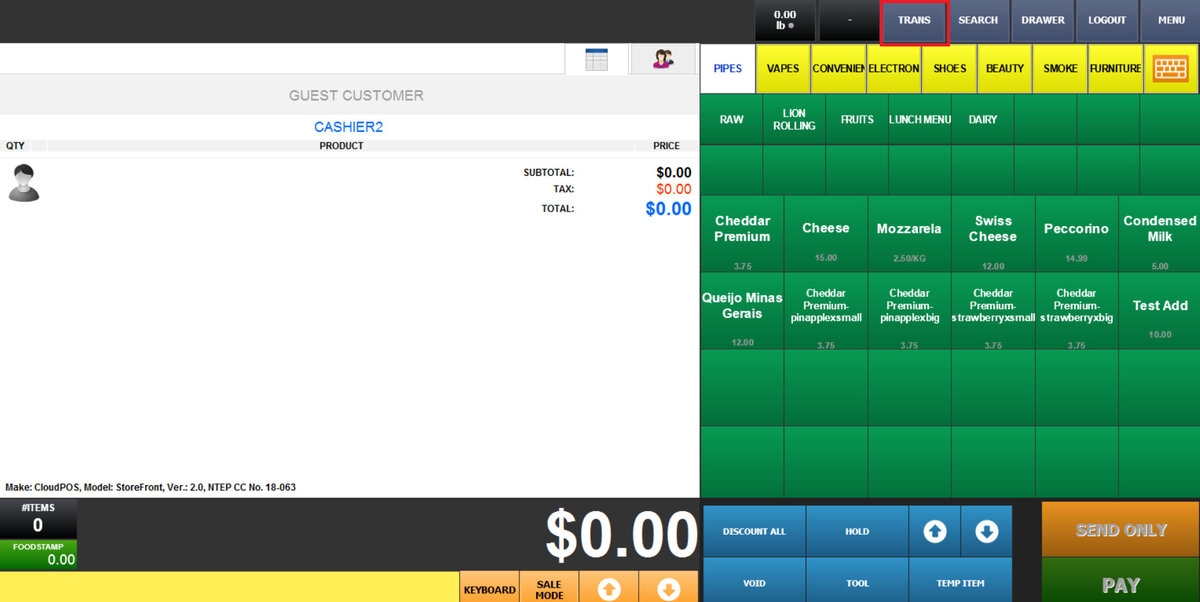
On the Sales Screen, click on TRANS.
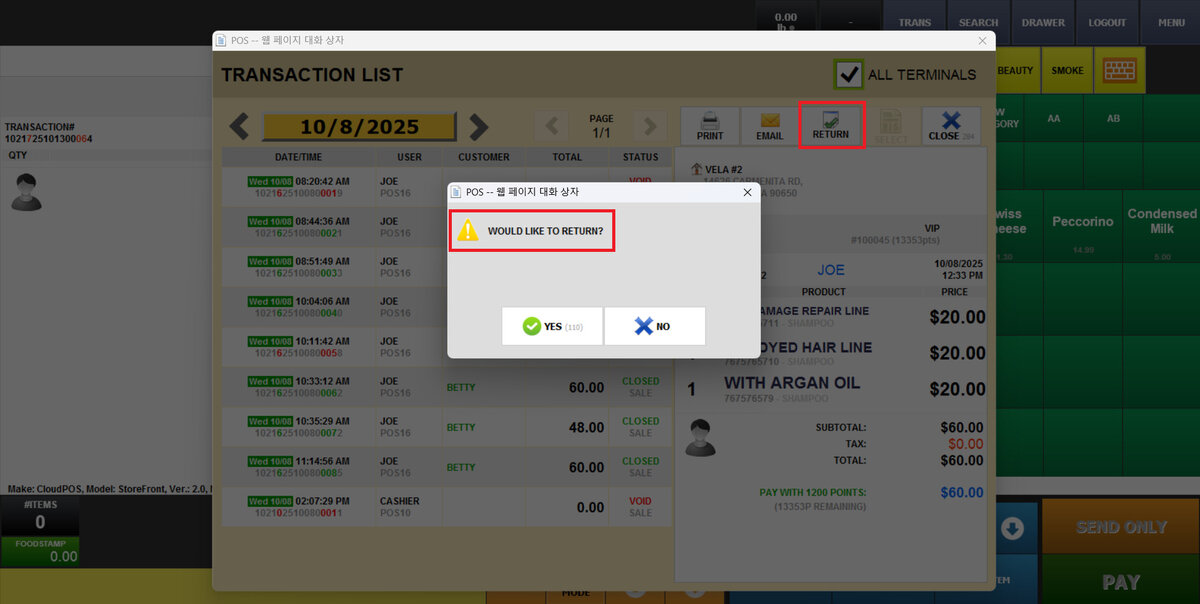
Find and select the transaction you need to exchange or return.
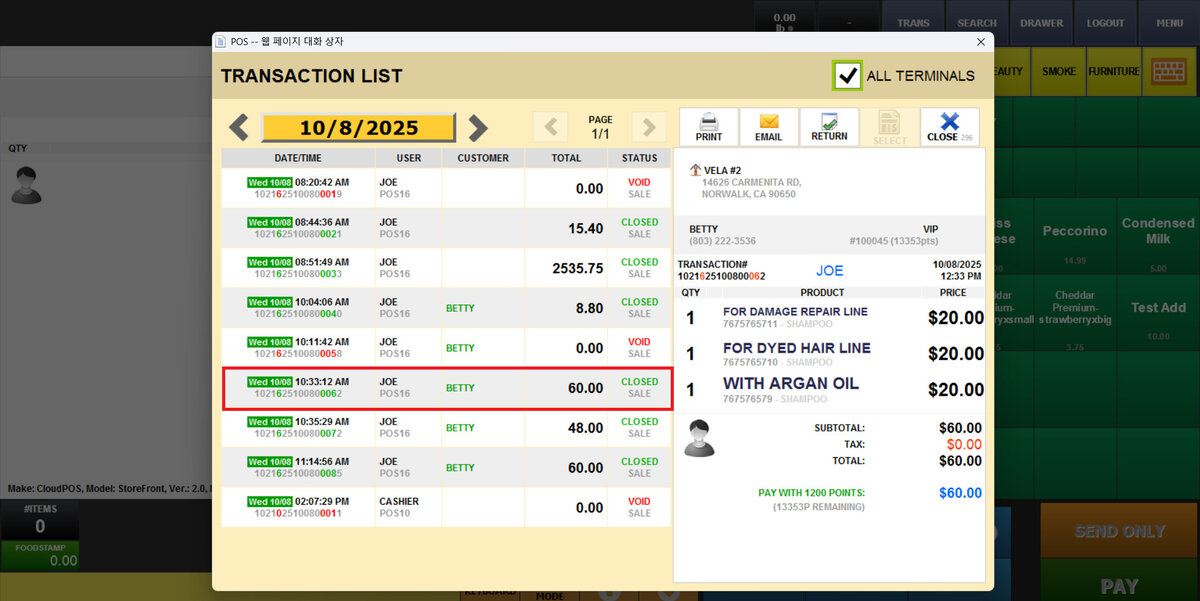
Note: On the TRANSACTION LIST, you can navigate to previous dates by accessing the calendar with the yellow date button.
Click “RETURN” at the upper right corner. When the message “WOULD LIKE TO RETURN?” appears, press YES to confirm.
On the Return Screen, select the items that are being exchanged.
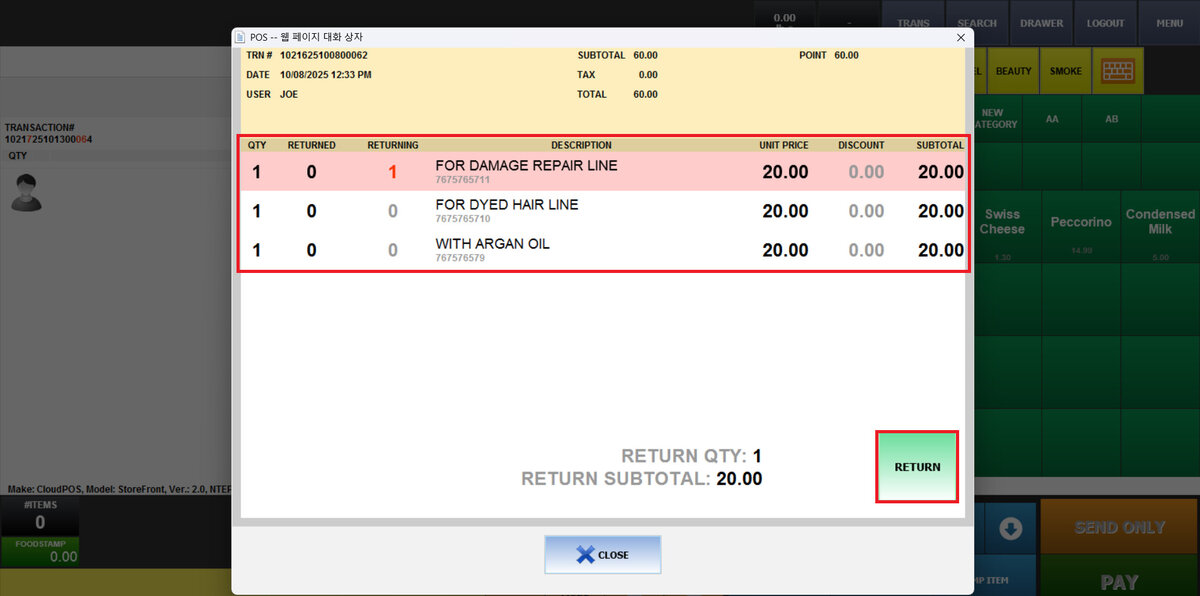
Note: Tap the item once for each unit being returned. If you need to erase the selection, tap one more time than the quantity originally ordered.
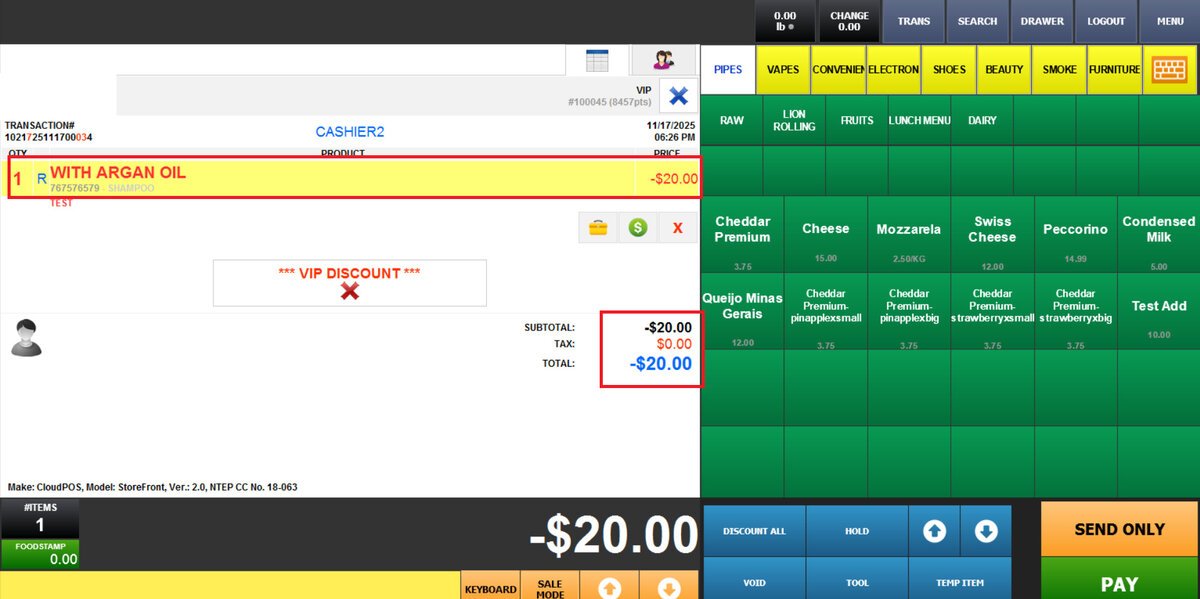
A ticket will be created showing a negative amount.
Ring up or scan the items that the customer is exchanging the old ones for.
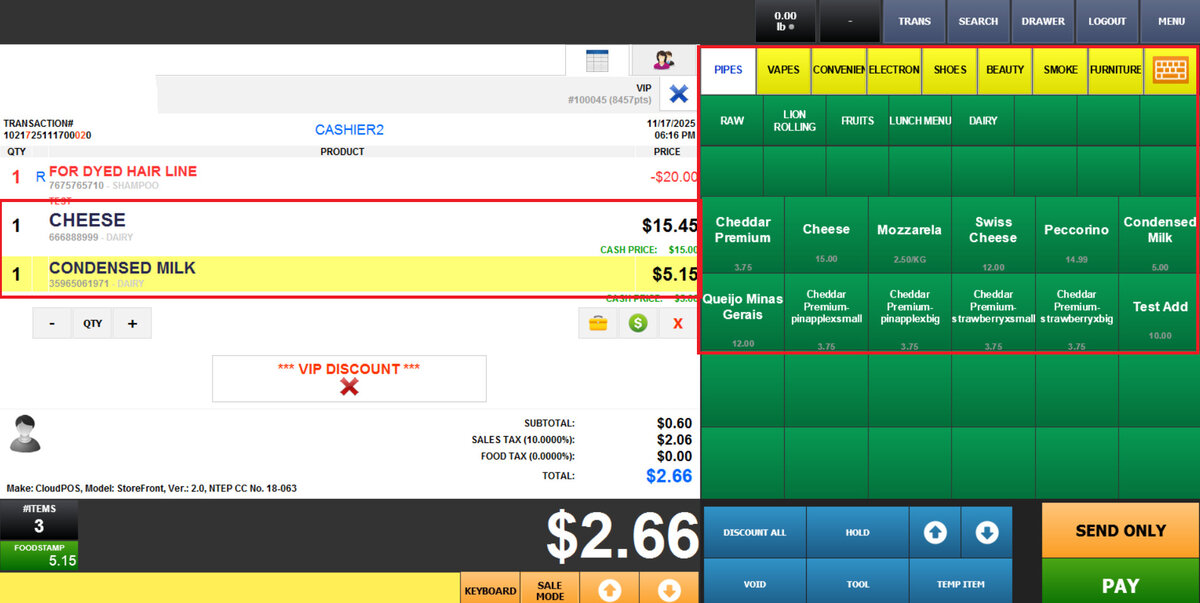
POS will automatically display any remaining balance or additional amount to be paid.
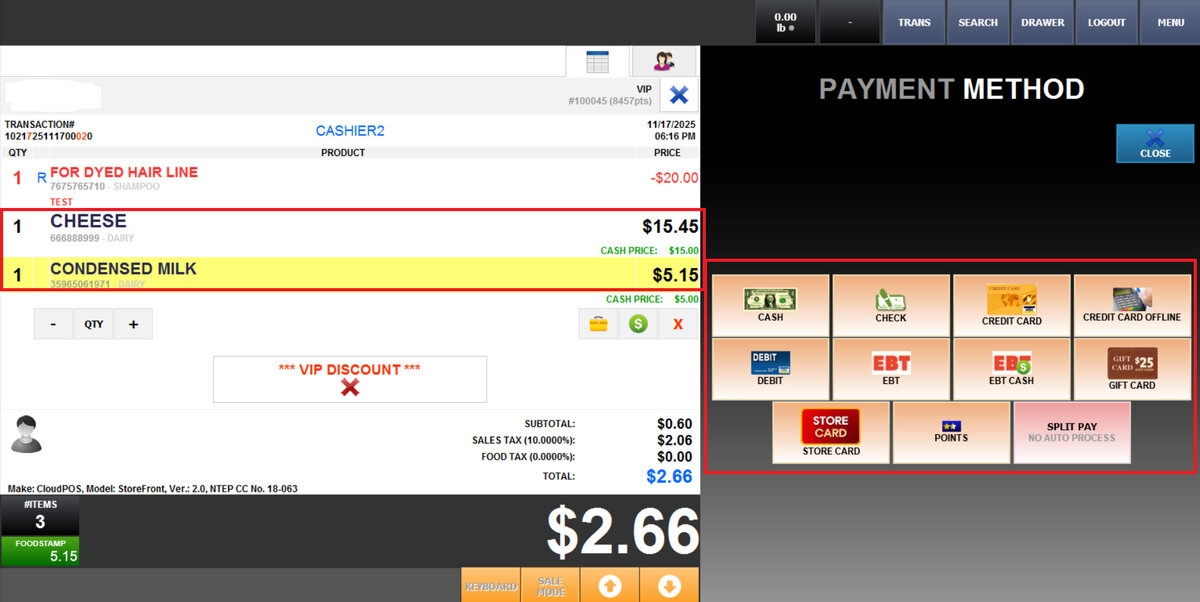
Select the desired payment method and complete the payment to finish the exchange process.