Tax
This setting defines how taxes are calculated, displayed, and applied to different products.
Main Screen> MENU> SETTINGS> PAYMENT> TAX
Go to MENU and press SETTINGS.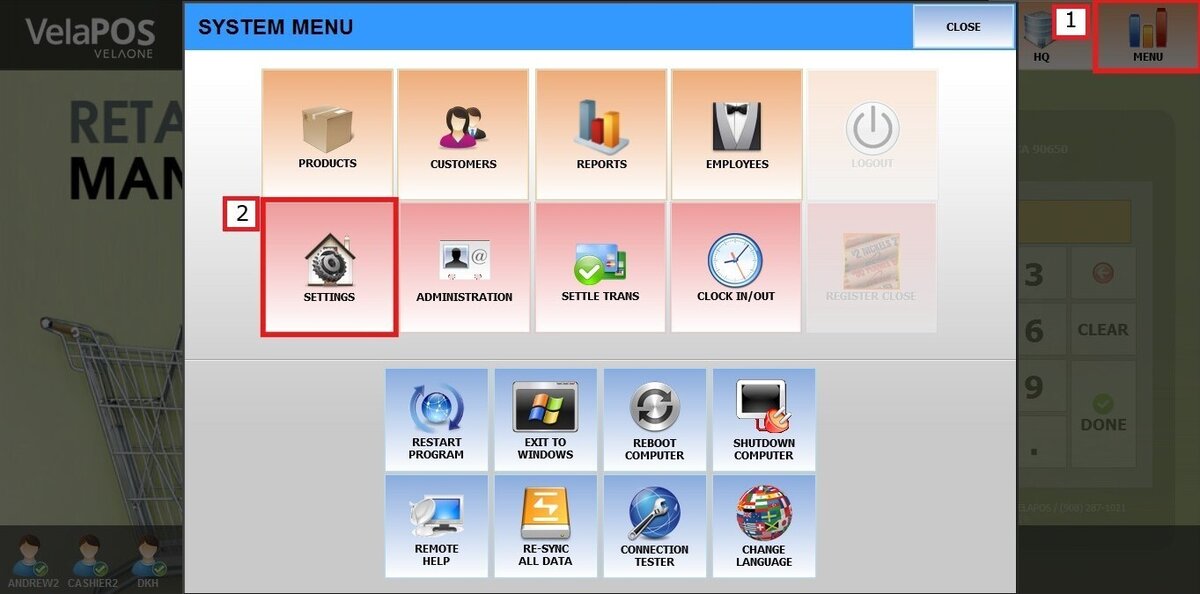
Under PAYMENT, select TAX.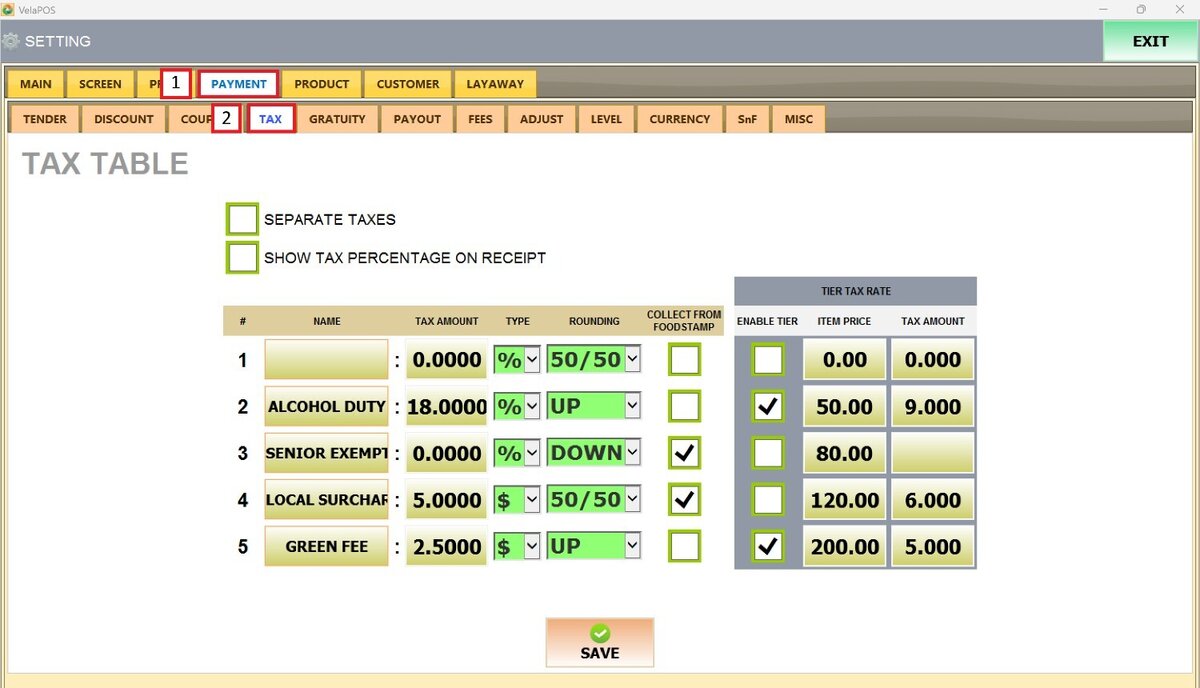
Tax Display Settings
This section controls how taxes are calculated and shown.
SEPARATE TAXES
Determines whether taxes are calculated and displayed individually instead of being combined into a single total.
Check the box next to the title to enable the function.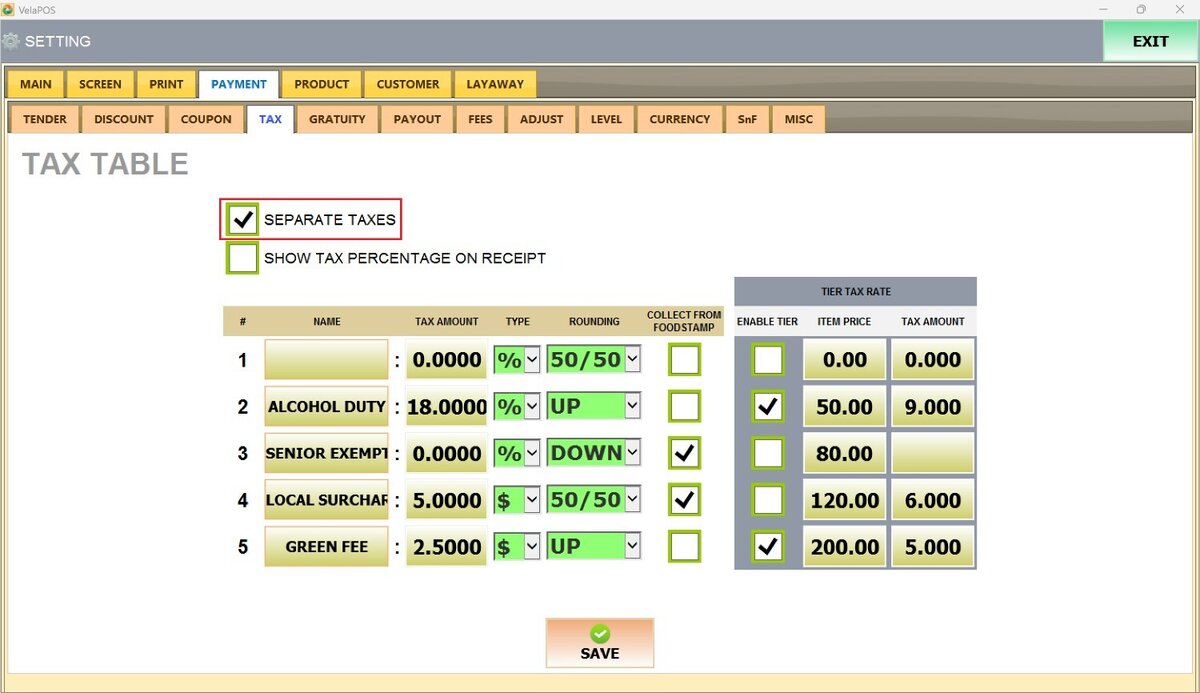
Result:
Taxes are shown separately rather than grouped together.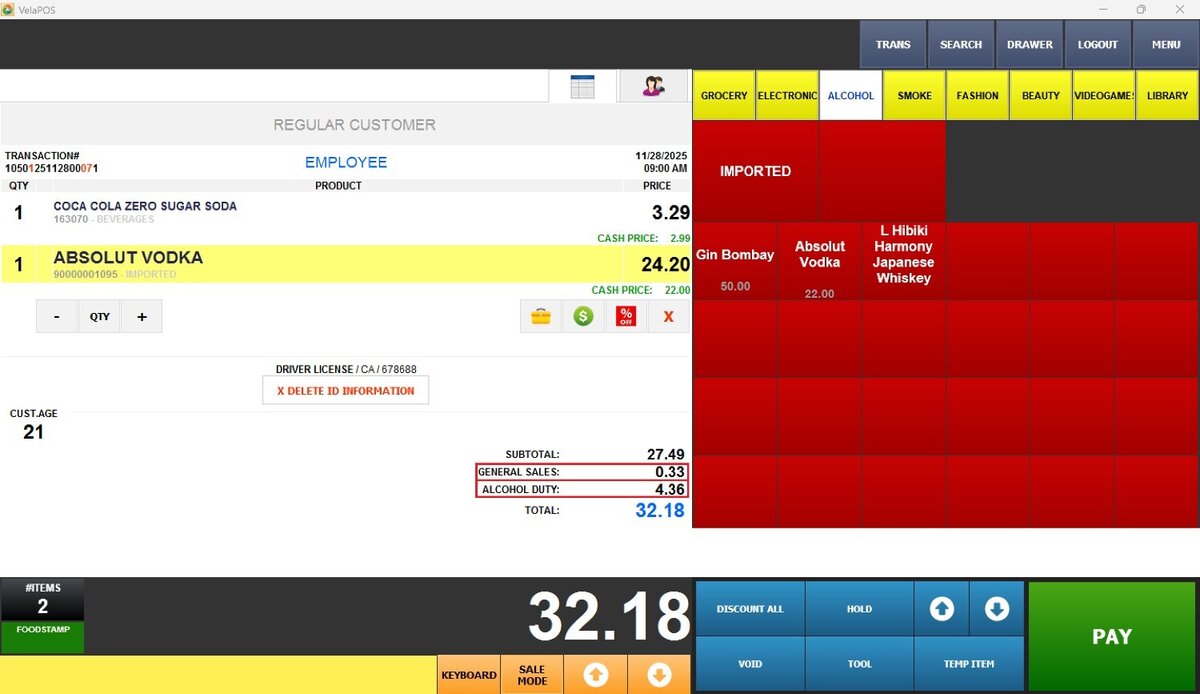
SHOW TAX PERCENTAGE ON RECEIPT
Controls whether the tax rate is displayed next to each taxed item on the printed receipt.
Check the box to enable this option.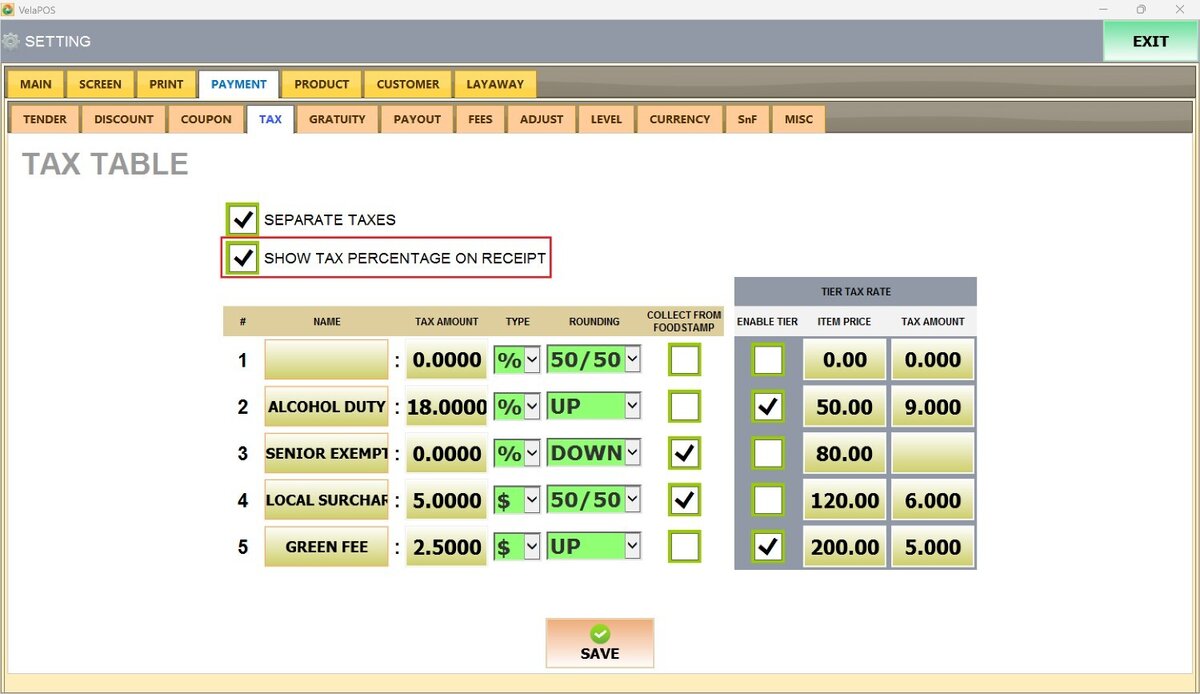
Result:
The tax percentage is shown next to each applicable item on the receipt.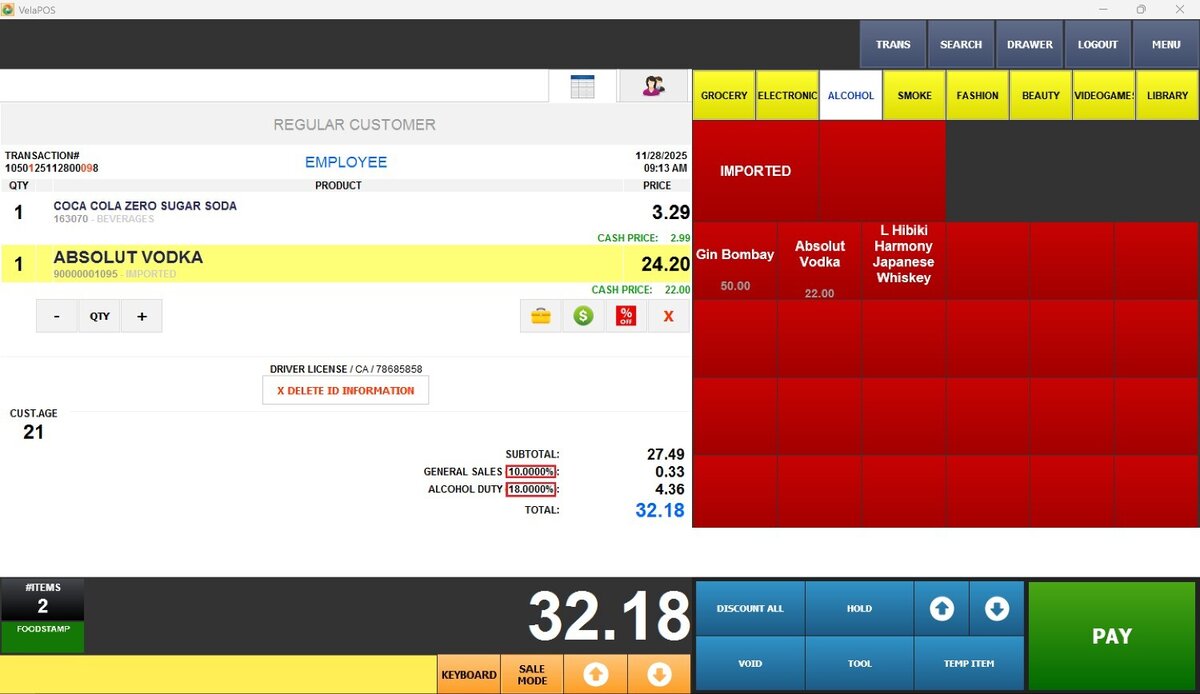
Tax Table Fields
Use this section to create and configure taxes from scratch.
NAME
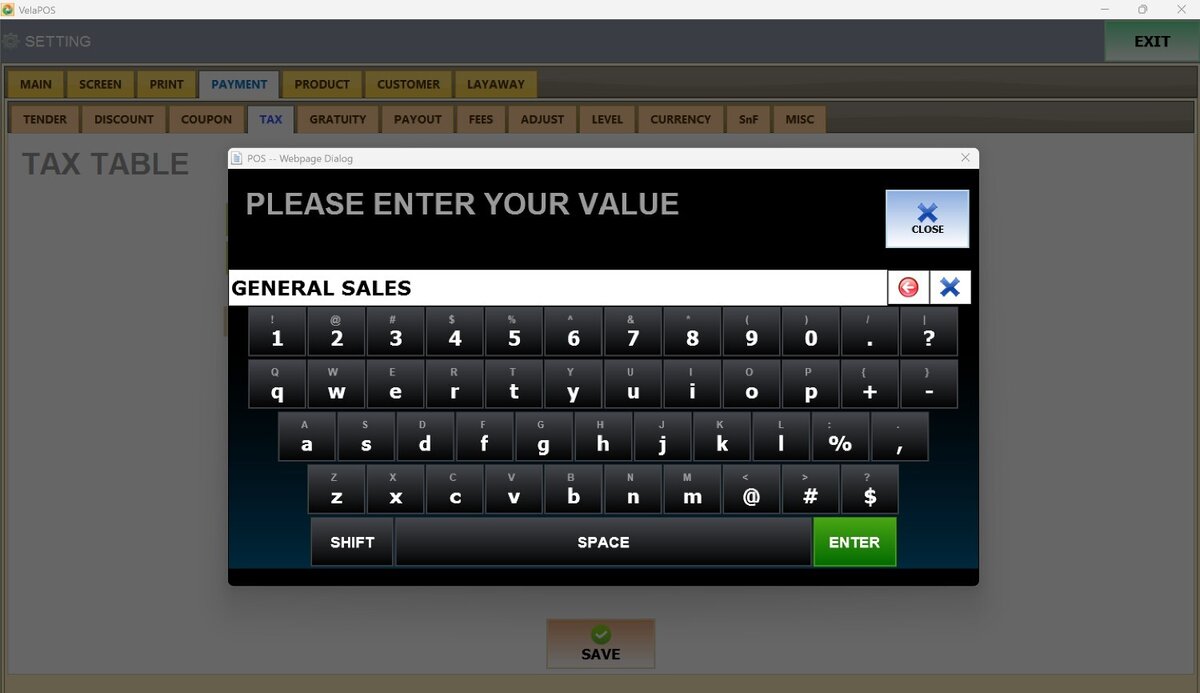
The label used to identify the tax. Tap the empty field.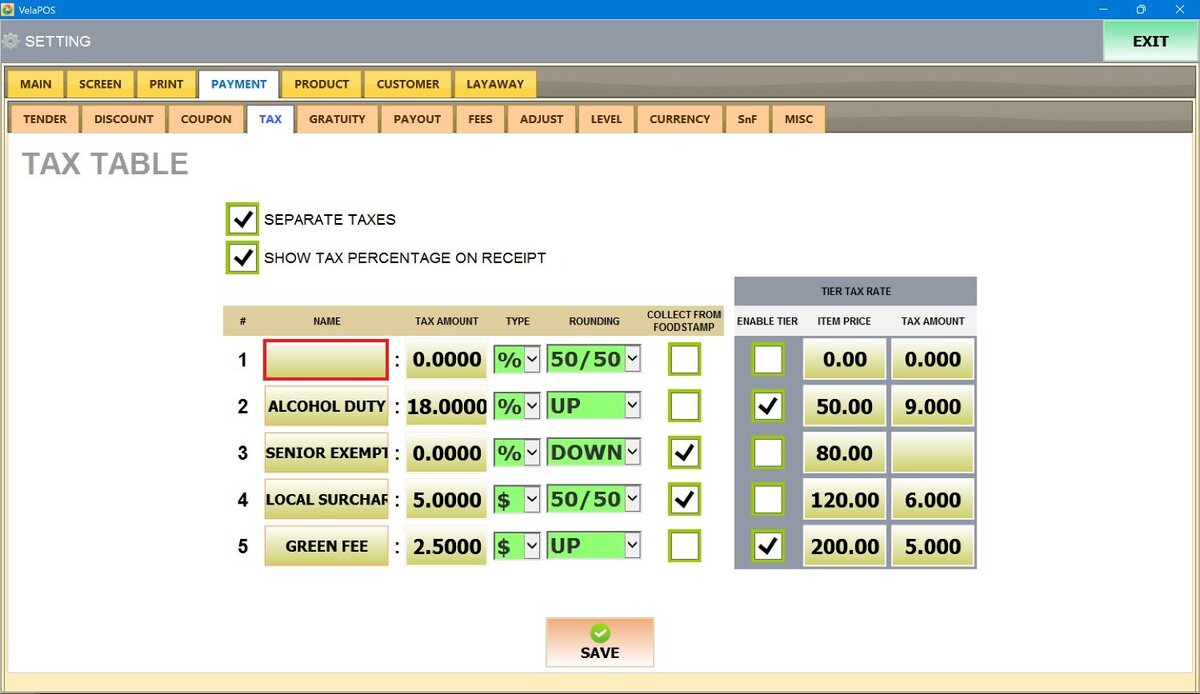
Enter the tax name and press ENTER
TAX AMOUNT
The percentage or fixed amount applied to the product. Tap the field.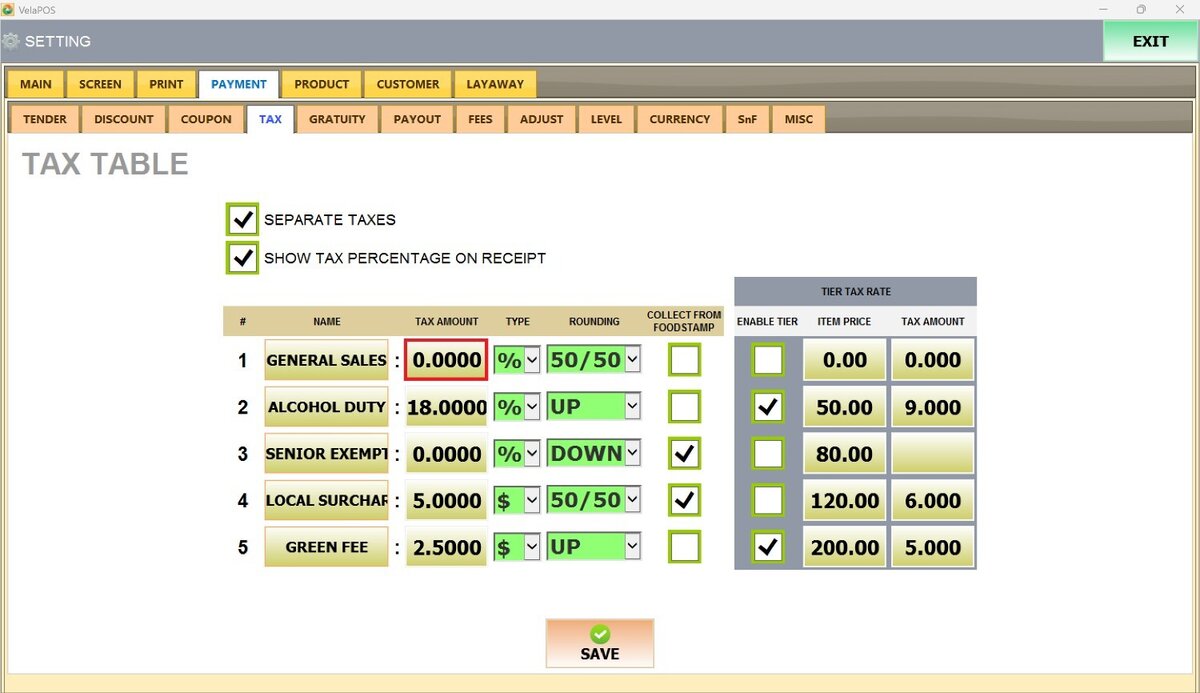
Enter the tax amount and press DONE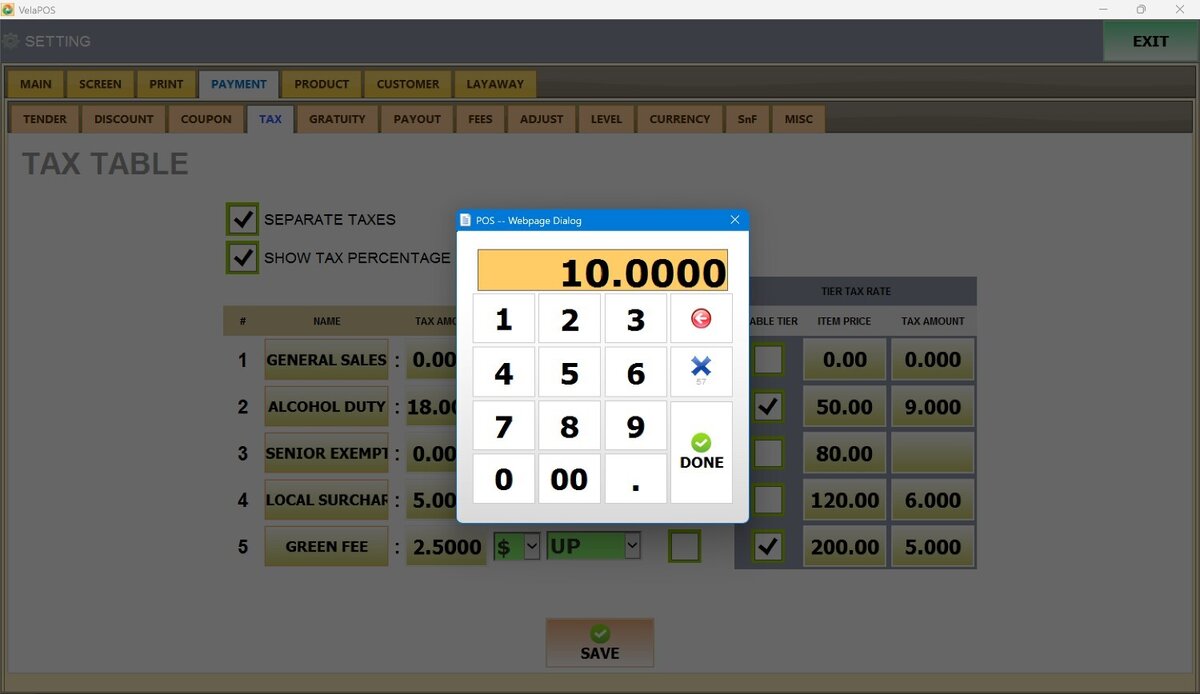
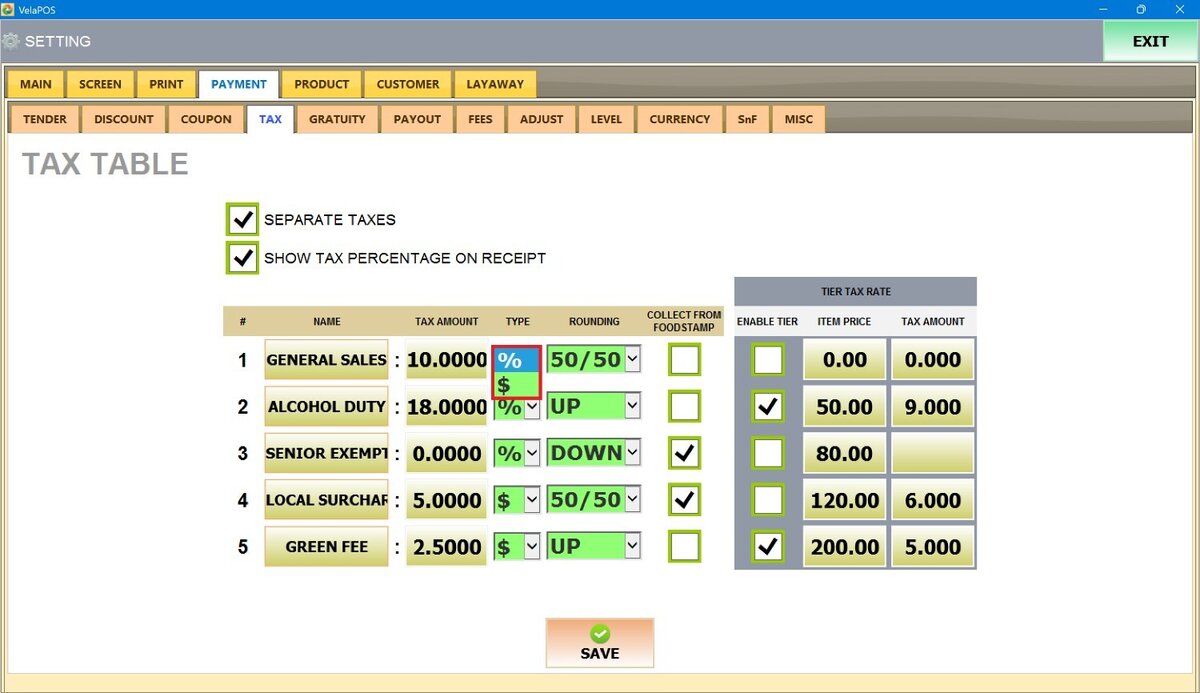
TYPE
Defines whether the tax is applied as a percentage or a fixed dollar amount. In the TYPE column, open the drop-down menu and select Dollar or Percentage.
ROUNDING
Determines how the tax amount is rounded.
In the ROUNDING column, open the drop-down menu and select one of the following:
1. 50/50: Standard rounding. Values of 0.5 or higher round up; values below 0.5 round down.
2. UP: Always rounds the tax amount up.
3. DOWN: Always rounds the tax amount down.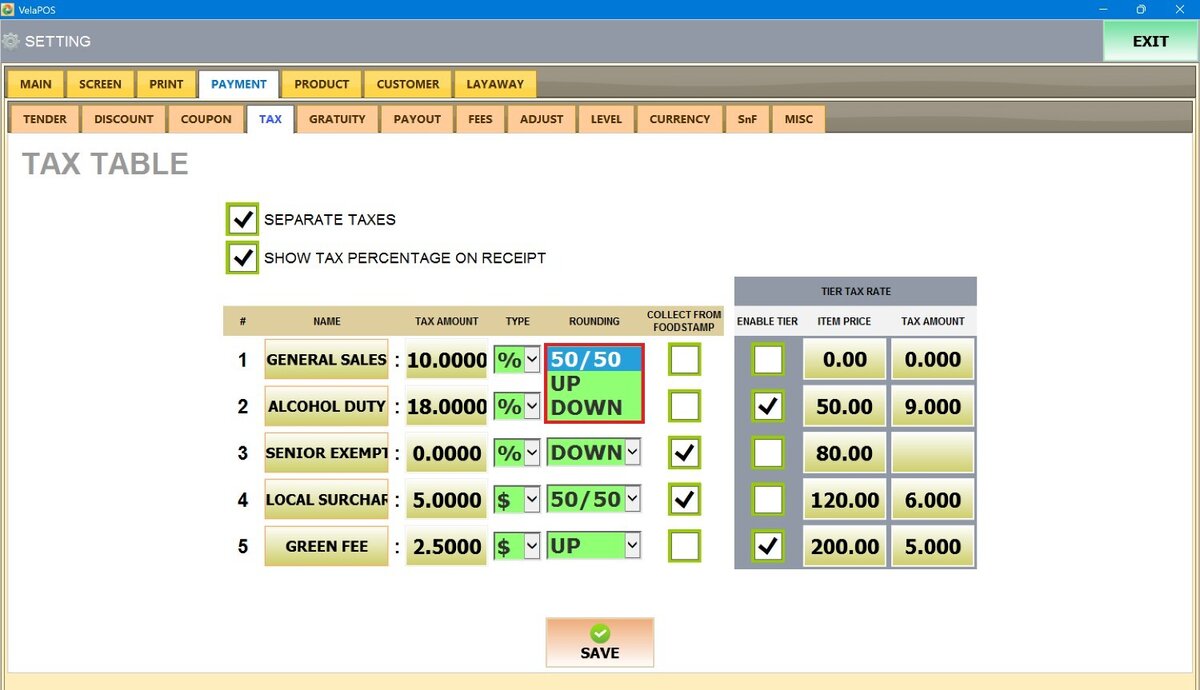
COLLECT FROM FOODSTAMP
Controls whether taxes are applied to EBT-eligible items.
If the box is left unchecked, Taxes are excluded during EBT transactions.
When the box is checked, Taxes are still collected on items purchased with EBT.
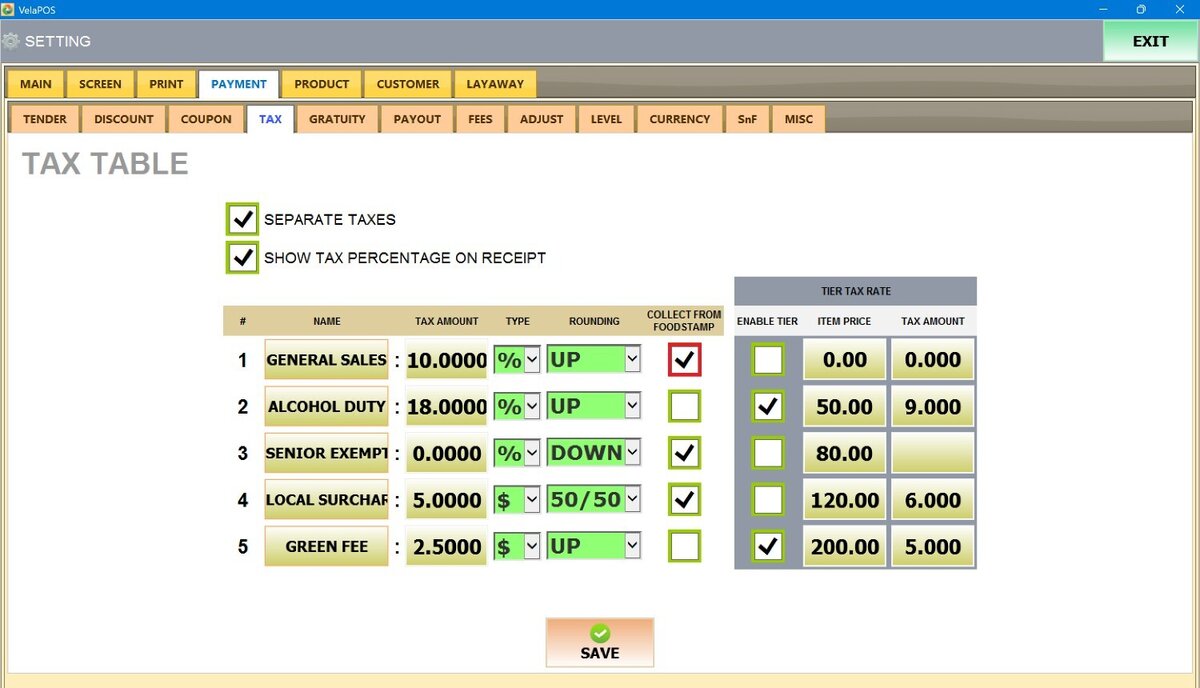
TIER TAX RATE
Allows you to apply an additional percentage based tax to items that are already taxed within their category. This is commonly used for higher priced items that require an extra tax percentage based on specific price tiers.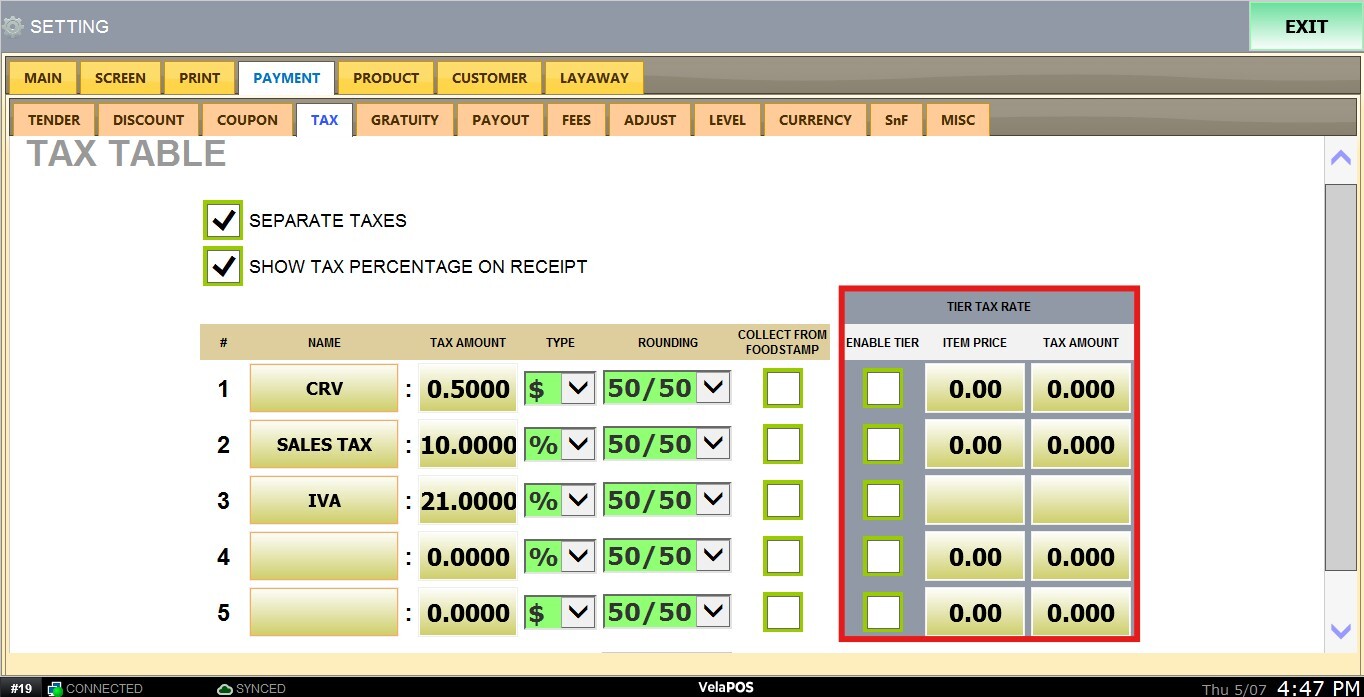
Enable Tier
Check the box to activate the tiered tax rates.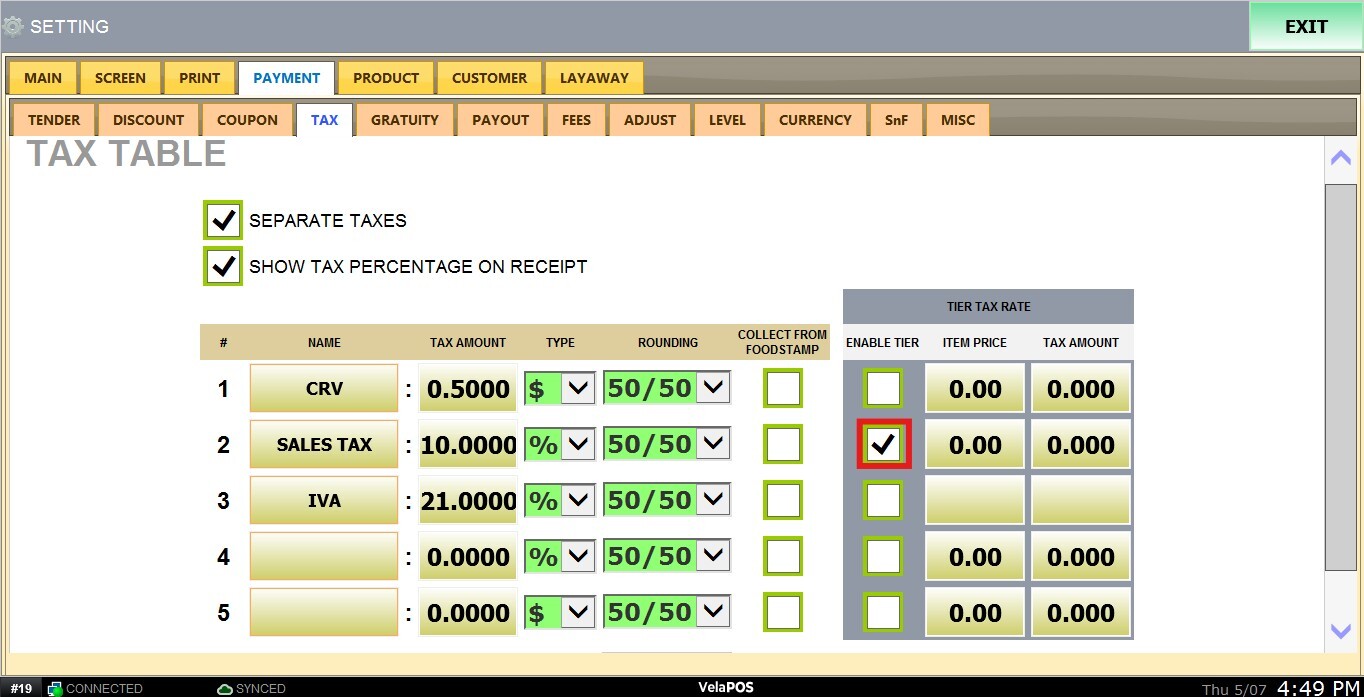
Item Price
Tap the empty field, enter the item price threshold, and press DONE.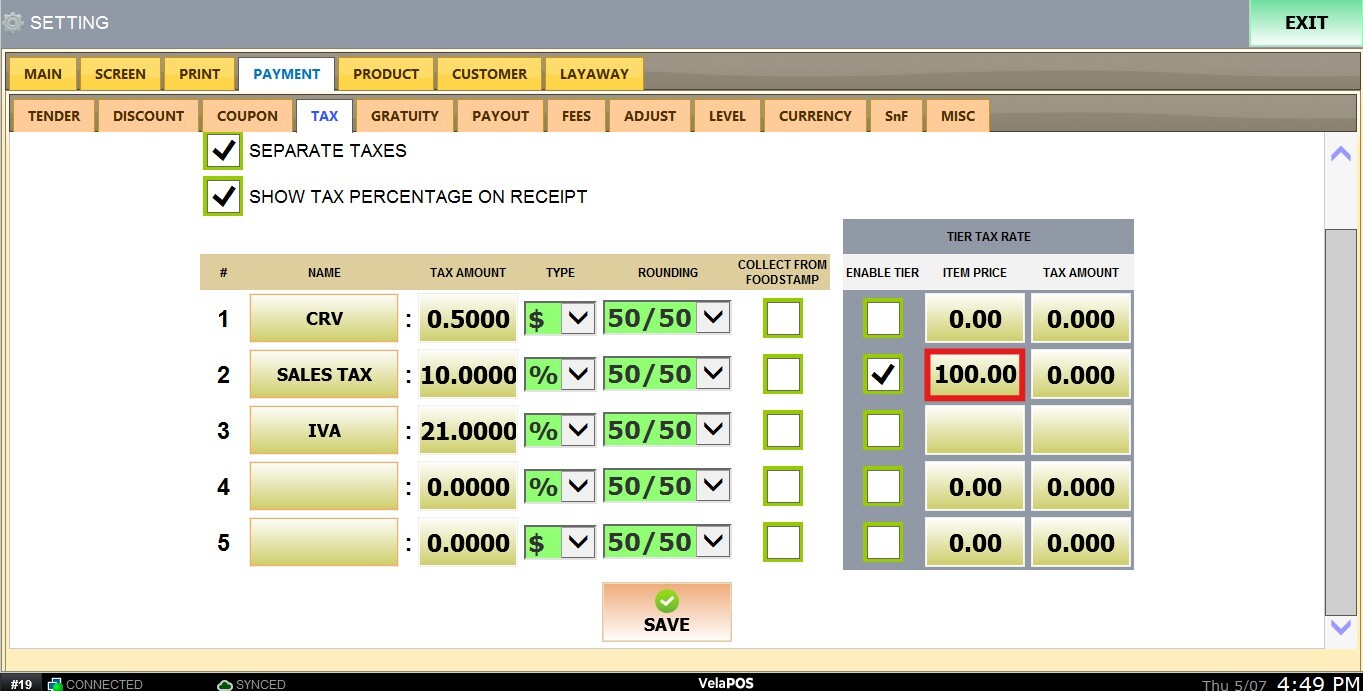
Tax Amount
Tap the empty field,enter the tax amount for that tier, and press DONE.
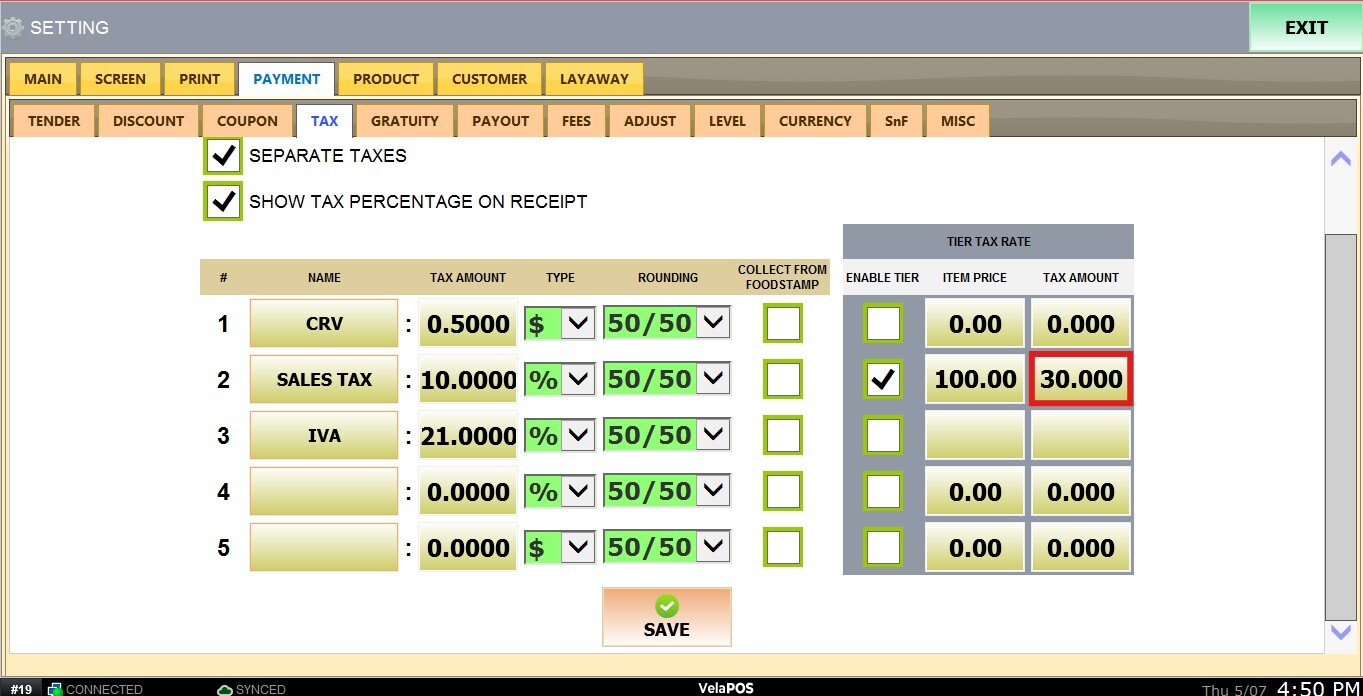
Result:
When an item’s price exceeds the configured threshold (for example, $100), the system automatically applies the additional tax rate (such as 30%) assigned to that tier.
When the price is under the amount defined ($100).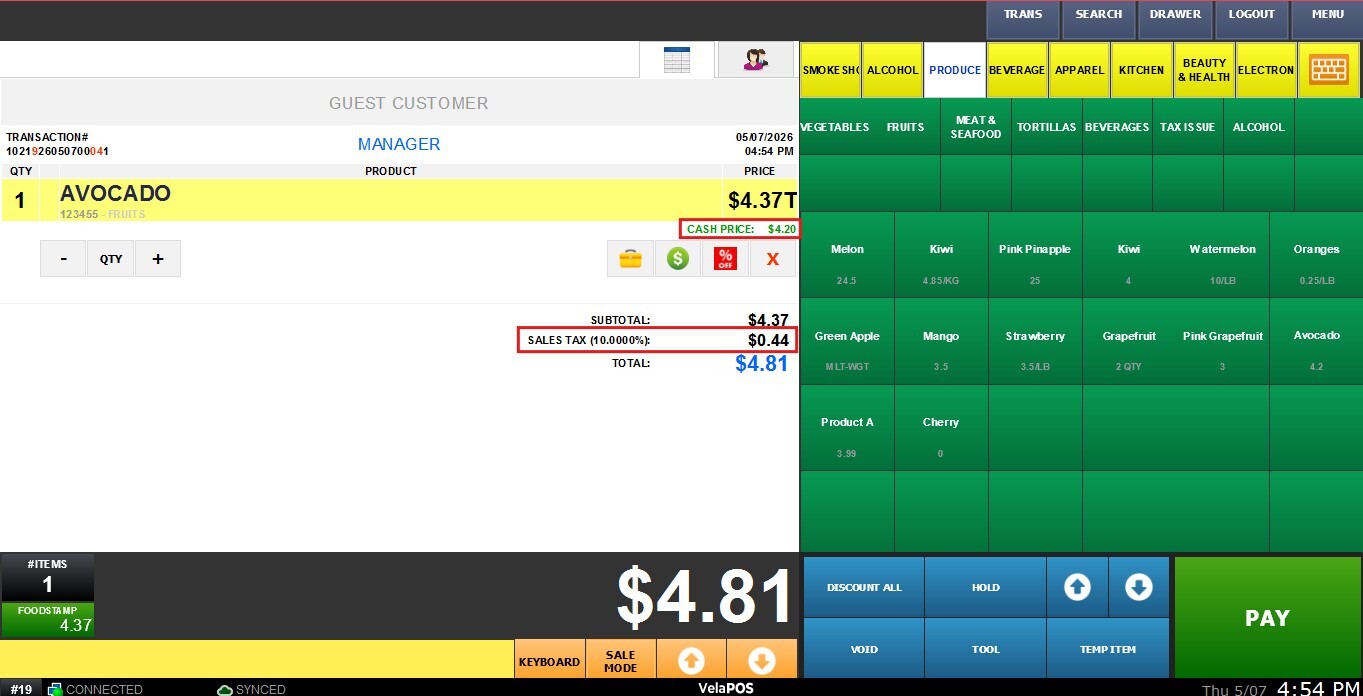
When the price exceeds the amount defined ($100).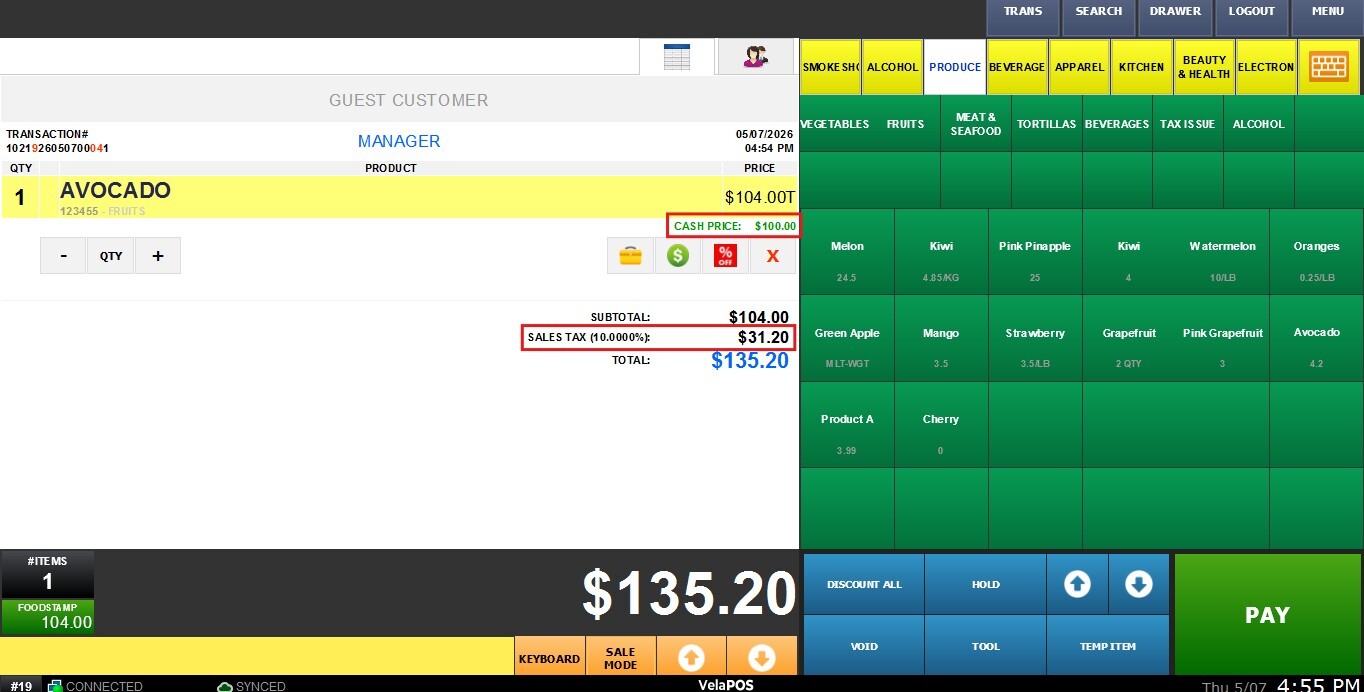
After completing all configurations, press SAVE and RESTART THE PROGRAM to ensure the changes are applied correctly.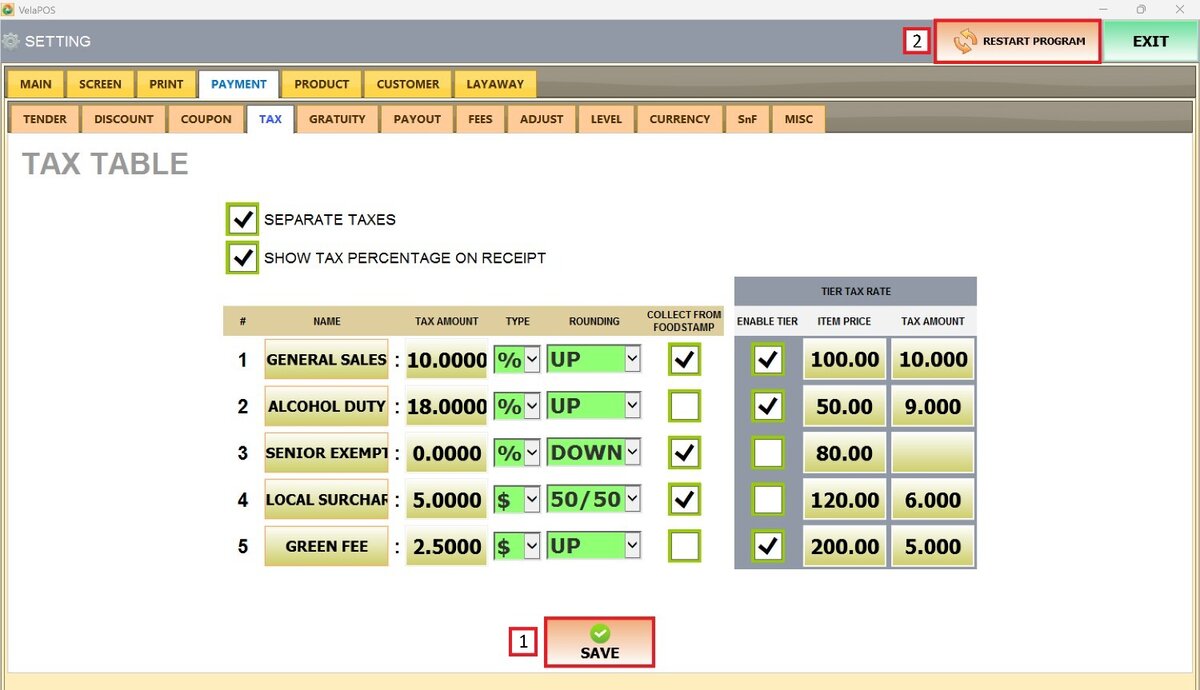
Note: To apply taxes to a specific item, refer to Item Tax Setup. To apply taxes to an entire category, see Category Tax Setup.